
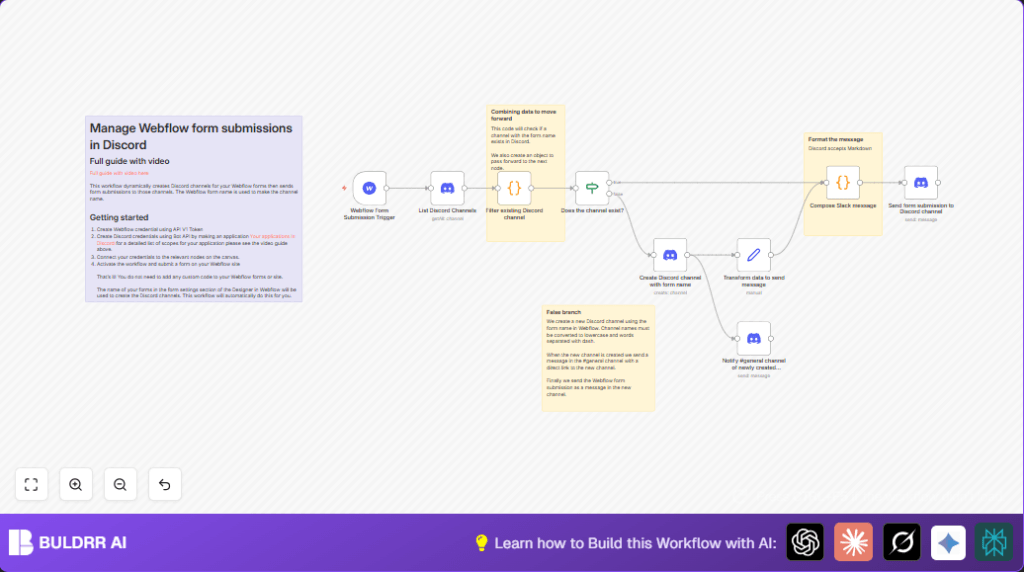

What This Automation Does
This workflow takes each new form submission from a Webflow site and sends it into a special Discord channel named after the form.
It looks at all channels in the Discord server, checks if one matching the form name exists, and creates one if needed.
Then it posts the form data there as a neat message.
This helps teams keep form replies sorted automatically without manual copying or missing messages.
Tools and Services Used
- n8n: Automation platform where the workflow is built.
- Webflow API V1: Supplies form submission data through webhooks.
- Discord Bot API: Used to read, create channels, and post messages in Discord.
Workflow Inputs, Processing, and Outputs
Inputs
- New form submission event triggered by a Webflow site’s form.
- Guild ID of the Discord server where channels are managed.
Processing Steps
- Transform the Webflow form name into a lowercase hyphenated string.
- Get all Discord channels in the guild and check if one matches the transformed form name.
- If no match, create a new Discord channel with that name.
- Notify #general channel in Discord about the new channel creation.
- Format the form submission data as a Markdown message.
- Send the formatted message to the matched or newly created Discord channel.
Outputs
- New or existing Discord channel named after the form.
- Discord messages posted with clear form submission data.
- Notification message in #general channel when a new channel is created.
Beginner Step-by-Step: How to Use This Workflow in n8n Production
Import Workflow
- Download the workflow file using the Download button on this page.
- In the n8n editor, click on the top-right menu and choose “Import from File.”
- Select the downloaded workflow file and load it into the editor.
Configure Credentials and IDs
- Add your Webflow API credentials with your API Key inside the loaded Webhook node.
- Insert your Discord Bot credentials in all Discord nodes.
- Set your Discord guild (server) ID in the node fetching all channels and creating channels.
- Update the #general channel ID in the notification Discord node if needed.
Test and Activate
- Run a test form submission from your Webflow site to trigger the workflow.
- Verify if the workflow creates or uses the correct Discord channel and posts the message.
- Once confirmed, activate the workflow using the activation toggle in n8n.
- Make sure the webhook URL remains set in your Webflow form settings.
You can find helpful advice on self-host n8n to run the automation securely on your server.
How the Workflow Works: Detailed Process
The workflow starts by waiting for any new submission from Webflow forms.
Once a submission comes in, it gets the name of the form and turns its text to lowercase with words joined by dashes.
Next, it asks Discord for a full list of channel names in the server.
A small code node scans the list to see if a channel with the exact transformed name is already there.
If yes, it moves directly to send the form data message there.
If no, the workflow creates a new channel with the form’s name as a new Discord channel.
When a new channel is made, it sends a simple notification message in the #general channel. That message tags the new channel so team members find it easily.
Before sending the form data, another code node turns all form key-value pairs into a neat Discord markdown message.
Each form field is bolded, with values below for clarity.
Finally, the workflow posts the formatted message to the right Discord channel, keeping feedback organized and easy to reach.
Customization Ideas
- Change the form name formatter in the code to fix special character handling.
- Update the message markdown style to add emojis or clickable links.
- Add permission or role assignments for new Discord channels by enhancing the Bot settings.
- Modify the notification content sent to #general to include timestamps or user info.
Troubleshooting Common Issues
Channel Existence Check Always False
If the workflow never finds a matching channel, check the code that formats the form name and compare it to actual Discord channel names.
They must match including lowercase and dashes exactly.
Discord API Permission Errors
Errors may happen if the Discord Bot lacks permissions to create channels or send messages.
Verify the bot has ‘Manage Channels’ and ‘Send Messages’ permissions in the Discord Developer Portal and your server settings.
Pre-Production Checklist
- Test that the Webflow webhook triggers correctly on test form submissions.
- Confirm that the Discord Bot credentials are valid and guild ID matches your server.
- Check that channel creation and message sending work using test forms with new and existing names.
- Preview message formatting in Discord channels.
- Backup the workflow before activating it live.
Summary
✓ Saves manual effort by automatically sorting Webflow forms into Discord channels.
✓ Prevents losing form submissions by posting them as messages in relevant channels.
✓ Organizes team communication with notifications in the general channel.
✓ Provides clear, readable message format for easy feedback review.
✓ Easy to set up by importing and configuring in n8n with no coding needed after.
