

What this workflow does ⚙️
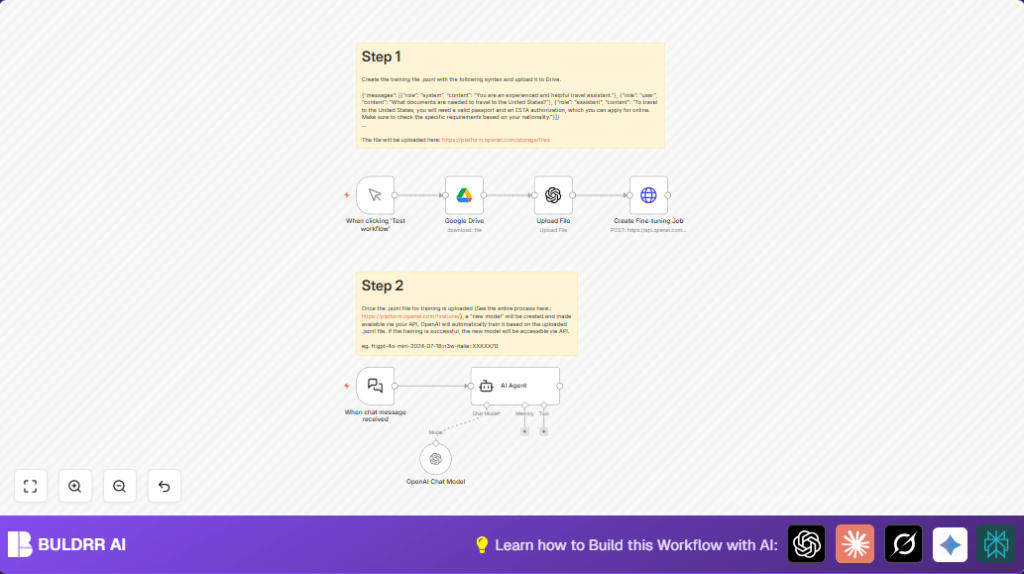
This workflow helps you automate fine-tuning OpenAI models by connecting Google Drive and OpenAI APIs inside n8n.
It removes manual file downloading, uploading, and configuring fine-tune jobs.
The result is faster, less error-prone custom AI training.
It downloads a ready training file from Google Drive.
Uploads the file to OpenAI marked as fine-tune data.
Then it starts a fine-tuning job using the uploaded file and your chosen base model.
Optionally, it sets up an AI Agent to use the fresh fine-tuned model for chat or other use cases.
You can run it manually or trigger chat responses in real-time.
Why use this workflow
This helps users who must train OpenAI models often and hate spending hours copying files and making mistakes.
It makes fine-tuning repeatable and reliable so updates come quickly.
You do not need to remember file IDs or configure fine-tune API calls by hand.
It safely connects your Google Drive to OpenAI and reduces errors.
Tools & Services used
- n8n: Automation platform hosting the workflow and nodes.
- Google Drive API: Storage provider to hold .jsonl training files.
- OpenAI API: Upload files and create fine-tuning jobs.
- OpenAI Chat Models: Optional chat model for AI Agent integration.
Inputs → Processing → Output
Inputs
- .jsonl fine-tuning training data saved on Google Drive.
- OpenAI API key to authorize file upload and job creation.
- Google Drive OAuth2 credential with file read permission.
- Manual trigger to start the workflow execution.
Processing Steps
- Fetch the specified training file from Google Drive by its ID.
- Upload that file to OpenAI with purpose set to ‘fine-tune’.
- Create a fine-tuning job by referencing the uploaded file ID and a base model.
- Optionally configure AI Agent with fine-tuned model ID for chat uses.
Output
- A started fine-tuning job in OpenAI linked to the uploaded dataset.
- If set, an active AI Agent ready to chat with the new model.
Beginner step-by-step: How to use this workflow in n8n
1. Download and Import
- Click the Download button on this page and save the workflow file.
- Open n8n editor and use the Import from File option to bring in the workflow.
2. Configure Credentials
- Add your Google Drive OAuth2 credentials with access to training files.
- Add OpenAI API Key credentials for file upload and fine-tuning.
3. Update Workflow Parameters
- Change the File ID in the Google Drive node to your training file’s ID.
- Adjust the base model name in the HTTP Request node if you want to use a different model.
4. Test and Activate
- Run the workflow once using the manual trigger to check for errors.
- When all works, activate the workflow for production runs.
You can start fine-tuning by clicking the trigger or extend the workflow with timed triggers or webhooks.
If you want to self host n8n, see self-host n8n for resources.
Inputs and Outputs Details
Input is a training file stored as .jsonl on Google Drive.
It contains training examples formatted as JSON objects for fine-tuning.
The output is a fine-tuning job created in OpenAI using the uploaded file.
You get a job ID and can watch the fine-tuning progress in OpenAI’s dashboard.
Optionally, you can get an AI Agent ready to use the fine-tuned model for chat after training.
Customization Ideas ✏️
- Make the File ID dynamic by using expressions or variables in the Google Drive node.
- Allow passing different base model names into the HTTP Request node for diverse fine-tune bases.
- Add checks after uploading the file to confirm success before creating a fine-tune job.
- Expand AI Agent prompts with multiple roles for different use cases.
Troubleshooting 🔧
- File not found error in Google Drive node: Check if File ID is correct and OAuth2 credentials allow reading files.
- Authorization issues in HTTP Request to OpenAI: Verify OpenAI API key and HTTP header setup in credentials.
- Error creating fine-tuning job: Make sure the training_file ID is correctly linked from upload output and model name is valid.
Pre-Production Checklist ✅
- Confirm .jsonl file is well formatted for OpenAI fine-tuning.
- Check Google Drive OAuth2 has right scopes.
- Run manual triggers to test file download and upload.
- Verify HTTP Request node returns fine-tune job creation success.
- Keep backups of training files and versions.
Deployment Guide
Turn on the workflow inside n8n after configuration and testing.
Start fine-tune jobs by manual triggers or schedule them for recurring training.
Watch OpenAI API dashboard for usage and errors.
Use n8n’s logs to check workflow run results and debug if needed.
Conclusion
Using this workflow makes updating fine-tuned OpenAI models faster and safer.
It removes manual mistakes and saves you hours each time you want a new model.
After setting it up, you can add features like data preprocessing, notifications on job completion, or multi-model support.
Keep improving to get the best fine-tuning experience with n8n.
Sample Training File Format
Here is how a basic .jsonl file looks for this workflow’s expected input:
{"messages": [{"role": "system", "content": "You are an experienced and helpful travel assistant."},
{"role": "user", "content": "What documents are needed to travel to the United States?"},
{"role": "assistant", "content": "To travel to the United States, you will need a valid passport and an ESTA authorization, which you can apply for online. Make sure to check the specific requirements based on your nationality."}]}
OpenAI Fine-Tune Job Creation Example
The body used in the HTTP Request node to start fine-tuning looks like this:
{
  "training_file": "{{ $json.id }}",
  "model": "gpt-4o-mini-2024-07-18"
}
Summary of Results
✓ Automate file download from Google Drive.
✓ Upload training files directly to OpenAI marked for fine-tune.
✓ Create fine-tune job automatically, removing manual setup.
✓ Optional AI Agent ready for use with fine-tuned model.
→ Saves hours of repetitive work.
→ Reduces human errors.
→ Accelerates custom AI model updates.
