

What This Automation Does
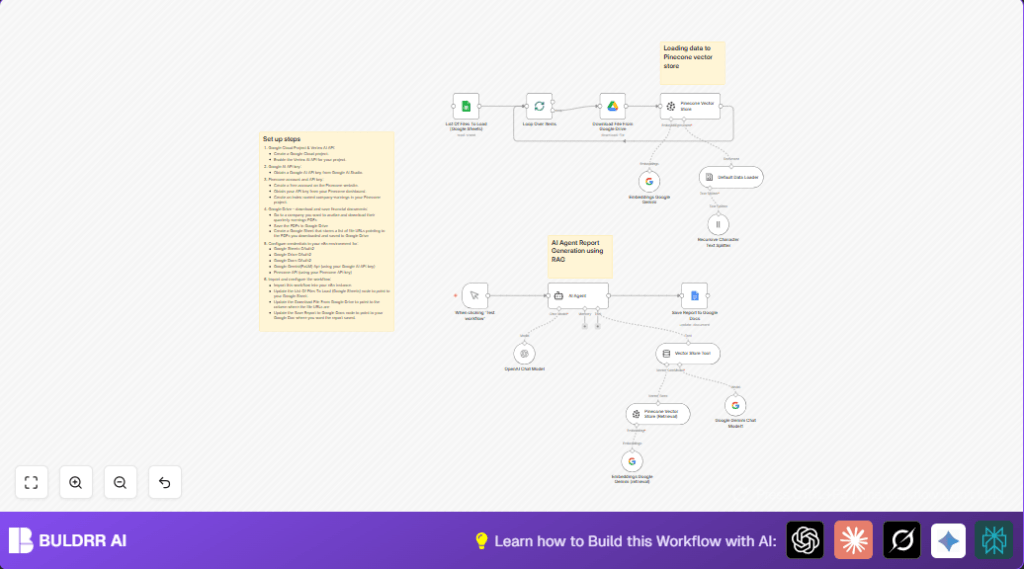
This workflow reads and analyzes several quarterly earnings PDF reports stored in Google Drive.
It finds key financial facts like revenue and profits fast by turning report text into searchable data.
Then it writes a clear, detailed report in Google Docs summarizing recent quarters.
This helps financial analysts save time and get accurate insights without reading each PDF manually.
Who Should Use This Workflow
This automation fits users who need to quickly review multiple financial reports.
It is good for finance teams, analysts, or managers who want useful summaries in minutes.
No heavy technical skill needed. It helps avoid manual reading or errors when handling many PDFs.
Tools and Services Used
- Google Drive: Stores PDF earnings reports.
- Google Sheets: Holds URLs of PDFs to process.
- n8n Automation Platform: Runs the workflow and connects services.
- Google Gemini Embeddings: Converts text chunks into searchable vector data.
- Pinecone Vector Database: Stores embeddings for fast semantic search.
- OpenAI and Google Gemini Chat Models: Generate detailed financial reports in markdown.
- Google Docs: Saves final report for editing and sharing.
Beginner Step-by-Step: How to Build This in n8n
Download and Import Workflow
- Download the workflow JSON file using the Download button on this page.
- Inside the n8n editor, click on “Import from File” and upload the downloaded workflow file.
Configure Credentials and IDs
- Add Google OAuth2 credentials for Sheets, Drive, and Docs in n8n’s credentials manager.
- Enter the Google Gemini (PaLM) API key into its proper credential node.
- Enter your Pinecone API key and verify the index name is company-earnings.
- Update the List Of Files To Load (Google Sheets) node with your Google Sheets Document ID and Sheet Name containing PDF URLs.
- In the Download File From Google Drive node, confirm File ID is set to use the “File URL” value from the Sheets node.
- In the Save Report to Google Docs node, specify the Google Doc ID where the report will be saved.
Test and Activate Workflow
- Run the workflow manually using the “Test workflow” trigger to check it runs without errors.
- Review the generated report in Google Docs to confirm data is accurate and well formatted.
- Activate the workflow to run on-demand or schedule it as needed for production use.
If self hosting n8n, consider self-host n8n for better control over automation runs.
Workflow Inputs, Processing, and Output
Inputs
- PDF earnings reports stored on Google Drive.
- Google Sheets document listing URLs of PDF files to analyze.
Processing Steps
- The workflow reads the URLs from Google Sheets and downloads each PDF file from Google Drive.
- The PDFs are loaded as binary data and split into smaller text parts for embedding generation.
- Google Gemini embeddings convert these chunks into vector data that describes the content meaning.
- All embeddings are stored and indexed in the Pinecone vector database under the company-earnings index.
- The AI agent queries Pinecone to find relevant info about financial metrics like revenue trends and profits.
- The agent generates a report in markdown using Google Gemini and OpenAI chat models.
Output
- The final, detailed quarterly earnings report is saved in a Google Doc specified by the user.
Customization Ideas
- Change the company by updating the AI agent prompt text inside the workflow.
- Add more quarters or other companies by adding PDF URLs to the Google Sheets list.
- Focus the report on specific sections, such as cash flow or management commentary, by adjusting the AI system message prompt.
- Add charts or tables by enhancing the Google Docs node or post-processing the markdown output.
Troubleshooting Common Problems
Authentication failed for Google APIs
This happens when OAuth2 credentials are missing or wrong.
Fix this by updating Google API credentials in n8n and making sure the right API scopes are authorized.
Pinecone Index Not Found
Occurs if the company-earnings index is not created or misspelled in Pinecone.
Create the index in Pinecone dashboard with the exact name and update API keys as needed.
No data returned from Google Sheets
Error caused by wrong Sheet Name or Document ID in the Sheets node.
Check sheet names and test the node separately to confirm.
Pre-Production Checklist
- Confirm Pinecone company-earnings index is active with data loaded.
- Test Google Sheets node to ensure PDF URLs are fetched correctly.
- Make sure Google Drive permissions allow downloading target PDF files.
- Run a manual test trigger and receive a proper markdown report from the AI Agent.
- Verify the report updates correctly in the specified Google Doc.
Deployment Guide
Enable the workflow in n8n and set it to run on-demand or on a schedule.
Use the manual trigger for initial testing before full automation.
Watch execution logs to catch and fix errors fast.
Track API usage carefully to avoid exceeding limits, especially for Google Gemini and Pinecone calls.
Summary of Benefits and Outcome
→ Automates reading and analysis of multiple quarterly earnings PDFs.
→ Cuts analysis time from many hours to just minutes.
→ Returns detailed, accurate financial reports using semantic search and AI.
→ Saves reports directly into Google Docs for convenient access and editing.
