
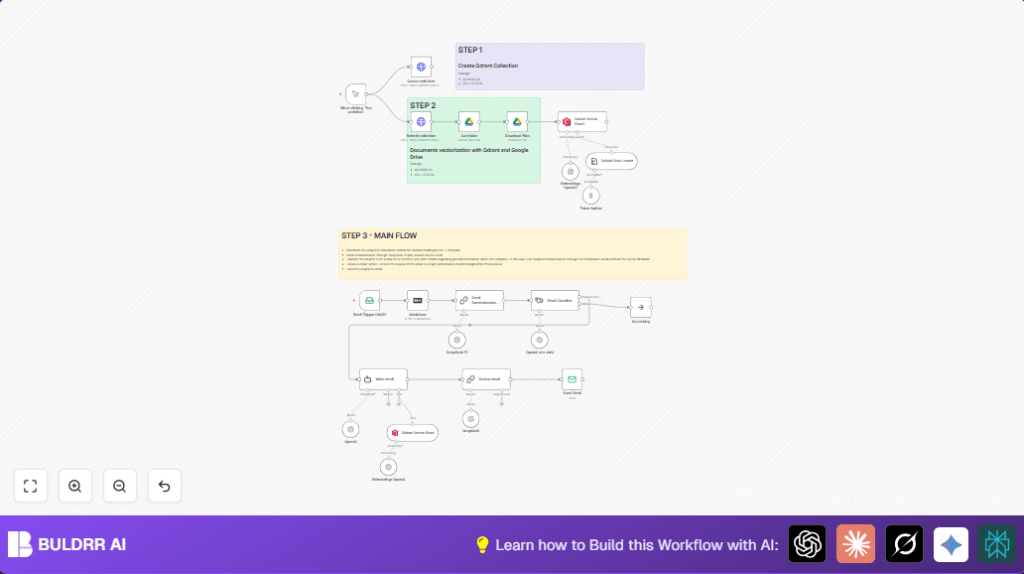

What this workflow does
This workflow reads incoming emails asking about company info in your tech store. It then turns the email text into a short summary, checks if it is a company info query, finds related knowledge from a database, and writes a clear reply email. Finally, it sends the reply automatically to the person who wrote the email.
It solves the problem of spending too much time answering many detailed questions by hand. The result is faster, more accurate, and consistent answers that make customers happy.
Who should use this workflow
This workflow is for business owners or support teams who get lots of complex emails asking about store opening hours, products, deliveries, discounts, and company programs. If writing replies takes hours or sometimes misses info, this workflow helps.
It works best where questions are varied but related, and a knowledge base exists to answer them.
Tools and services used
- n8n: Automation platform running the workflow.
- IMAP Email Trigger node: Listens for new emails.
- Markdown node: Converts email HTML to markdown text.
- DeepSeek R1 AI model: Summarizes long emails into short points.
- Email Classifier node: Sorts emails into categories like “Company info request.
- Qdrant Vector Store: Searches a vector database holding company info documents.
- Write email node: Drafts a professional email reply using AI.
- Review email node: Improves the draft’s structure, correctness, and adds HTML formatting.
- SMTP Send Email node: Sends the final email reply automatically.
Inputs, processing steps, outputs
Inputs
- Incoming emails arriving at the store’s info email account.
- Company knowledge base stored in Qdrant vector database.
Processing steps
- Trigger runs on new email detection in Email Trigger (IMAP).
- Email HTML body converts to markdown using Markdown node.
- DeepSeek R1 AI node summarizes email content to under 100 words.
- Email Classifier node checks if email is a company info request.
- If matched, Qdrant Vector Store node performs a search for relevant info inside company knowledge base.
- Write email AI agent drafts a professional, concise reply using retrieved info.
- Review email node refines structure and adds HTML tags like <b> and <br> for clarity.
- Send Email node sends the reply email to the sender.
Output
The final output is a professional reply sent quickly to the original email sender with accurate and clear answers.
Beginner step-by-step: How to build this in n8n
1. Import Workflow
- Download the workflow file using the Download button on this page.
- Open the n8n editor where the workflow runs.
- Go to the top menu and click on “Import from File” to load the downloaded workflow.
2. Configure Credentials and Settings
- Add or update credentials for the Email Trigger (IMAP) and Send Email SMTP nodes with your email account details.
- Enter your OpenAI or OpenRouter API key in the AI-related nodes (DeepSeek R1, Write email, Review email).
- Set the Qdrant API Key and collection name in the Qdrant Vector Store node to match your knowledge base.
- If needed, update the email addresses, collection IDs, or prompts inside the nodes by copying and pasting any provided code or prompts in the node’s input fields.
3. Test the Workflow
- Send a test email to your info email account with a detailed company info question.
- Run the workflow manually or wait for it to trigger and check the node outputs to confirm it processed and replied.
4. Activate for Production
- Once confirmed working, activate the workflow to auto-run on new emails.
- Monitor the production run and review sent emails in your SMTP sent folder.
For those hosting their n8n installation themselves, consider using self-host n8n to keep this workflow running continuously and securely.
Customization ideas
- Add more categories in the Email Classifier node to handle sales, support, or other inquiries automatically.
- Replace DeepSeek R1 with other AI models like GPT-4 for different summary styles or languages.
- Regularly update your Qdrant knowledge base by adding new documents using Google Drive nodes and embedding models.
- Extend workflow to process email attachments and archive them or scan with AI.
- Adjust AI prompt texts in drafting and review nodes to support other languages or tone preferences.
Common issues and solutions
Problem: “Failed to Connect to IMAP Server”
Cause is usually wrong credentials or IMAP not enabled in the email account.
Check credentials in n8n’s credential manager and verify IMAP settings on your email provider’s site.
Problem: “No Emails Classified as Company Info Request”
The classifier’s system prompt or categories may not match incoming emails.
Edit and test the classifier prompt for exact category names and sample email texts.
Problem: “Unable to Retrieve Data from Qdrant”
Check if the Qdrant collection name is correct and API keys are valid.
Regenerate API credentials if expired and test connection again.
Summary of benefits
✓ Saves hours weekly by automating detailed email replies.
✓ Improves reply accuracy by using your company knowledge base.
✓ Sends professional, clear emails fast without manual effort.
✓ Helps keep customers satisfied with quick responses.
