
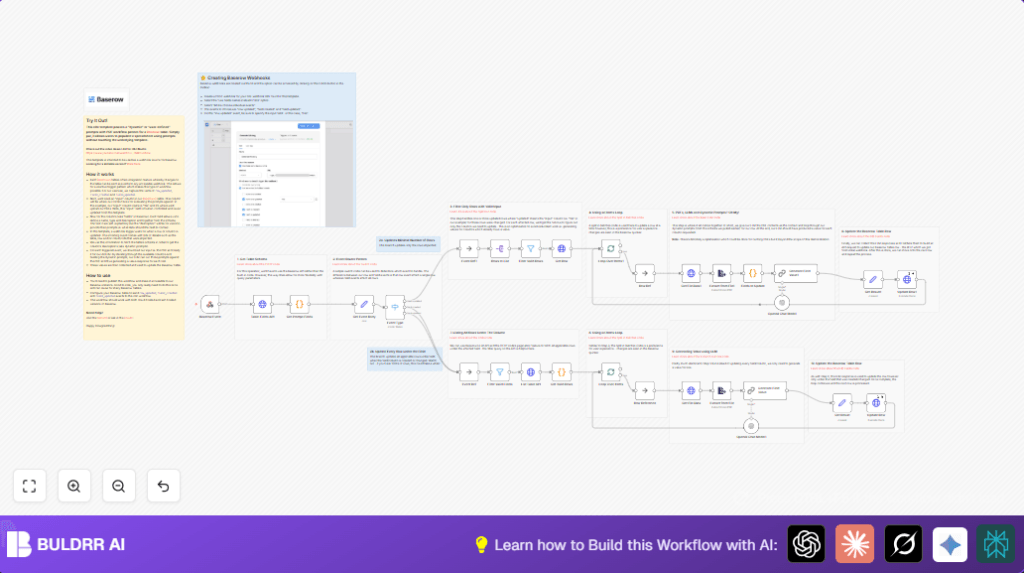

What This Workflow Does
This workflow helps you get important data from PDF files stored in your Baserow database and fill that data back into the right places automatically. It stops you from opening each PDF and typing by hand. When a PDF file or table field changes, the workflow uses AI to read the text from the file, understands what data to find by reading field descriptions, then updates the database with those values.
This saves you many hours, reduces mistakes, and keeps your data organized without extra effort.
Who Should Use This Workflow
This workflow is good for anyone managing many PDF files linked to Baserow tables where each PDF needs data extracted and added into table fields automatically.
You need to have a Baserow account, your tables set with file-upload fields, OpenAI API access, and n8n to run the automation.
Tools and Services Used
- Baserow API: To listen to changes and update data in your database.
- n8n Automation: Runs the workflow to manage data flow and API calls.
- OpenAI (ChatGPT): AI model that reads and understands the PDF text to generate the right field values.
- HTTP Requests: Used inside n8n to get PDF files and table schema information.
- File Extraction Node: Converts PDF files to text inside n8n.
Tip: If using self-host n8n, check self-host n8n for options.
Inputs, Processing Steps, and Outputs
Inputs:
- Webhook triggers from Baserow when rows or fields update.
- Table schema details including field descriptions as prompts.
- Attached PDF files from table rows.
Processing Steps:
- Receive webhook event, decide if it is about a row or a field update.
- Get table schema with field descriptions to build prompts for AI.
- Extract attached PDF files by downloading and converting them to text.
- Use OpenAI GPT model with each field’s prompt and PDF text to generate value.
- Update the Baserow row with these generated values.
- Repeat in batches if many rows need processing.
Outputs:
- Updated Baserow table rows filled with data extracted from PDFs, matching each field’s purpose.
Beginner Step-by-Step: How to Use This Workflow in n8n
1. Import the Workflow
- Download the workflow file using the Download button on this page.
- Open your n8n editor.
- Use “Import from File” to add the workflow to your n8n setup.
2. Configure Credentials and IDs
- Add your Baserow API Key and OpenAI API Key in n8n credentials.
- Check and update any table IDs, row IDs, or field names if needed inside the workflow nodes.
- Verify the webhook URL copied into Baserow matches the Webhook node path.
3. Test the Workflow
- Trigger events in Baserow like updating a row or adding a file to make sure the workflow runs and extracts data.
- Check the workflow execution inside n8n for any errors and correct them.
4. Activate for Production
- Switch the workflow status from draft to active.
- Make sure your n8n instance is reachable by Baserow (especially if self hosting n8n, see self-host n8n).
- Monitor workflow runs regularly to catch any problems early.
Common Edge Cases and Failures
- If Baserow webhook does not activate, check the URL and event subscriptions carefully.
- 401 Unauthorized errors point to problems with Baserow API or OpenAI API keys; update credentials in n8n.
- If AI returns “n/a” or irrelevant data, field descriptions (prompts) may be missing or unclear; add clear instructions to each field.
- Empty or missing file URL causes failures in downloading PDFs; make sure file upload fields are correct and contain data.
Customization Ideas
- Add support for other document types by adjusting the file extraction step (e.g., Word documents).
- Expand the number of table fields with descriptions to pull more data from PDFs.
- Change batch sizes in the workflow to balance speed versus API request limits.
- Cache PDF text extraction results to avoid repeated work on the same files.
- Swap OpenAI ChatGPT nodes with other language models supported in n8n if preferred.
Summary of Results
✓ Save hours by automating PDF data extraction.
✓ Reduce errors from manual data entry.
✓ Keep Baserow tables updated with structured, relevant data from unstructured PDFs.
→ Triggered updates run automatically on new file uploads or field changes.
→ AI uses dynamic prompts from your field descriptions to find exact information needed.
