

What This Workflow Does
This workflow automates an AI chat agent inside n8n.
It solves the problem of slow and disconnected customer support replies by adding context, live web search, and AI responses.
The result is faster, smarter answers sent back to users during chat.
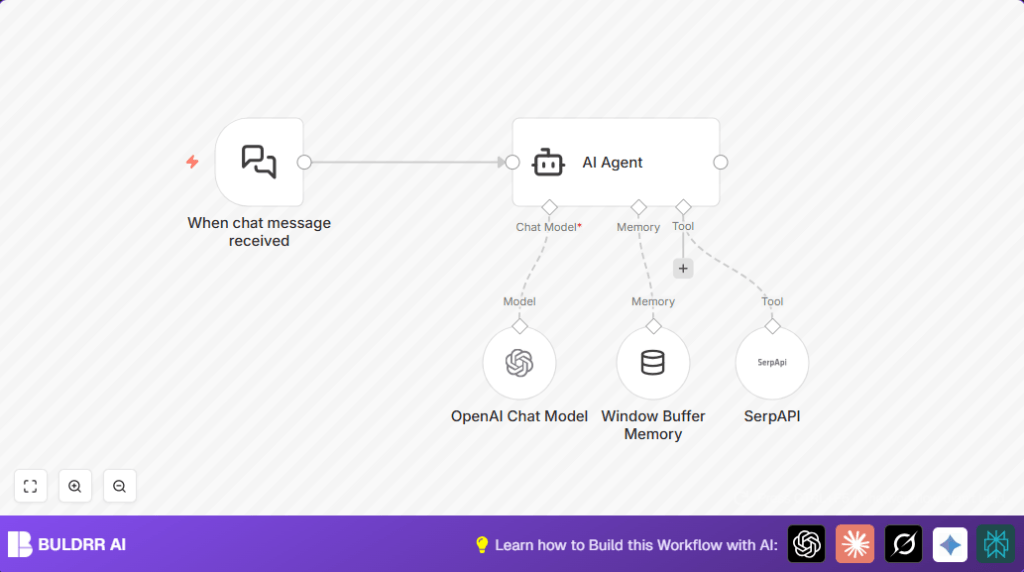
The workflow listens for messages, keeps track of conversation history, looks up fresh info on the web, and makes replies using the GPT-4o-mini model.
This saves time and improves customer satisfaction.
Tools and Services Used
- OpenAI GPT-4o-mini model: Generates chat replies based on user input and past context.
- SerpAPI: Provides live internet search results to keep answers current.
- LangChain nodes in n8n: Run the AI agent, memory, and tools inside the workflow.
- n8n Webhook: Receives chat messages from your chat platform.
Workflow Inputs, Processing, and Outputs
Inputs
- Incoming chat messages via webhook from external systems or clients.
- API keys for OpenAI GPT-4o-mini and SerpAPI for authentication.
Processing Steps
- Webhook node: Captures messages and starts the workflow.
- LangChain Agent node: Controls the AI flow and routes inputs to tools and memory.
- OpenAI Chat Model node: Uses GPT-4o-mini to create replies based on input and context.
- Window Buffer Memory node: Saves recent chat history for continuity.
- SerpAPI node: Fetches live web search results to enhance answers.
Outputs
- Context-aware, fast AI-generated chat answers.
- Answers enhanced with current internet information.
Beginner Step-by-Step: Using This Workflow in n8n Production
Step 1: Import Workflow
- Click the Download button on this page to get the workflow JSON file.
- Inside the n8n editor, select Import from File and upload the downloaded workflow.
- Make sure the workflow appears in your workspace.
Step 2: Configure Credentials
- Add your OpenAI API Key in the OpenAI Chat Model node credentials.
- Insert your SerpAPI Key in the SerpAPI node credentials.
Step 3: Update Settings
- If your chat platform or service uses IDs, channels, folders, or emails, update those in the Webhook or other nodes.
- If prompts or URLs exist in Input nodes, copy-paste those as needed.
Step 4: Test the Workflow
- Send a test chat message to the webhook URL shown in the Webhook node.
- Check workflow execution in n8n’s editor to see if the AI reply returns.
Step 5: Activate for Production
- Turn on the workflow at the top-right toggle in n8n to enable live processing.
- Connect your chat platform to send user messages to the webhook URL.
- Monitor logs for errors or traffic.
If running a high volume or wanting control over data, consider self-hosting n8n on your server.
Customizations
- Change AI model: Switch the OpenAI Chat Model node to use “gpt-4” or “gpt-3.5-turbo” for different costs or accuracy.
- Adjust memory: Change the window size in the Window Buffer Memory node to keep more or less conversation history.
- Add tools: Add new LangChain tools like Wikipedia or calculators by inserting those nodes and connecting them to the AI Agent’s
ai_toolinput.
Troubleshooting
SerpAPI “API key invalid” Error
This means the API Key entered in the SerpAPI node is wrong or expired.
Fix this by re-entering the correct key in the node credentials and testing again.
No Response from AI Agent
If no reply appears, often nodes are not connected properly.
Double-check that the AI Agent has its languageModel, memory, and tool inputs connected.
Pre-Production Checklist
- Verify the webhook URL is live and accessible from your chat app.
- Test sending basic prompts directly via OpenAI API.
- Check if SerpAPI returns results for test keywords.
- Confirm conversation memory works by viewing Window Buffer Memory output.
- Run sample chats fully to see continuous, relevant replies.
- Backup workflow JSON before making big changes.
Deployment Guide
After testing, switch your workflow ON in n8n editor.
Make sure your chat service points to the correct webhook URL to send messages.
Use the editor’s execution log tab to watch live activity and catch errors.
Consider setting alerts for failures or high error rates.
If more control is needed, use self-host n8n on a VPS.
Summary
→ You get a chat workflow that answers quickly and correctly with AI.
→ This workflow keeps dialogue context so answers make sense.
→ Answers factor in real-time internet info from SerpAPI.
✓ Saves your team many hours searching for facts.
✓ Helps your support stay accurate and responsive.
✓ Easy to customize with different models or tools.
