
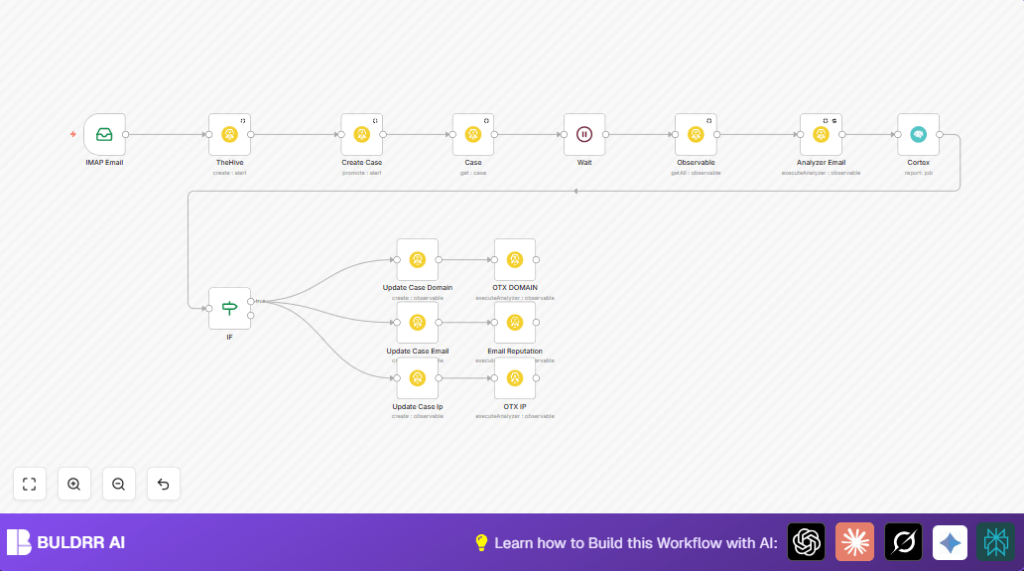

What This Workflow Does
This workflow automatically reads emails with attachments from an IMAP inbox.
It creates cases in TheHive using the email details and uploads attachments as artifacts.
It extracts observable data like domains, IP addresses, and emails from attachments.
Then it runs Cortex analyzers on these observables to find threats.
The case is updated with IOC details and reputation findings.
Special analyzers run on different IOC types based on conditional logic.
This helps save time, cut errors, and speed up threat detection from suspicious emails.
Who Should Use This Workflow
Security analysts dealing with many suspicious emails daily should use this workflow.
It fits teams using TheHive and Cortex platforms for case and IOC management.
Users wanting to automate email attachment analysis and IOC enrichment will find this helpful.
Tools and Services Used
- n8n: Automation platform connecting email and security tools.
- IMAP Email Account: Receives suspicious emails with attachments.
- TheHive: Threat case management system to create and update cases.
- Cortex: Executes analyzers on observables for threat intelligence.
- Self-host n8n: Optional for greater control and security (self-host n8n).
Workflow Inputs, Processing Steps, and Outputs
Inputs
- Emails from the configured IMAP inbox that include attachments.
- Attachment files received on the emails.
Processing Steps
- IMAP Email node fetches incoming emails and attachments.
- TheHive node creates a new case with email metadata and uploads attachment artifacts.
- Promote the case to active and retrieve full details using TheHive nodes.
- TheHive Observable node extracts observables like domains, IPs, and emails from the case.
- TheHive Analyzer Email node runs Cortex analyzers on the observable attachments.
- Cortex node retrieves analyzer reports containing IOCs.
- IF node checks if any IOCs (domain, email, IP) are found to decide next actions.
- TheHive nodes create observables in the case for each IOC type and tag them accordingly.
- Wait node pauses briefly to allow case updates to complete.
- Cortex analyzers specific for domains, emails, and IPs run again for extended reputation analysis.
Outputs
- Active cases in TheHive with attachments and annotations.
- Extracted and tagged domain, email, and IP observables.
- Detailed Cortex analyzer reports linked with cases.
- Automatic enriched threat intelligence allowing faster investigation.
Beginner step-by-step: How to Use This Workflow in n8n Production
1. Import the Workflow
- Download the workflow file by clicking the Download button on this page.
- Open the n8n editor where automation is configured.
- Use the “Import from File” option to add the workflow file.
2. Configure Credentials and Settings
- Add API Keys and credentials needed for TheHive, Cortex, and your IMAP email account.
- Update IDs, email addresses, mailbox folders, or analyzer IDs if they differ in your environment.
- Check the source field in the TheHive case creation node and update to your email provider name if needed.
3. Test the Workflow
- Send a test email with an attachment to the monitored inbox.
- Run the workflow manually or wait for it to trigger automatically.
- Verify the case is created and the observable extraction happens as expected.
4. Activate for Production
- Toggle the workflow to “active” mode in n8n editor.
- Monitor execution history and logs for issues.
Customization Ideas
- Change the email source field in TheHive for accurate data tagging.
- Add more Cortex analyzer IDs to run more types of scanning on IOCs.
- Adjust the wait time to fit TheHive API performance and avoid race conditions.
- Add filters to process emails with specific subjects or sender addresses.
- Connect notification nodes such as Slack or Email to alert security teams on new case creations.
Troubleshooting
- Problem: No case created in TheHive even after email arrives.
Cause: TheHive API credentials missing or misconfigured; “create case” operation not set.
Solution: Check and update TheHive credentials, confirm all required fields are correctly mapped. - Problem: Cortex analyzer returns no IOCs or fails.
Cause: Wrong analyzer ID or Cortex service issues.
Solution: Verify analyzer IDs, test Cortex separately, enable retry on failure in the analyzer node. - Problem: Workflow stuck on the Wait node.
Cause: Network delays or webhook misconfiguration.
Solution: Increase timeout limits, check webhook IDs, adjust wait durations.
Pre-Production Checklist
- Verify the IMAP Email node retrieves test emails and attachments.
- Confirm TheHive API credentials are valid and have needed permissions.
- Run Cortex analyzer nodes with sample data to ensure output.
- Check that data flows through the nodes correctly.
- Perform an end-to-end test with a real suspicious email.
Deployment Guide
Make sure all credentials like IMAP email and TheHive/Cortex API keys are correct and accessible.
Activate the workflow in n8n editor by switching it to “active”.
Watch executions in n8n for errors or issues.
Consider adding notifications or dashboards for alerting security teams.
For more control, try self-host n8n to run workflows securely on your own server.
Summary
✓ Saves hours by automatically processing suspicious emails into TheHive cases.
✓ Finds and tags IOCs like domains, emails, and IPs from attachments.
✓ Runs Cortex analyzers to get detailed threat intelligence.
✓ Speeds investigation with automatic updates and conditional analysis.
✓ Easy to deploy and customize inside n8n platform.
