

1. Real Problem: Staying Updated with Multiple RSS Feeds Manually
Many professionals follow many RSS feeds to get news. Checking all feeds by hand is slow and confusing. People often miss new posts and waste time. This takes extra effort and can cause missed chances for timely work.
2. What This n8n Automation Does ⚙️
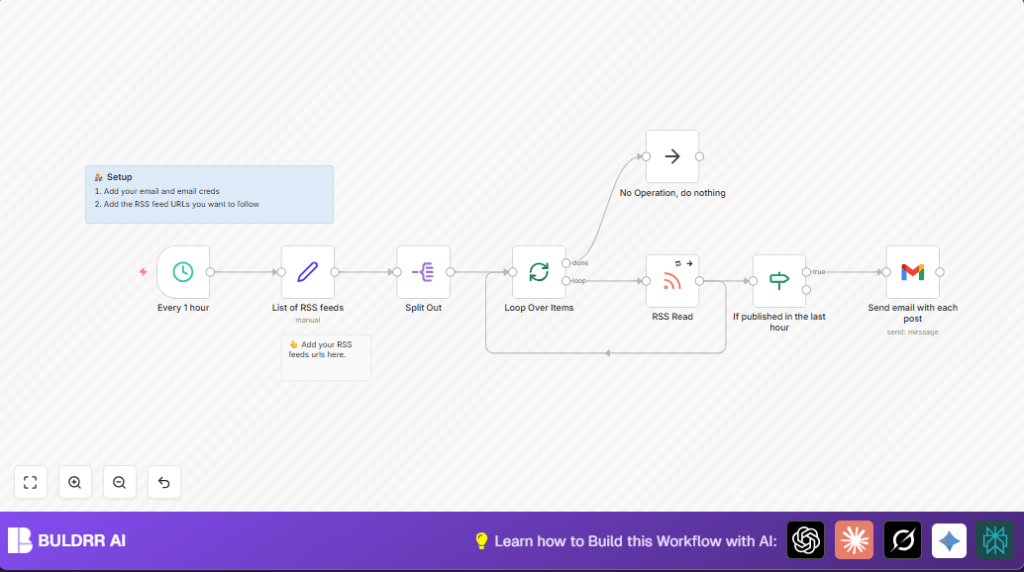
This workflow checks many RSS feeds every hour. It reads posts from each feed. It keeps only new posts from the last hour. Then it sends an alert email for every new post using Gmail. It works with feeds in groups, so many feeds can be handled well. If a feed fails, it tries again to avoid missing posts.
This saves time by removing manual checks. It helps users get alerts fast and not miss important updates.
3. Prerequisites ⚙️
- n8n account: Create and run workflows.
- Gmail account: Use OAuth2 in n8n to send emails.
- RSS feed URLs: The feeds to watch, like blogs or news.
4. Beginner Step-by-Step: How to Use This Workflow in n8n
Step 1: Download the Workflow
- Click the Download button on this page.
- Save the JSON file to your computer.
Step 2: Import Workflow into n8n
- Open n8n editor where workflows are made.
- Choose Import from File option.
- Select the saved JSON file to load the workflow.
Step 3: Configure Settings After Import
- Add your Gmail OAuth2 credentials in n8n credential manager if not done.
- Update the List of RSS feeds node with your actual feed URLs inside the
urlsarray:
["https://www.example.com/feed.xml", "https://another.site/feed.atom"]
- Change the email recipient address in the Gmail node if needed.
Step 4: Test the Workflow
- Run the workflow manually once to see if it fetches feeds and sends emails.
Step 5: Activate Workflow for Production
- Switch the workflow on to run automatically every hour.
- Make sure your n8n instance stays online to trigger workflows.
- For self hosted n8n users, check self-host n8n options to keep it running.
5. Inputs, Processing, and Outputs
Inputs
- List of RSS feed URLs in an array.
- Hourly schedule trigger.
Processing Steps
- The workflow splits URLs and processes feeds in batches.
- Each feed is read with retry on failure enabled.
- Posts are filtered to keep only those from the last hour.
- Filtered posts cause an email to be sent.
Outputs
- Gmail alerts for every new post found.
- No emails sent for old posts to avoid duplicates.
6. Customizations ✏️
- Add more RSS feeds by editing the List of RSS feeds node’s
urlsarray. - Change the recipient email in the Gmail node settings.
- Adjust time range in the If published in the last hour node by changing date conditions.
- Change batch size in the Loop Over Items batch splitter node.
- Customize email content templates for richer formatting.
7. Troubleshooting ????
Issue: No new emails sent even with new posts.
Check: Date filter logic in the time check node. Make sure isoDate format matches and time window is wide enough.
Issue: RSS feed fetch node keeps failing.
Check: Feed URL validity and network access. Retry should be on.
Issue: Emails go to spam or fail to deliver.
Check: Gmail send limits and email content. Add SPF/DKIM if sending on custom domain.
8. Pre-Production Checklist ✅
- Double-check all RSS URLs for correctness and access.
- Test the RSS Feed Read node separately.
- Validate date filter logic with sample posts.
- Ensure Gmail OAuth2 credentials are set and tested.
- Run entire workflow once manually before enabling schedule.
- Backup workflow by exporting a JSON file.
9. Deployment Guide ????
Turn on the workflow to run each hour. Use n8n cloud or your own server. If using self-host n8n, keep the instance running nonstop. Check logs in n8n to fix errors early. This workflow runs light without heavy resources. Set trigger times to suit needs.
10. Summary ✓
✓ Saves more than one hour daily by automating feed checks.
✓ Sends timely Gmail alerts for new posts in the last hour.
✓ Helps avoid missed updates and manual effort mistakes.
→ Allows easy additions of feeds and email customization.
→ Can be extended for Slack alerts or daily digests.
