
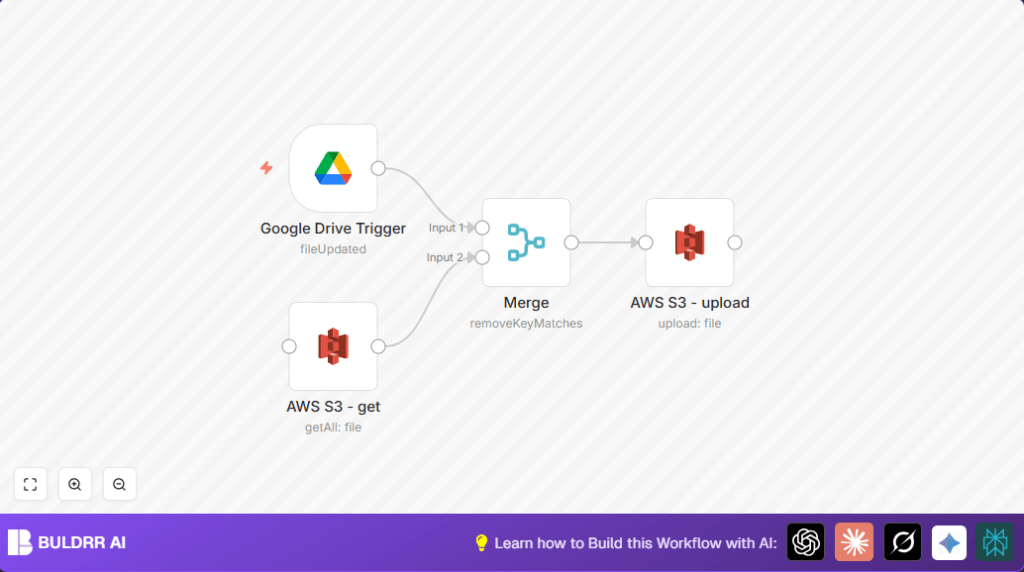

What this workflow does
This workflow watches one specific Google Drive folder for file updates.
When it finds new or changed files, it checks which files are missing in an AWS S3 bucket.
It uploads only those new or updated files to S3 with encryption and tags.
This stops manual work and errors when moving files from Google Drive to AWS S3.
Who should use this workflow
This is good for people who manage many digital files and update them often.
Users who use Google Drive to save files and AWS S3 to store or serve them will benefit.
If manually checking and copying files wastes time or causes mistakes, this helps fix that.
Tools and services used
- Google Drive account: Holds the folder being watched for file updates.
- AWS S3 bucket: Where updated files are uploaded and stored securely.
- n8n automation platform: Runs the workflow to watch and transfer files automatically.
- Google Drive OAuth2 credentials: Needed to connect and read files from Google Drive.
- AWS credentials with proper permissions: Used to list and upload files on the S3 bucket.
Workflow explanation: Inputs, processing steps, and output
Inputs
- Google Drive folder where files get updated.
- AWS S3 bucket to compare and upload files.
Processing Steps
- The Google Drive Trigger node detects any file changes in the chosen folder.
- The AWS S3 Get node lists all current files in the S3 bucket.
- The Merge node compares Google Drive file names with S3 files to find new or updated ones.
- The AWS S3 Upload node uploads these new or updated files, adding encryption and tags.
Output
New or changed files get uploaded to the AWS S3 bucket securely.
Files carry tags marking their source as from Google Drive.
Beginner step-by-step: How to use this workflow in n8n
Importing and setup
- Download the workflow file from this page.
- Open the n8n editor.
- Go to the Main Menu and pick “Import from File.” Select the downloaded workflow file.
- Once imported, add Google Drive OAuth2 credentials in the Google Drive Trigger node.
- Add AWS credentials in both the AWS S3 – Get and AWS S3 – Upload nodes.
- Update the Google Drive folder link in the trigger node to the folder URL you want to watch.
- Update the bucket name in AWS S3 nodes to your target bucket name.
Testing and activation
- Run the workflow manually once to check if it detects files and uploads correctly.
- Check the execution logs in the n8n editor for errors and fix if needed.
- When ready, activate the workflow for automatic running when files update.
- Monitor workflow executions from the n8n dashboard.
For users running or hosting n8n on a server, make sure credentials and node permissions are set correctly to avoid blocked operations.
Customization ideas
- Change the Google Drive folder URL in the trigger to watch different folders.
- Modify the S3 bucket name in the upload node to send files to other buckets.
- Adjust the tags in the upload node to add custom labels, such as project names.
Edge cases and troubleshooting
- No files detected from Google Drive: Check if the folder URL is exact and OAuth credentials are allowed access.
- AWS S3 get operation fails or empty list: Confirm the bucket name is correct and credentials allow list permission.
- Files don’t upload or incomplete uploads: Verify correct file name mapping and that binary file content is passed properly.
- Incorrect merge results: Ensure the Merge node’s first input is from Google Drive and second from AWS S3.
Summary of key results
✓ Saves hours spent manually moving files daily.
✓ Removes errors from missed or wrong file versions uploaded.
✓ Keeps Google Drive and AWS S3 buckets synced with latest files.
✓ Secures files with AES256 server-side encryption on AWS upload.
✓ Adds metadata tagging for easy file management on S3.
