
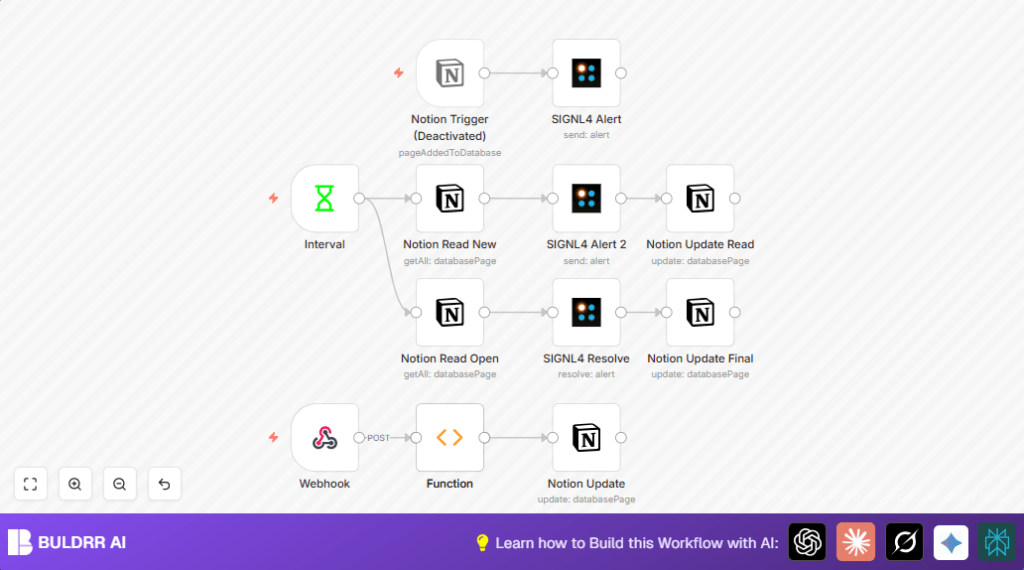

What This Workflow Does
This workflow connects Signl4 alerts with Notion to manage machine alert statuses automatically.
It solves problems of delayed or wrong alert updates by updating Notion in real-time.
It gives you faster, accurate tracking of machine alerts without manual work.
It starts by getting alert info from Signl4 via webhook.
Then it changes alert codes into readable statuses using JavaScript.
It updates the Notion database entry with these statuses.
Every 20 seconds, it polls Notion to check which alerts are new or open.
It sends new alert notices back to Signl4.
It automatically marks alerts as read and resolves them when done.
Inputs, Processing Steps, and Output
Inputs
- Webhook POST data from Signl4: Contains alert status code, event type, user info, and annotations.
- Notion database pages: Contain machine alert entries with properties like Read, Up, Description.
Processing Steps
- Webhook node receives POST alert payload.
- Function node runs JavaScript to interpret alert status codes and events.
- Notion node updates corresponding alert page with status and message.
- Interval node triggers every 20 seconds to poll Notion for Alert states.
- Notion nodes read open/read and new/unread alerts separately.
- SIGNL4 Alert node sends new alert notifications to Signl4.
- Notion Update Read node marks alerts as read after sending notification.
- SIGNL4 Resolve node resolves alerts in Signl4 if marked open and read.
- Notion Update Final node clears “Read” checkbox for resolved alerts to reset them.
Output
- Notion pages with up-to-date alert status and annotations.
- Signl4 keeps alerts in sync, sending new alerts and resolving handled ones.
- Reduced manual tracking and fewer missed or duplicated alerts.
Who Should Use This Workflow
This workflow is good for someone managing machine alerts without an easy automatic update system.
Team members who want clear alert status tracking and fewer manual steps will find it helpful.
Also useful if multiple tools (emails, spreadsheets, Signl4, Notion) are involved and cause confusion.
It saves time, reduces mistakes, and improves alert visibility.
Tools and Services Used
- Signl4 API: Receives and sends machine alert data.
- Notion API: Manages database entries for alert status.
- n8n automation platform: Runs workflow with API integration, webhook endpoints, JavaScript processing.
- Webhook: Receives incoming alert data.
- Interval Trigger: Schedules polling of Notion database.
Beginner Step-by-Step: How To Use This Workflow In n8n
Step 1: Import the Workflow
- Download the workflow file using the Download button on this page.
- Open n8n editor and choose Import from File to load the workflow.
Step 2: Add Required Credentials
- Go to Credentials and add API keys for Signl4 and Notion.
- Make sure the webhook URL from the Webhook node is reachable and set in Signl4 alert configuration.
Step 3: Update Identifiers
- Check and update any page IDs, email addresses, or other IDs in nodes according to your Notion setup.
Step 4: Test the Workflow
- Send a test alert from Signl4 or use a test POST request to the webhook.
- Watch data flow through the nodes in n8n to confirm updates happen as expected.
Step 5: Activate For Production
- Switch the workflow status to Active to listen for real alerts continuously.
- The Interval node will automatically poll Notion to keep everything in sync.
- If running on your own server, consider self-host n8n to ensure reliable uptime.
Common Edge Cases and Troubleshooting
- No alert data at webhook: Confirm webhook URL is correctly configured and receiving POST.
- Notion update fails: Verify pageId mapping matches Notion externalEventId field.
- JavaScript errors in Function node: Check syntax carefully, especially logical operators such as && and &.
- Repeated Signl4 alerts sent: Ensure Notion nodes update the “Read” flag properly after notifications.
Customization Ideas
- Change status mapping codes in the Function node to fit different alert types.
- Adjust polling interval in the Interval node to change sync frequency.
- Add more properties to update in Notion, like priority or timestamps.
- Make Signl4 alert location dynamic if alert data has GPS info.
- Enable the Notion Trigger node to react to new database entries in addition to webhook input.
Summary
→ This workflow automatically updates machine alert statuses between Signl4 and Notion.
✓ It stops the need for manual alert tracking and errors.
✓ It improves alert visibility across teams.
✓ It saves hours of work by automating status updates.
✓ It keeps Signl4 and Notion in sync with new and resolved alerts.
