

What This Workflow Does
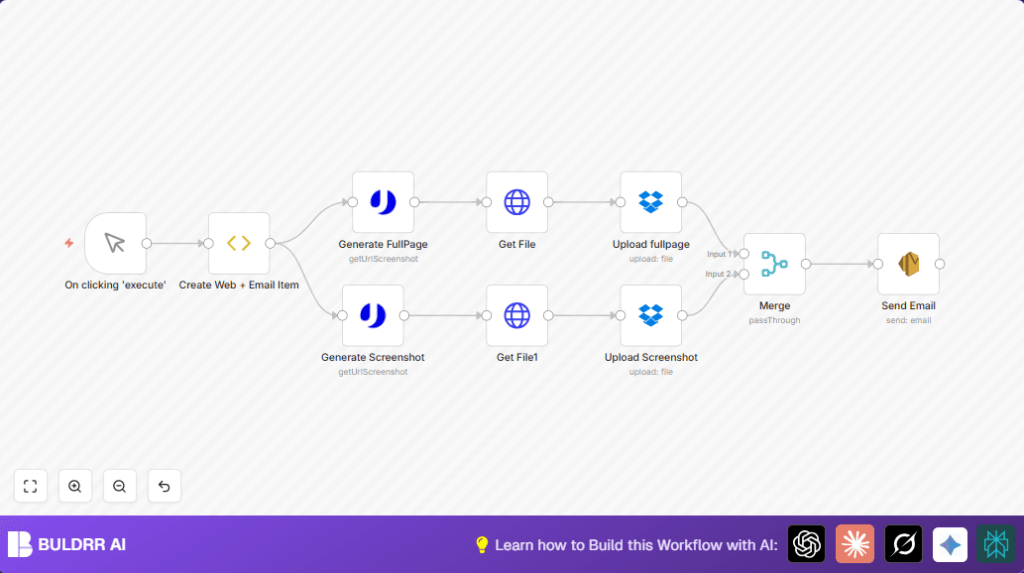
This workflow takes a website URL and an email address as input.
It creates two screenshots automatically: a full-page and a simple visible part.
Then, it saves these screenshots to Dropbox and sends an email with the images to the chosen address.
This ends the need to do manual screenshot captures, uploads, and emails.
Who Should Use This Workflow
This workflow is good for people who want fast, correct website screenshots sent automatically.
It helps digital marketers, teams reviewing websites, and anyone who shares website images for work.
It’s simple to run by clicking one button, saving time and avoiding mistakes.
Tools and Services Used
- n8n Manual Trigger: To start the workflow on demand.
- Uproc API: To take website screenshots.
- HTTP Request Node: To download screenshot files from URLs.
- Dropbox API: To save and organize screenshots.
- AWS SES: To send emails with embedded screenshot images.
Inputs → Processing → Outputs
Inputs
- Website URL to capture screenshots.
- Email address to send screenshots.
Processing Steps
- Use Uproc API to create two screenshots: full website page and visible area.
- Download images using HTTP Request nodes.
- Upload images to designated Dropbox folders.
- Merge outputs so all images can be included in email.
- Send a formatted HTML email with embedded images via AWS SES.
Outputs
- Screenshot files saved in Dropbox.
- Email with both screenshots sent to the given address.
Beginner Step-by-Step: How to Use This Workflow in n8n
Step 1: Import the Workflow
- Download the workflow file using the Download button on this page.
- Open the n8n editor where the import happens.
- Use the “Import from File” option and select the downloaded workflow JSON file.
Step 2: Configure Credentials and Settings
- Add your Uproc API credentials in the Uproc node for authorization.
- Add Dropbox API credentials in the Dropbox nodes.
- Add AWS SES credentials in the AWS SES node to send emails.
- If needed, update: email addresses, Dropbox paths or website URLs in the Function Item node inside the workflow.
Step 3: Test the Workflow
- Run the workflow manually by clicking the Manual Trigger node.
- Check that screenshots save to Dropbox and email arrives correctly.
Step 4: Activate for Production Use
- Turn on the workflow’s active switch inside n8n.
- Use manual triggers as needed, or add scheduling/webhooks to automate.
- If self hosting n8n, learn more here: self-host n8n.
Customization Ideas
- Add more emails to send to by changing the email list in AWS SES node.
- Make website URL dynamic by changing Function Item node to get input from a webhook or user form.
- Use date/time in Dropbox upload paths to keep versions. Example:
/screenshots/screenshot_{{$now.format("YYYYMMDD_HHmmss")}}.png - Change screenshot width in the Uproc nodes to fit email design needs.
- Replace AWS SES with other email nodes like SMTP or Gmail if preferred.
Common Problems and Fixes
Email Not Sending or Bouncing
Verify sender and recipient emails in AWS SES are approved.
Make sure AWS SES is out of sandbox mode to send emails successfully.
Screenshots URLs 404 or Empty
Check API keys for Uproc are valid and not over quota.
Refresh or fix API keys if needed.
Dropbox Upload Permission Errors
Confirm Dropbox tokens in n8n are correct and active.
Re-authenticate if token expired.
Pre-Production Checklist
- Confirm Uproc API key works and has quota.
- Make sure AWS SES emails are verified and allowed to send.
- Check Dropbox folder permissions and credentials.
- Test workflow manually before use.
- Back up Dropbox folders before uploading new files.
Deployment Guide
Turn the workflow active to allow running.
Use manual triggers or add schedules/webhooks for automation.
Watch email delivery with AWS SES logs and Dropbox for uploads.
Use n8n logs for any error checks.
Summary
→ This workflow automates website screenshot capturing, uploads, and emailing.
→ It saves time and removes manual errors.
→ Screenshots are saved in Dropbox and emailed with images embedded.
→ The workflow runs on a simple manual trigger.
→ It can be customized for more emails, dynamic sites, or scheduling.
