
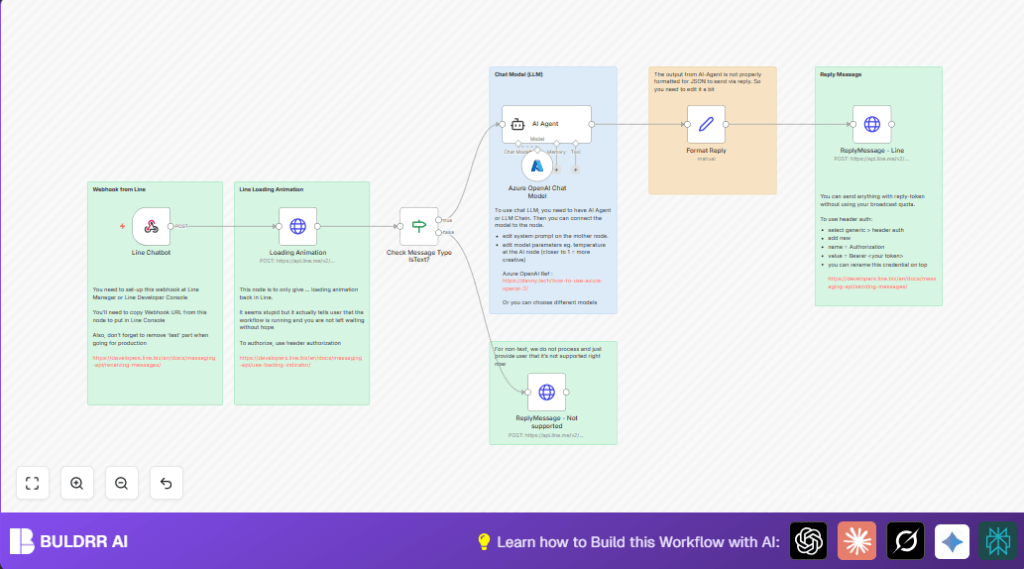

What this workflow does
This workflow connects Line chat to Azure OpenAI to give quick, smart replies using Cognitive Behavioral Therapy (CBT) ideas.
It helps answer text questions fast, and tells users when non-text messages are not supported.
Users get helpful, clear mental health advice without waiting long.
Who should use this workflow
Anyone running mental health chat support on Line who wants to save time.
It fits people needing reliable chatbot replies for many users without extra staff.
Tools and services used
- n8n: Automates the chatbot flow.
- Line Messaging API: Receives and replies messages.
- Azure OpenAI GPT-4: Generates CBT-based advice.
- Generic HTTP Header Auth: Secures Line API requests.
Inputs, Processing, and Outputs
Inputs
- Text messages sent by Line users.
- Non-text messages like images or stickers.
Processing
- Webhook node listens to Line messages.
- HTTP Request node sends “typing” animation to Line.
- If node checks if the message is text.
- AI Agent node runs CBT system prompt for text input.
- Azure OpenAI Chat Model node creates chatbot replies.
- Set node formats AI output for JSON.
- HTTP Request node replies to Line with text or unsupported message notice.
Outputs
- Human-like CBT text replies inside Line chat.
- Polite note when images or stickers are sent.
Beginner step-by-step: How to use this workflow in n8n production
Step 1: Get the workflow file
- Download the workflow using the Download button on this page.
Step 2: Import into n8n
- Open the n8n editor.
- Click “Import from File” and select the downloaded file.
Step 3: Add credentials
- Go to each HTTP Request node, open the credential selector.
- Add or select the HTTP Header Auth with a valid Line channel access token.
- For the Azure OpenAI node, add your Azure OpenAI API Key.
Step 4: Update IDs if needed
- Check webhook URLs and replace any placeholder IDs or paths if necessary.
Step 5: Test the workflow
- Send text and image messages from your Line user to verify replies.
Step 6: Activate workflow for production
- Toggle the workflow active.
- Make sure webhook URL is public and reachable by Line API servers.
- Visit self-host n8n if needing a server to run the workflow securely.
Step-by-step description of workflow components
Webhook node
Receives user messages from Line and triggers the automation.
HTTP Request node – Loading Animation
Sends a “typing” indicator to the chat to show reply is coming.
If node
Checks if the user message type is “text” to process or reject.
AI Agent node
Receives user text and runs CBT system prompt to create helpful advice.
Azure OpenAI Chat Model node
Runs GPT-4 or similar model for detailed, empathetic chatbot answers.
Set node
Formats AI reply by removing unwanted code or characters to plain text.
HTTP Request node – ReplyMessage Line
Sends the chatbot’s reply back to the user inside the Line chat app.
HTTP Request node – ReplyMessage Not Supported
Replies politely when images or other non-text message types come in.
Customizations ideas
- Edit AI Agent node system prompt to switch therapy style like mindfulness.
- Change temperature in Azure OpenAI node to make responses more creative.
- Add support for images or audio by branching If node and new reply nodes.
- Support multiple languages by detecting and translating user text first.
- Save chat logs into sheets or databases for therapy tracking.
Troubleshooting common problems
401 Unauthorized from Line API
Means the HTTP Header Auth token is wrong or expired.
Fix by updating the Line channel access token in the credential settings.
AI Agent node gives poor replies
System prompt might be generic or missing CBT details.
Improve by adding specific CBT instructions in the system prompt.
Webhook not working
Webhook URL may be wrong or disabled in Line Developer Console.
Check URL matches exactly and remove “test” if making production.
Pre-production checklist
- Verify webhook URL is correct and enabled in Line Console.
- Test sending text and non-text messages for correct bot replies.
- Confirm HTTP Header Auth tokens are valid and up-to-date.
- Check AI Agent node creates meaningful CBT-style answers.
- Make sure replies show promptly in Line app.
- Backup workflow JSON before changing.
Deployment steps
Activate the workflow in n8n editor.
Make webhook URL public and accessible.
Watch executions in n8n to catch issues early.
Tweak AI Agent prompt or model parameters for better chat tone.
Summary of benefits and results
✓ Chatbot answers mental health questions fast using CBT.
✓ Saves hours of manual replies.
✓ Handles unsupported input types politely.
✓ Scales without needing more helpers.
✓ Easy to set up and modify in n8n.