

1. Opening Problem Statement
Meet Sarah, an IT security analyst at a mid-sized company. Every day, Sarah faces a flood of incoming emails, many of which are potential phishing threats targeting her organization’s employees. Manually reviewing each suspicious email for signs of phishing takes up hours of her day, delaying response times and increasing the risk that harmful emails slip through unnoticed. Despite stringent email filters in place, phishing attempts still reach inboxes, and Sarah struggles to quickly prioritize which emails need immediate attention.
This manual effort not only wastes valuable time but introduces human errors in analysis, leading to costly security incidents that could have been avoided. Sarah needs a solution that automatically detects potential phishing emails, analyzes their content and headers intelligently, and then clearly reports them for action—all without her lifting a finger.
2. What This Automation Does
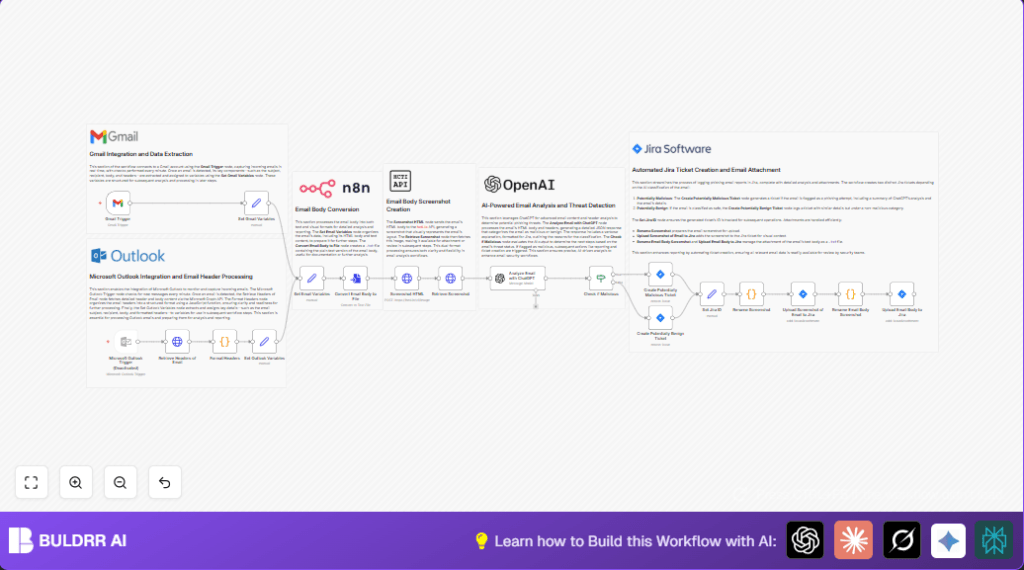
This n8n workflow is designed specifically for security teams like Sarah’s to automate phishing email analysis and reporting. When this automation runs, here is what happens:
- Real-time email monitoring: It watches incoming Gmail emails every minute to catch new messages as they arrive.
- Extraction and parsing: It extracts key email components such as the subject, recipient, HTML body, text body, and headers for detailed analysis.
- Visual email snapshot: The HTML email body is sent to hcti.io API to generate an accurate screenshot image of the email for visual review.
- AI-powered threat analysis: ChatGPT analyzes the email content and headers for phishing traits, generating a detailed JSON output declaring whether the email is malicious or benign along with a thorough explanation.
- Automated Jira ticket creation: Depending on the AI verdict, it creates a ticket in Jira either under potentially malicious or benign categories for tracking and further investigation.
- Email attachments for context: The workflow attaches both the screenshot image and a text file of the email body to the Jira ticket, providing security teams with context-rich evidence.
By automating these tasks, the workflow saves hours daily, reduces human error, and ensures that phishing threats are prioritized and documented systematically.
3. Prerequisites ⚙️
- Gmail account and OAuth2 credentials for the Gmail Trigger node to monitor incoming emails. 📧
- hcti.io API account for converting email HTML bodies to screenshots visually. 🔐
- OpenAI account (ChatGPT) for AI-powered email content and header analysis. 🔑
- Jira Software Cloud account and API credentials to create issue tickets with attachments for phishing reports. 📁
- n8n workflow automation platform account or self-hosted instance. ⏱️ (Consider self-hosting if preferred for enterprise control.)
4. Step-by-Step Guide
Step 1: Set Up Gmail Trigger to Monitor Inbox
Navigate in n8n to Nodes → Gmail Trigger. Here, select your Gmail OAuth2 credentials. Configure the node to check for new emails every minute. You should see the node activating and listening for incoming emails in your Gmail account.
Common mistake: Forgetting to set OAuth2 credentials or setting polling interval too high, causing delayed triggers.
Step 2: Extract Key Email Components Using Set Gmail Variables Node
Add a Set node named “Set Gmail Variables” connected to the Gmail Trigger. Map the incoming email JSON fields to variables: htmlBody, headers, subject, recipient, and textBody exactly as in the workflow. This structures your data for analysis.
Visual cue: You should see the variables populated with example email content during a test run.
Mistake to avoid: Not mapping all required fields which breaks downstream processing.
Step 3: Generate Email Screenshot Using Screenshot HTML Node
Add an HTTP Request node. Configure it as POST to https://hcti.io/v1/image. In the body parameters, send the htmlBody from the previous step. Set basic authentication with your hcti.io API credentials.
You will see a URL in the node’s output JSON pointing to a screenshot image.
Common error: Incorrect credentials or malformed HTML payload causes API failure.
Step 4: Retrieve Screenshot Image URL
Add another HTTP Request node to fetch the image from the URL provided in the previous step’s output. Use basic authentication again.
Outcome: node output contains the binary image data ready for attachments.
Watch out for: Network issues or invalid URL from step 3 results in no image retrieval.
Step 5: Set Unified Email Variables
Add a Set node named “Set Email Variables” downstream, which consolidates both Gmail and Outlook structures into a consistent format, including htmlBody, headers, subject, recipient, and textBody.
This enables streamlined processing by subsequent nodes.
Mistake: Mismatching variable names breaks integration.
Step 6: Convert Text Email Body to File
Add a Convert to File node, set operation to “toText” and source property to your textBody variable. Name the output file “emailBody.txt”.
After this, you will have a .txt file version of the email body, useful for documentation.
Common error: Incorrect source property name leads to empty file.
Step 7: Analyze Email With ChatGPT AI
Add the OpenAI (ChatGPT) node. Use the GPT-4o model. Construct a detailed prompt that includes the htmlBody and headers from your Set node:
"Describe the following email using the HTML body and headers. Determine if the email could be a phishing email. Here is the HTML body: {{htmlBody}} The message headers are as follows: {{headers}}"The system message instructs ChatGPT to return JSON output categorizing maliciousness with detailed explanations.
Mistake: Forgetting to enable JSON output in node configuration.
Step 8: Conditional Branch Based on AI Verdict
Add an If node named “Check if Malicious”. Evaluate the ChatGPT response JSON’s “malicious” boolean. Direct the workflow into two branches:
- True: Leads to Create Potentially Malicious Ticket
- False: Leads to Create Potentially Benign Ticket
Mistake: Incorrect JSON path in the condition breaks flow.
Step 9: Create Jira Ticket for Malicious or Benign Email
Depending on the branch, configure Jira nodes to create tickets in your chosen project and issue type (e.g., Task). Use the email subject and recipient for ticket summary and description, appending ChatGPT analysis.
You should see new Jira issues created automatically in real time.
Common error: Invalid Jira project key or insufficient permissions cause failures.
Step 10: Upload Email Screenshot and Text Body as Jira Attachments
Use Code nodes to rename your attachments properly (“emailScreenshot.png”, “emailBody.txt”). Then use the Jira Upload Attachment nodes to attach the screenshot image and the text file to the created Jira issue.
Verify in Jira that attachments are visible within the issue.
Mistake: Not passing the correct issue key or file binary data causes upload errors.
5. Customizations ✏️
- Enable Microsoft Outlook Email Support: Un-disable the disabled Outlook Trigger and related nodes to extend email monitoring beyond Gmail, capturing Outlook emails with full header parsing and AI analysis.
In the Microsoft Outlook Trigger node, enable and set credentials; connect the Retrieve Headers of Email and Format Headers nodes accordingly. - Customize ChatGPT Prompt for Specific Threat Types: Modify the system and user prompt in the Analyze Email with ChatGPT node to look for ransomware or business email compromise indicators instead of phishing broadly.
- Adjust Jira Project or Issue Type: Change the Jira project key and issue type in the ticket creation nodes to integrate with your team’s workflow or issue tracking preferences.
- Change Screenshot File Name or Format: In the Rename Screenshot code node, adjust the file name or file extension (e.g., .jpeg) to suit specific attachment requirements.
- Modify Polling Intervals: Change polling frequency on Gmail Trigger or Outlook Trigger nodes to match your organization’s email volume and response needs in the node settings.
6. Troubleshooting 🔧
Problem: “401 Unauthorized” from hcti.io API calls
Cause: Incorrect or expired hcti.io API credentials in HTTP Request nodes.
Solution: Go to each HTTP Request node using hcti.io, verify and update the basic auth credentials under node settings.
Problem: ChatGPT node failing to process input or returning unexpected results
Cause: Improper formatting of prompt variables or missing JSON output toggle.
Solution: Check the prompt content for correct variable references (htmlBody, headers). Enable JSON output in ChatGPT node parameters.
Problem: Jira ticket creation fails with permission errors
Cause: Insufficient Jira API permissions or incorrect project key.
Solution: Verify Jira API credentials have Create Issue permission and confirm project key correctness in the node.
7. Pre-Production Checklist ✅
- Test Gmail Trigger fires on new test emails with correct data extraction.
- Validate hcti.io screenshot generation by inspecting output URLs and retrieved binary data.
- Confirm ChatGPT AI analyzes sample emails and outputs correct JSON format responses.
- Check Jira tickets appear with appropriate summaries, descriptions, and attachments.
- Backup your workflow configuration before deployment.
8. Deployment Guide
Activate your n8n workflow by enabling the Gmail Trigger node to run continuously. Monitor workflow executions in n8n to ensure email data flows through all nodes successfully without errors. Set up alerting on failures if possible. Since this workflow interacts with emails and Jira tickets, review logs regularly for any exceptions or permissions issues. To scale, consider deploying on a self-hosted n8n instance with higher resource allocations if processing heavy email volumes.
9. FAQs
- Can I use Outlook instead of Gmail?
Yes, the workflow includes support for Outlook emails via dedicated nodes. Enable the disabled Outlook Trigger and related nodes with proper credentials. - Does this workflow consume OpenAI API credits?
Yes, every email analyzed by ChatGPT consumes API credits. Manage usage accordingly. - Is my email data safe?
All data is handled securely within n8n and authenticated API connections. However, you should comply with your organization’s data security policies. - Can this workflow handle high email volumes?
It can scale when deployed on appropriate infrastructure, but very high volumes may require batching or additional optimization.
10. Conclusion
By setting up this n8n workflow, you have created a powerful automation that detects potential phishing emails in near real time, harnessing AI intelligence from ChatGPT and streamlining threat reporting via Jira tickets with rich evidence attachments. This solution saves valuable time for security teams like Sarah’s, reducing errors and helping prioritize threats faster and more confidently.
Next steps could involve integrating SMS or Slack alerts for high-risk phishing emails, adding advanced machine learning models for detection, or including automated email quarantine actions to block threats immediately. This workflow is your first robust step toward smarter, faster email security operations.