

What This Workflow Does
This workflow lets you ask questions about sales data in simple language.
It runs SQL queries automatically on a Postgres database and decides if it should create a chart.
If needed, it makes charts using Chart.js formats through Quickchart.io.
The chat shows answers and charts together quickly.
This saves time on manual reports and helps understand data better.
Who Should Use This Workflow
This is good for people who check sales or business info often but do not want to write SQL.
It helps analysts, managers, or team members who want fast, clear data answers.
You do not need to know programming; just type your question and get info.
Tools and Services Used
- n8n workflow automation: Controls the process and nodes.
- PostgreSQL database: Stores sales or business data to query.
- OpenAI API (GPT-4): Creates SQL queries and chart definitions from questions.
- Quickchart.io: Makes chart images from Chart.js settings without signup.
You can use self-host n8n for private or cheaper setups.
Inputs, Processing, and Outputs
Inputs
- User chat messages asking about sales data.
- Sales data stored in Postgres database.
- OpenAI API access for AI tasks.
Processing Steps
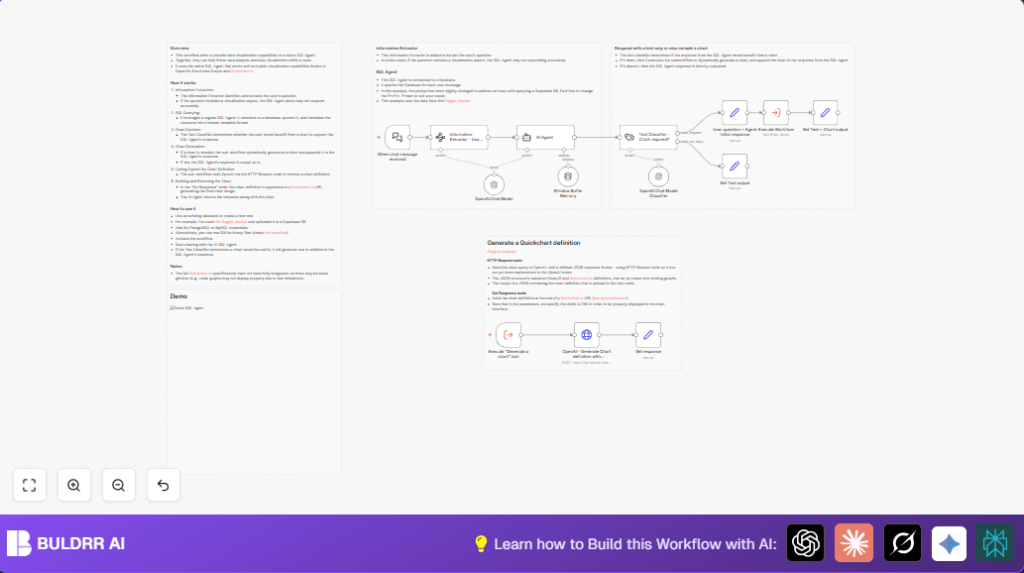
- Listen for user chat messages via When chat message received.
- Extract the clear data question using Information Extractor – User question.
- Use AI Agent to turn question into SQL query and fetch answer.
- Classify if the answer needs a chart with Text Classifier – Chart required?.
- If chart needed, pack question and answer to generate chart via a sub-workflow and OpenAI HTTP Request node.
- Build chart image URL from definition using Quickchart.io.
- Send back combined text and chart image in chat response.
Output
Clear text answer with or without a helpful chart image.
This shows quickly in chat and saves time on manual data work.
Beginner Step-by-Step: How to Use This Workflow in n8n
Step 1: Import the Workflow File
- Download the workflow file using the Download button on this page.
- Open the n8n editor where you want to run the workflow.
- Click on the menu, choose “Import from File” and load the downloaded workflow.
Step 2: Add Credentials and API Keys
- In n8n, add your PostgreSQL database credentials under the Credentials section.
- Add your OpenAI API Key also under Credentials.
Step 3: Update Configuration Details
- Check and update any node settings that use specific IDs, like the sub-workflow ID in Execute Workflow.
- If your data tables or columns have different names, update the SQL prompt or nodes accordingly.
- If the workflow calls email, channel, or folder names, update those too.
Step 4: Test the Workflow
- Run the workflow once by sending a sample message to the chat webhook URL.
- Check if you get a text answer and a chart if needed.
- Look at the execution logs to find any errors or missing info.
Step 5: Activate for Production Use
- Switch the workflow from “Inactive” to “Active” in n8n.
- Share the chat webhook URL with users who will ask data questions.
- Monitor workflow executions regularly for smooth operation.
If you prefer self-host n8n, import and run the workflow the same way in that environment.
Customization Ideas
- Change chart type or colors by editing the prompt in OpenAI HTTP Request node.
- Tweak the AI Agent’s SQL prompt for your database schema or SQL style.
- Use other databases like MySQL or SQLite by changing credentials and prompts.
- Increase chart size by modifying Quickchart.io URL width parameter.
Common Errors and Fixes
- Error: SQL query fails.
Cause: Wrong SQL syntax or table/column names.
Fix: Check AI prompt for SQL, confirm table and column names, use double quotes for tables as needed. - Error: OpenAI returns bad JSON.
Cause: Too strict output schema or incomplete JSON.
Fix: Validate JSON, lower temperature, adjust system prompt for clear JSON.
Pre-Production Checklist
- Confirm PostgreSQL connection and credentials work.
- Test chat webhook by sending example messages.
- Verify AI Agent returns good SQL queries and answers.
- Ensure OpenAI HTTP Request returns valid Chart.js JSON.
- Check Quickchart URLs generate visible images.
Deployment Guide
Turn the workflow Active within n8n.
Give your team the chat webhook URL to start asking questions.
Use the Executions tab for logs and to fix issues fast.
Summary
→ A simple way to ask sales data questions using chat.
→ Auto SQL queries and text answers from Postgres data.
→ Automatic decision when chart needed and chart generation.
→ Combined text and chart replies in the chat interface.
→ Saves time, prevents errors, supports non-technical users.
