

What This Automation Does
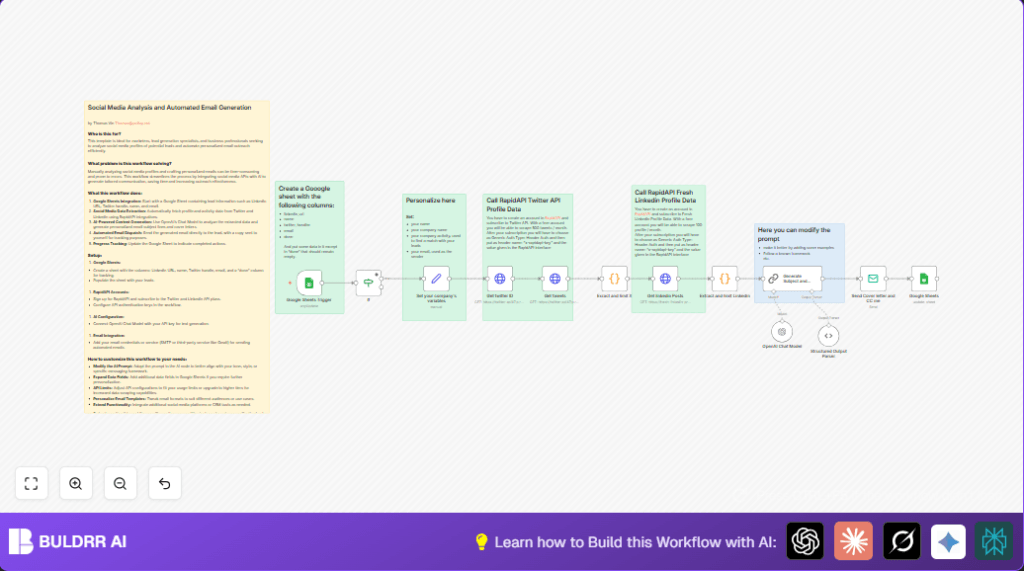
This workflow takes lead info from a Google Sheet and fetches their recent LinkedIn posts and tweets.
It then uses AI to find topics the leads care about and writes a custom email for each.
The workflow sends the email and marks the lead as done to avoid duplicates.
This saves many hours and makes outreach more personal and effective.
Tools and Services Used
- Google Sheets: Stores lead info and triggers the workflow.
- RapidAPI Fresh LinkedIn Profile Data API: Extracts lead LinkedIn posts.
- RapidAPI Twitter API: Fetches recent tweets from user handles.
- OpenAI GPT-4o Chat Model: Analyzes social media content and creates personalized email content.
- SMTP Email Service: Sends the personalized outreach emails.
- n8n Automation Platform: Runs and manages the workflow.
How This Workflow Works: Inputs, Processing, and Output
Inputs
- Lead data from Google Sheets: LinkedIn URL, Twitter handle, email, and status.
Processing Steps
- Trigger runs when sheet shows new leads.
- Filter out leads already marked as done.
- Retrieve the user ID from Twitter using the handle via RapidAPI.
- Get up to 10 recent tweets for each lead.
- Fetch up to 10 LinkedIn posts for each lead.
- Use code nodes to extract and limit tweets and LinkedIn posts.
- Send this social data and company info to OpenAI GPT-4o chat model.
- Generate a subject line and personalized HTML email body.
- Send the created email to the lead with a CC to the user.
- Update the lead row in Google Sheets to mark as done.
Output
- Personalized outreach emails sent automatically.
- Google Sheet rows updated to prevent repeat emailing.
Beginner Step-by-Step: How to Use This Workflow in Production
1. Import Workflow
- Download the workflow file using the Download button on this page.
- Open the n8n editor where you want to use this.
- Use the Import from File option to load the workflow.
2. Configure Credentials and Settings
- Add API Keys: Google Sheets, RapidAPI, and OpenAI in the credential manager.
- Set your email SMTP details for the Email Send node.
- Update Google Sheet IDs, sheet names, email addresses, or any other IDs if you copied a sample.
- Copy and paste any prompt texts or code snippets from inside the workflow nodes if needed.
3. Test the Workflow
- Run a manual test using sample data in your Google Sheet.
- Verify if emails are sent and Sheets updated.
4. Activate for Production
- Turn on the Google Sheets Trigger node by activating the workflow.
- Keep monitoring in n8n for any errors or usage limits.
Use self-host n8n if planning to run this workflow on your own server for more control.
Customization Ideas
- Change the AI prompt to match your company’s tone or add sales frameworks.
- Add other social media platforms like Instagram if APIs are available.
- Include extra lead data like job titles or company size for deeper personalization.
- Adjust API query limits or add pagination to get more posts.
- Modify email HTML templates for branding and layout preferences.
Troubleshooting Common Issues
- No tweets found: Check Twitter handle accuracy and API quota on RapidAPI.
- No LinkedIn posts: Verify full LinkedIn URL and RapidAPI credentials.
- AI parsing errors: Refine JSON schema in parser node and adjust prompt.
Pre-Production Checklist
- Confirm Google Sheets has valid data and “done” status column works correctly.
- Test API keys and ensure correct scopes and call limits.
- Run test leads through to check email delivery and sheet updates.
- Backup the Google Sheet and exported workflow files.
Summary
✓ Saves 4-5 hours every week of manual social research.
✓ Sends personalized emails with relevant social media content.
✓ Updates lead status automatically to prevent repeats.
✓ Improves email response rates and sales pipeline quality.
→ You get an easy-to-use automation inside n8n.
→ You connect social profiles, AI, and email without coding.
