

What This Automation Does ⚙️
This workflow gets base keywords and finds related keyword ideas fast without manual work.
It connects to several services to get keyword suggestions and search data.
The outcome is a cleaned list of keywords updated in a no-code database with traffic and cost info.
This helps SEO work save hours and avoid mistakes.
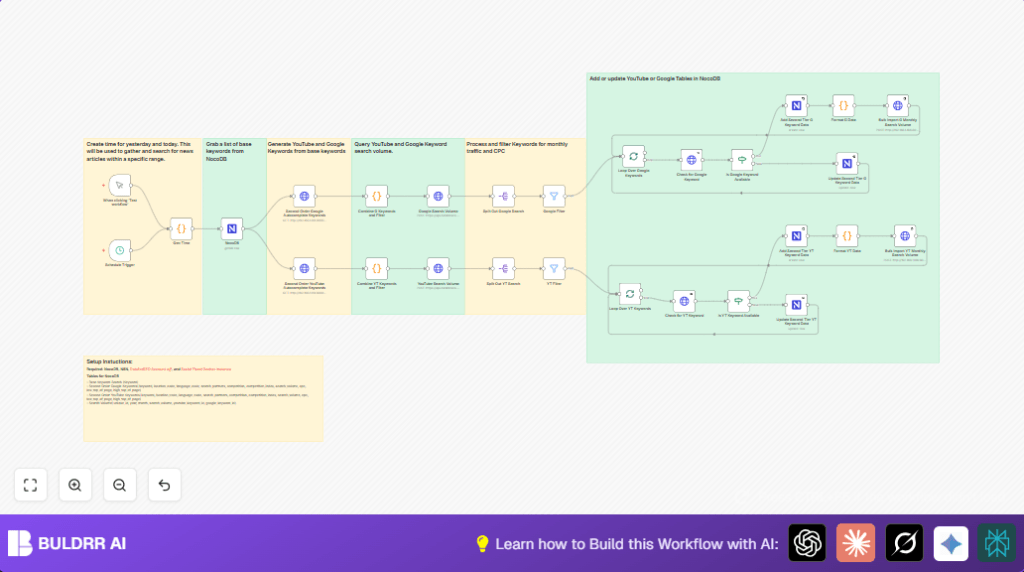
The workflow starts by getting base keywords from a database.
Then it calls Social Flood API to get suggested autocomplete keywords for Google and YouTube.
After that, it cleans and filters these keywords to avoid duplicates and long phrases.
Then it pulls monthly search volumes and CPC details from DataForSEO API.
Next, it checks if these keywords exist in the database.
If new, keywords and volume data get added; if existing, they get updated.
Big keyword batches split to avoid API limits.
In short, the workflow automates keyword research updates every few hours, saving 20+ hours of manual effort weekly.
Tools and Services Used
- NocoDB: Stores base and second-tier keywords with monthly volume data.
- n8n: Runs the automation workflow for API calls and data processing. Can be self-hosted (self-host n8n).
- DataForSEO API: Provides monthly search volume and CPC metrics for Google Ads and YouTube Ads keywords.
- Social Flood API: Runs locally in a Docker instance and returns autocomplete keyword suggestions for Google and YouTube.
Inputs → Processing Steps → Output
Inputs
- Base keywords stored in NocoDB table.
- API keys for Social Flood, DataForSEO, and NocoDB.
- Dates to specify when to fetch volume data (usually yesterday’s date).
Processing Steps
- Generate date variables via a code node for queries.
- Fetch base keywords from NocoDB.
- Send each base keyword to Social Flood API to get autocomplete suggestions for Google and YouTube.
- Combine the new keywords, filtering duplicates and removing those too long or with too many words.
- Batch the keywords in groups up to 1000 for API quota limits.
- Send batched queries to DataForSEO for search volume and CPC info.
- Filter out keywords with poor or missing traffic and cost data.
- Check if keywords already exist in NocoDB.
- Add new keyword data or update existing records in second-tier keyword tables.
- Format monthly volume stats and bulk import them to NocoDB.
Output
Updated NocoDB tables containing fresh second-tier keywords with valid monthly search volumes and CPC metrics for Google and YouTube.
This lets the SEO specialist access relevant keyword data easily.
Beginner Step-by-Step: How to Use This Workflow in n8n
Step 1: Import the Workflow
- Download the workflow file using the Download button on this page.
- Open the n8n editor.
- Use Import from File option to load the workflow.
Step 2: Configure Credentials and Settings
- Add your NocoDB API Token credential in n8n credentials manager.
- Set your DataForSEO API Key and Basic Auth details in HTTP Request nodes.
- Update Social Flood API Key and local instance URL in relevant HTTP Request nodes.
- Double-check project and table IDs in NocoDB nodes to match your database environment.
Step 3: Setup Date Variables (If Needed)
- Check the Gen Time code node for date format.
- Update code if you want a different date range or format.
Step 4: Test the Workflow
- Run the workflow manually from the editor.
- Verify outputs in each node, especially keyword generation and volume data.
Step 5: Activate for Regular Use
- Enable the Schedule Trigger node to run every 4 hours.
- Monitor workflow execution in n8n for errors or rate limit warnings.
- Adjust batch sizes or frequency if needed.
Following these simple steps brings the workflow into a working production state without needing to build nodes yourself.
Refer back to the code snippets and API URLs included if updates are needed.
Common Problems and Fixes
- Empty NocoDB results: Confirm API tokens and project/table IDs.
- No keywords from Social Flood: Check your local Docker container and API key.
- DataForSEO rate limits: Reduce keyword batch sizes or upgrade subscription.
- API or node failures: Use error branches to retry or notify via Slack/email.
Customization Ideas
- Change how often the workflow runs by editing the cron expression in the Schedule Trigger node.
- Add more keyword sources by connecting other APIs or tables in the base keyword node.
- Set CPC minimums in the filter nodes to focus on effective keywords.
- Swap DataForSEO API keys for different regions or plans.
- Improve error notifications using Slack or email nodes.
Summary
→ Saves hours daily by automating keyword research.
→ Updates keyword lists with fresh volume and CPC data.
✓ Removes duplicates and irrelevant phrases automatically.
✓ Works with Google and YouTube keyword data sources.
✓ Easy to use for non-technical persons after import and configuration.
