
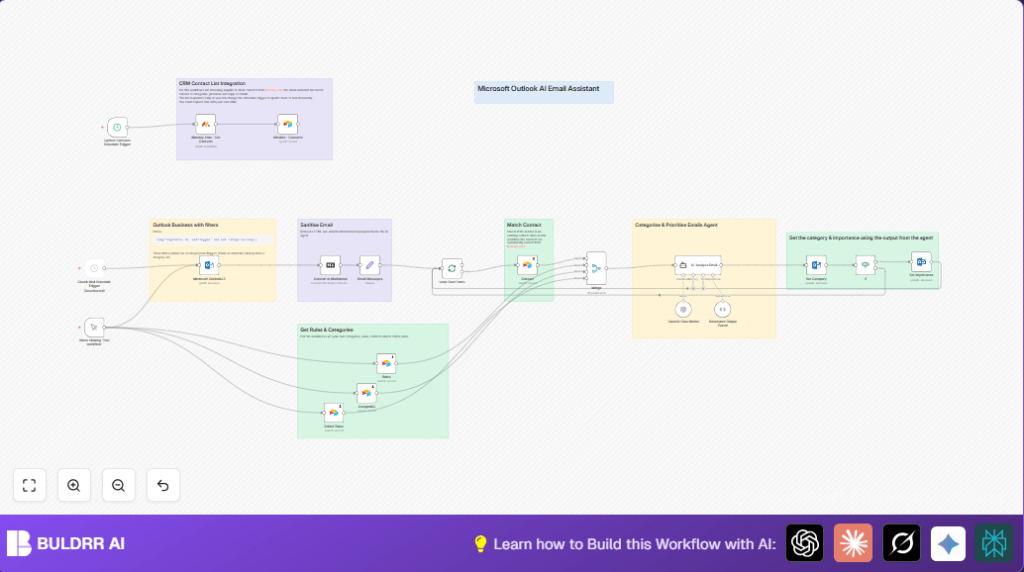

What This Workflow Does
This workflow reads new Microsoft Outlook emails that are not flagged or categorized.
It cleans the email text to make it easy for AI to read.
It looks up the sender details in CRM systems stored in Monday.com and Airtable.
It then asks an AI agent (using OpenAI GPT-4) to decide how to group the email and if it is urgent.
Finally, it updates Outlook by setting categories and marking urgent emails with high importance.
This saves time by letting AI sort emails automatically.
It helps users focus on important messages without getting distracted by less important ones.
Who Should Use This Workflow
Use this if you receive many emails daily and want to avoid missing important ones.
If managing emails spends too much time or causes errors, this workflow helps.
It fits well for people who use Microsoft Outlook, keep contacts in Monday.com and Airtable, and want automatic email sorting.
Tools and Services Used
- Microsoft Outlook node: To fetch and update emails in Outlook.
- Markdown node: Converts rich email HTML to markdown text.
- Set node: Cleans and sanitizes email text.
- Monday.com node: Fetches CRM contact data.
- Airtable nodes: Sync contacts and load rules, categories, and deletion conditions.
- Split In Batches node: Processes emails one by one to avoid API limits.
- Langchain Agent node: Uses GPT-4 AI to analyze emails.
- Structured Output Parser node: Validates AI’s JSON results.
Inputs, Processing Steps, and Outputs
Inputs
- New unflagged, uncategorized emails from a specific Outlook folder.
- CRM contact details from Monday.com and Airtable.
- Business rules, category lists, and delete rules loaded from Airtable.
Processing Steps
- Fetch emails matching filters.
- Convert email HTML body to clean markdown.
- Remove HTML tags and other unnecessary formatting with Set node using JavaScript regex.
- Retrieve CRM contacts from Monday.com and sync to Airtable.
- Load categorization rules and lists from Airtable.
- Split emails to process each one separately.
- Check if sender email matches a contact in Airtable.
- Send all email data, contacts, and rules to the AI Agent node for analysis.
- Parse AI JSON output to get category and priority.
- Update the email in Outlook with found category.
- Set email importance to High if the AI marks it as Action.
Outputs
- Outlook emails updated with categories reflecting AI classification.
- Priority emails flagged with High importance.
- Clean contact data synchronized in Airtable.
Beginner Step-by-Step: How to Use This Workflow in n8n Production
Step 1: Import Workflow
- Download the workflow file from this page using the Download button.
- Open your n8n editor where you want to run this automation.
- Use the Import from File option to add the downloaded workflow.
Step 2: Configure Credentials and IDs
- Open the imported workflow and add Microsoft Outlook credentials (OAuth2).
- Enter OpenAI API key with GPT-4 access.
- Add Monday.com API token and set board/group IDs correctly.
- Set Airtable API key and base/table IDs for Contacts, Rules, Categories, and Delete Rules.
- If necessary, adjust folder IDs in Outlook node to point at the desired email folder.
Step 3: Review and Edit Prompts
- In the Langchain Agent node, check the system message and prompt content.
- Update any template text, rules, or category names if your business uses different values.
Step 4: Test the Workflow
- Run the Workflow manually using the Manual Trigger node.
- Look for logged outputs that show emails fetched and AI analysis results.
- Verify Outlook emails get updated categories and importance as expected.
Step 5: Activate for Production
- Choose to keep the Manual Trigger or replace it with a Schedule Trigger node.
- Enable the workflow to run automatically based on chosen triggers.
- Keep monitoring n8n execution logs to catch any errors.
Using the self-host n8n option offers better control for running this workflow securely on your server.
Customization Ideas
- Change the Microsoft Outlook filter to include more email criteria like unread or specific senders.
- Add or update categories and rules inside Airtable and reflect changes in the AI prompt.
- Adjust AI temperature in OpenAI settings for more random or strict classifications.
- Replace Monday.com CRM node with HubSpot or Salesforce to fit different contact sources.
- Switch manual trigger to schedule trigger for full automation.
Troubleshooting
- Problem: No emails fetched by Microsoft Outlook node.
Cause: Folder ID or filter syntax may be wrong.
Fix: Check folder IDs and filters. Test with a simpler filter. - Problem: AI JSON output fails to parse.
Cause: AI response not valid JSON or extra text outside JSON.
Fix: Confirm prompt format. Use Structured Output Parser node to validate. - Problem: Contacts not matching email senders.
Cause: Mistyped field names or incorrect Airtable filter formula.
Fix: Verify exact field names. Match email field exactly.
Pre-Production Checklist
- Verify Outlook folder and filter settings fetch correct emails.
- Check all API keys and permissions for Monday.com, Airtable, Outlook, and OpenAI.
- Test AI prompt on sample email data and validate output.
- Ensure Airtable tables have current contacts and rules.
- Manually run workflow and confirm categories and flags update correctly.
Summary
✓ Saves hours weekly by automating Outlook email sorting.
✓ Uses AI to categorize and flag urgent emails smartly.
✓ Syncs contacts from Monday.com and Airtable for context.
✓ Customizable rules and categories via Airtable.
✓ Easy to run in n8n with simple import and setup.
