

What This Automation Does
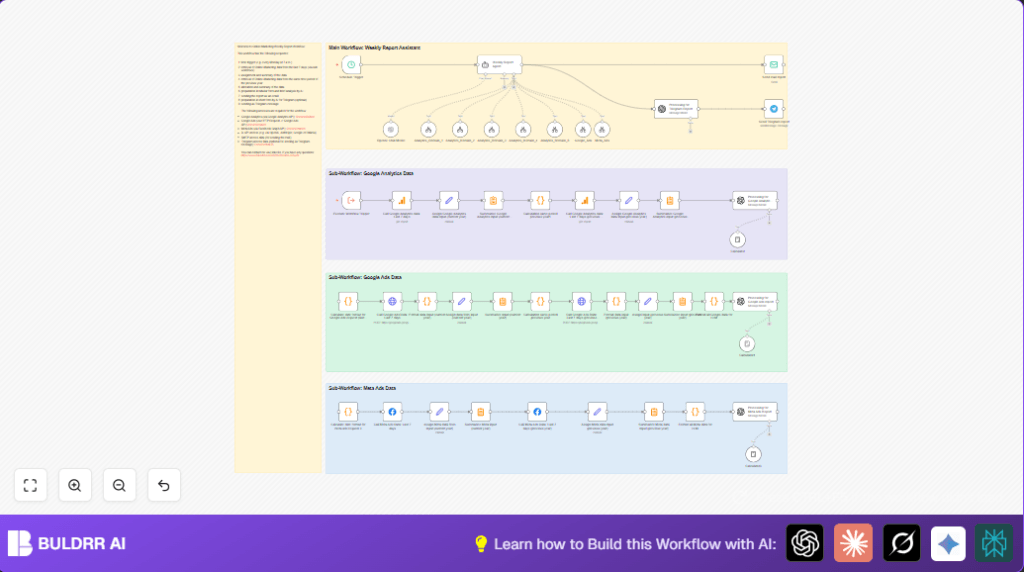
This workflow runs every Monday at 7 a.m. and collects marketing data from several places automatically.
It solves the problem of spending many hours manually looking up data on multiple platforms.
At the end, it sends a clear email report showing how ads and website did, comparing this week to last year.
You get fast, accurate weekly reports without doing all the work.
Inputs, Processing, and Outputs
Inputs
- Google Analytics API: Website and e-commerce metrics from multiple domains.
- Google Ads API: Advertising campaign data and performance metrics.
- Meta Ads (Facebook Graph API): Social advertising metrics.
- Date ranges: Dynamic last 7 days and same 7 days last year.
Processing Steps
- Calculate date ranges in code nodes for dynamic queries.
- Fetch data from Google Ads and Meta Ads for current and last year periods.
- Fetch website and e-commerce stats from Google Analytics for the same periods.
- Process and summarize raw data into totals and important metrics like CTR and ROAS.
- Use AI, GPT-4, to create easy-to-read summaries and tables.
- Compile all these pieces into one HTML email and optional telegram message.
Outputs
- Professional, formatted weekly report sent by email.
- Optional summary message sent by Telegram.
Why Use This Workflow
Manual weekly reporting wastes many hours.
Manual data entry can cause errors.
This workflow saves time and gives fast, clear insights.
You can trust the numbers to be correct and timely.
Beginner Step-by-Step: How to Use This Workflow in n8n
Step 1: Import the workflow
- Download the workflow file using the Download button on this page.
- In the n8n editor, click on “Import from File” and upload the downloaded workflow.
Step 2: Add credentials and settings
- Enter your Google Analytics OAuth2 credentials.
- Enter Google Ads OAuth2 credentials and developer token.
- Add Facebook Graph API credentials.
- Insert the OpenAI API key for GPT-4.
- Fill SMTP email account details to enable email sending.
- Add Telegram API credentials if you want messages sent there.
- Update any domain IDs, email addresses, or chat channel IDs in the nodes as needed.
Step 3: Test the workflow
- Run the workflow manually once to check data retrieval and report generation.
- Look for errors in the execution panel and fix any credentials or settings issues.
Step 4: Activate for production
- Enable the workflow to run on schedule every Monday at 7 a.m.
- Monitor first few runs to ensure emails are sent correctly.
- Once stable, rely on the workflow to deliver reports automatically.
For users wanting full control by running n8n on server, check self-host n8n options.
Tools and Services Used
- Google Analytics API: Gets website and e-commerce data.
- Google Ads API: Provides campaign metrics like clicks and cost.
- Facebook Graph API: Fetches Meta Ads performance data.
- OpenAI API (GPT-4): Creates natural language summaries from numbers.
- SMTP Email Account: Sends composed email automatically.
- Telegram Bot API (optional): Sends shortened report messages.
- n8n workflow automation platform: Connects all steps and manages scheduling.
Common Problems and Fixes
- 401 Unauthorized in Google Ads API: Fix by reauthenticating OAuth and verifying developer token.
- OpenAI node errors: Check API key limits and verify model ID is “gpt-4o” or similar.
- Email not sent: Confirm SMTP username, password, and sender email are correct.
Customization Ideas
- Add other ad platforms like Bing Ads or LinkedIn Ads with new API nodes.
- Change schedule timing to daily, biweekly, or monthly through the Schedule Trigger.
- Modify AI prompts in OpenAI nodes to generate reports in other languages.
- Include more metrics like bounce rate or new users in Code nodes.
- Adjust HTML styling in the email to match brand colors or logos.
Summary
✓ Saves over 3 hours every week by automating report building.
✓ Automatically pulls data from Google Analytics, Google Ads, and Meta Ads.
✓ Calculates important metrics and compares this week to last year.
✓ Uses AI to write clear summaries and professional emails.
✓ Sends reports by email and optionally Telegram for fast team updates.
✓ Removes mistakes that happen when doing this by hand.
// Code example: Date calculation for Google Ads query
const today = new Date();
const end = new Date(today);
end.setDate(today.getDate() - 1);
const start = new Date(end);
start.setDate(end.getDate() - 6);
function formatDate(date) {
  const year = date.getFullYear();
  const month = String(date.getMonth() + 1).padStart(2, '0');
  const day = String(date.getDate()).padStart(2, '0');
  return `${year}${month}${day}`;
}
return { startDate: formatDate(start), endDate: formatDate(end) };
