
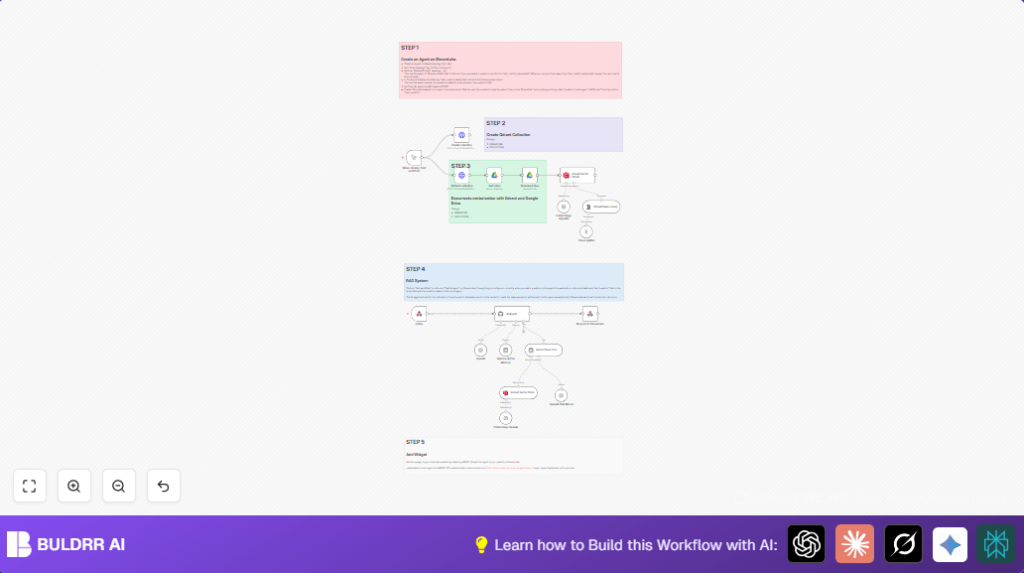

What This Automation Does
This workflow listens for voice questions through ElevenLabs voice AI agents.
It uses AI to understand questions, finds answers in your stored documents, and replies with spoken responses.
The main problem solved is saving time spent on answers that repeat the same questions again and again.
The result is faster and correct voice answers without needing extra staff.
Tools and Services Used
- ElevenLabs: Creates voice agents for input and output.
- OpenAI: Provides embeddings and language models for AI understanding and answering.
- Qdrant Vector Database: Stores and searches embedded document knowledge.
- Google Drive: Holds the informational documents for indexing.
- n8n: Runs the automated workflow to connect services and process data.
How the Workflow Works
Inputs
- Users speak questions to ElevenLabs’ voice AI agent.
- Text form of user questions sent via webhook to n8n.
- Documents stored in Google Drive used as knowledge base.
Processing Steps
- n8n webhook receives question text.
- AI Agent node interprets the question using LangChain.
- Vector Store Tool queries Qdrant for related documents using OpenAI embeddings.
- OpenAI chat model generates answers based on retrieved info and conversation memory.
- Response sent back to ElevenLabs for voice synthesis.
- Workflow supports on-demand document refresh and re-indexing.
Output
- ElevenLabs voice agent speaks AI-generated answer to user.
- Improved customer voice interaction quality at pizzeria or other businesses.
Beginner Step-by-Step: How to Use This Workflow in n8n
1. Import Workflow
- Download the workflow file using the Download button on this page.
- Go inside the n8n editor.
- Click “Import from File” and select the downloaded workflow file.
2. Configure Credentials and Settings
- Add OpenAI API Key in n8n credentials.
- Set Google Drive credentials to allow document access.
- Provide Qdrant HTTP API credentials and confirm QDRANTURL and COLLECTION names are accurate in all relevant nodes.
- Enter the ElevenLabs voice agent webhook URL into the Webhook node.
3. Adjust Necessary IDs and Parameters
- Update Google Drive folder ID in the Get folder node.
- Verify or change COLLECTION name in Qdrant-related nodes.
- Customise AI Agent prompt in the AI Agent node if needed.
4. Test and Activate
- Run the workflow manually once to ensure all API calls and nodes work correctly.
- Look for any errors and fix credential or configuration issues.
- Activate the workflow in n8n by toggling it to “active” so it listens continuously.
If using self-hosted n8n, consider self-host n8n for reliable uptime and access.
Customization Ideas
- Change the AI Agent’s system prompt to fit your brand’s voice and style of answers.
- Switch Google Drive folder ID in Get folder node to update your knowledge base.
- Modify Token Splitter chunk size for bigger or smaller text pieces used in embeddings.
- Change COLLECTION parameter for Qdrant to create multiple knowledge areas or test environments.
- Adjust Window Buffer Memory to keep longer or shorter conversations in memory.
Troubleshooting
- Issue: No requests received on Webhook node from ElevenLabs.
Fix: Make sure the exact webhook POST URL is copied into ElevenLabs agent webhook settings with method POST. - Issue: Qdrant collection creation fails.
Fix: Check QDRANTURL, API credentials, and headers in Create collection HTTP node. - Issue: OpenAI API quota limit reached.
Fix: Look at OpenAI usage dashboard. Add delays or limit workflow calls if needed. - Issue: Empty or error response returned to ElevenLabs.
Fix: Verify AI Agent output and Respond to ElevenLabs node data flow.
Pre-Production Checklist
- Confirm all API keys for OpenAI, Qdrant, and Google Drive work.
- Test webhook URL from ElevenLabs to n8n.
- Ensure Qdrant collection is created, empty, and accessible.
- Validate correct downloading and conversion of Google Drive documents.
- Run test question through workflow and check response and speech output.
Deployment Guide
After testing, switch workflow to active in n8n dashboard.
Make sure webhook listens without interruption for voice inputs.
Check execution logs regularly to catch problems fast.
Set alerts if OpenAI or Qdrant failures or rate limits occur to keep service smooth.
If embedding ElevenLabs widget on a website, verify script loads and connects properly by replacing the agent ID correctly.
Summary of Results and Value
✓ Save daily hours by automating repeated customer question answers.
✓ Get faster, accurate voice responses powered by AI and your own documents.
✓ Improve customer experience at your business with hands-free voice help.
✓ Easily update and expand your knowledge base by changing documents or prompts.
→ Deploy this workflow inside n8n and connect your ElevenLabs agent for real-time voice Q&A.
