
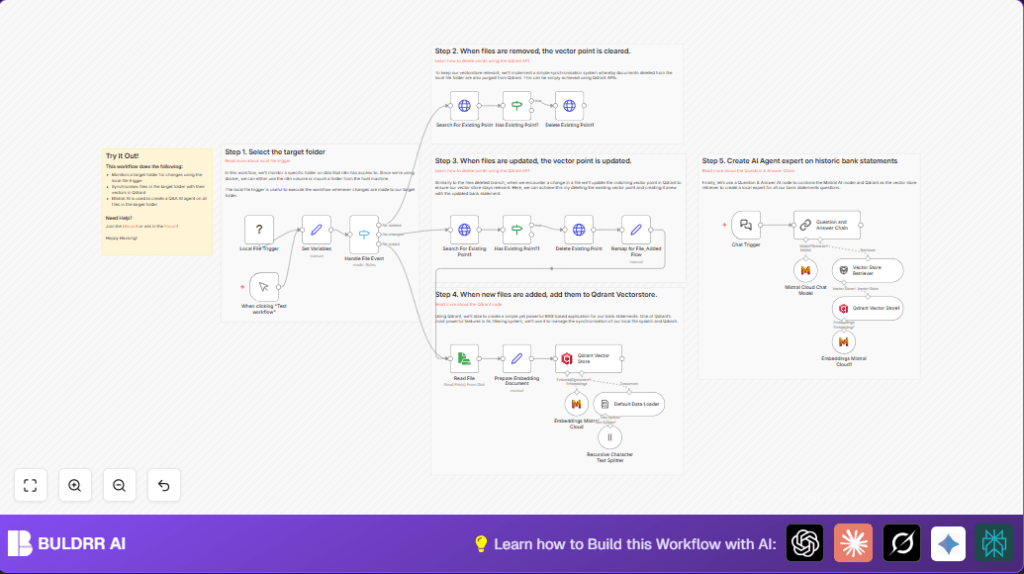

What This Workflow Does
This workflow watches a folder on a local computer for bank statement files that are added, changed, or deleted.
It updates a special vector database with AI-generated vectors from these files.
Users can ask questions about all bank statements using AI chat.
It saves time by giving fast, clear, and correct answers.
The main problem is manual tracking is slow, has mistakes, and wastes time.
This automation keeps everything up to date automatically.
Inputs, Processing Steps, and Outputs
Inputs:
- Local file changes: Adding, changing, or deleting bank statement files in a chosen folder.
- User questions: Sent to a webhook that triggers the AI agent.
Processing Steps:
- Watch folder for file events using Local File Trigger.
- Set important variables like file paths and database collection in Set node.
- Use Switch to check what kind of file event happened.
- If file deleted, search matching vector points and delete them from Qdrant via HTTP nodes.
- If file changed, delete old vector points then reprocess the new content.
- If file added or changed, read file content.
- Prepare document text and metadata.
- Generate vector embeddings using Mistral AI embedding API.
- Insert or update vector data in Qdrant vector database.
- Split long texts into pieces using Recursive Character Text Splitter.
- Load chunks for AI knowledge base.
- Answer user questions with Mistral chat model paired with Qdrant vector retriever.
Outputs:
- Automated, updated vector records matching current files.
- Quick, relevant AI answers about bank statements.
Who Should Use This Workflow
This workflow fits people who:
- Have many local bank statement files needing regular updates.
- Want AI help to quickly find info inside documents.
- Prefer not to do manual cross-checking or searching.
- Work inside n8n automation platform.
It is good for analysts, accountants, or any person managing financial files on their computer.
Tools and Services Used
- n8n automation platform: Runs workflow and handles triggers.
- Local File Trigger node: Watches folder for file events.
- Mistral AI API: Creates text embeddings and answers chat.
- Qdrant vector database: Stores and retrieves embedding vectors.
- HTTP Request nodes: Communicate with Qdrant API for searching and deleting points.
- Webhook node: Receives user questions.
- Recursive Character Text Splitter node: Splits big texts into smaller parts.
Beginner Step-by-Step: How to Use This Workflow in n8n
Step 1: Download and Import the Workflow
- Click the Download button on this page to save the workflow file.
- Open the n8n editor where you want to use the workflow.
- Choose “Import from File” and select the downloaded workflow file.
Step 2: Add Credentials and Configure Nodes
- Add your Mistral Cloud API key in the nodes for embeddings and chat.
- Input your Qdrant API credentials and URL in HTTP Request and vector store nodes.
- Set the folder path in the Local File Trigger node to match your bank statement folder.
- If your workflow has any IDs, emails, or channels, check and update them.
Step 3: Test the Workflow
- Manually add, update, or delete a test file in the monitored folder.
- Check workflow executions to confirm it reacts and updates vectors.
- Use the webhook URL to send test questions and see AI answers.
Step 4: Activate for Production
- Turn on the Local File Trigger node to start continuous monitoring.
- Keep your credentials secure and monitor logs for any errors.
- Optionally adjust settings or customize as needed.
If running self hosting n8n or VPS, see self-host n8n resources for folder mounts and permissions.
Customizations
- Change the folder path in Local File Trigger to watch other documents.
- Switch Mistral AI models by editing API keys or model names for better results.
- Modify Qdrant collection names to separate data types.
- Add extra metadata filtering in HTTP nodes for precise vector management.
- Add monitoring for more file events like renaming.
Troubleshooting
No Workflow Trigger on File Change
Check if folder path is correctly mounted and accessible by n8n, especially in Docker.
Use absolute paths and verify permissions.
Vector Points Not Updating
Confirm Qdrant API calls succeed with correct credentials and payload.
Test outside n8n with tools like Postman.
AI Agent Gives Wrong Answers
Verify text splitting and embedding nodes produce expected outputs.
Ensure vector store has current points linked to documents.
Pre-Production Checklist
- Verify folder paths and volume mounts.
- Test Mistral API keys separately for embeds and chat.
- Check Qdrant collection and API permissions.
- Add sample files and watch workflow updates.
- Review executions and error logs.
Summary
✓ Automates folder watching and vector updating.
✓ Converts bank statement text to AI-searchable vectors.
✓ Answers questions with Mistral AI chat and Qdrant retrieval.
✓ Saves hours of manual work and reduces errors.
✓ Easy to deploy by importing workflow and adding credentials.
→ Real-time, accurate financial insights.
→ Workflow stays synced with file changes.
