

What This Workflow Does
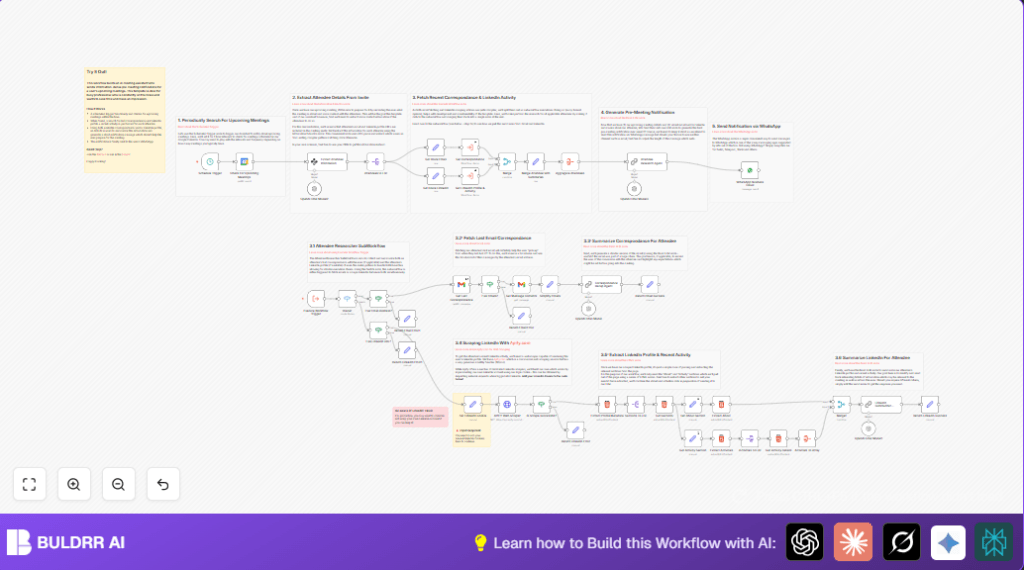
This workflow scans your Google Calendar every hour for meetings starting soon.
It collects attendee emails and LinkedIn URLs from the invite.
The workflow fetches recent emails from Gmail and scrapes LinkedIn profiles using Apify.
Then, it uses OpenAI to summarize these details.
Finally, it sends you a brief meeting summary by WhatsApp before the call.
This saves you hours trying to prepare and helps avoid missing important info.
Who Should Use This Workflow
This is for busy people who have many meetings daily and need quick prep info.
If you spend extra time hunting details before calls, this workflow will help.
You don’t need to be a tech expert but should have basic n8n setup skills.
Tools and Services Used
- n8n Automation: Runs the workflow.
- Google Calendar API: Reads upcoming meetings.
- Gmail API: Finds recent emails with attendees.
- Apify API: Scrapes LinkedIn profiles.
- OpenAI API: Summarizes emails and LinkedIn data.
- WhatsApp Business Cloud API: Sends messages.
How This Workflow Works: Inputs → Processing → Output
Inputs
- Next hour meeting info from Google Calendar.
- Attendee email addresses and LinkedIn URLs from calendar event.
- Emails related to attendees from Gmail.
- LinkedIn profile HTML data via Apify scraper.
Processing Steps
- Extract attendee list using an AI Information Extractor node.
- Split attendees to process separately.
- Route to Gmail or LinkedIn processing based on attendee info.
- Fetch latest email for attendees with emails and summarize with OpenAI model.
- Scrape LinkedIn data for those with profile URLs and summarize also with OpenAI.
- Combine all attendee summaries into one object.
- Generate a final meeting briefing message via OpenAI chat model.
Output
Pre-formatted WhatsApp message sent to your phone with meeting and attendee highlights.
Beginner Step-by-Step: How to Use This Workflow in n8n Production
Step 1: Import Workflow
- Click the Download button on this page to save the workflow JSON file.
- Open your n8n editor.
- Use the Import from File option to load the workflow JSON.
Step 2: Configure Credentials
- Add OAuth2 credentials for Gmail and Google Calendar.
- Enter your OpenAI API Key in the OpenAI nodes.
- Set WhatsApp Business Cloud API tokens in the WhatsApp nodes.
- Put your Apify API key and LinkedIn session cookie (
li_at) in the appropriate Set nodes.
Step 3: Update Parameters
- Check and edit any meeting IDs, email addresses, or folder names if the workflow uses them.
- Review any URLs or prompt texts and adjust if needed by copying from the provided blocks.
Step 4: Test Workflow
- Run the workflow manually once in the editor to confirm no errors appear.
- Check that WhatsApp messages send correctly.
Step 5: Activate Workflow for Production
- Toggle the workflow to Active in the n8n editor.
- Your workflow will now check the calendar each hour automatically and send messages.
For privacy or more control, consider running self-host n8n on your server.
Customizations
- Change schedule node to run every 15 or 30 minutes if meetings are frequent.
- Replace WhatsApp node with Slack or Email nodes to change notification channels.
- Edit HTML Extract nodes to pull extra LinkedIn details like skills or education.
- Use Switch node filters to prioritize key attendees only.
- Modify OpenAI prompt texts to adjust tone and content of summaries.
Common Issues and Troubleshooting
Gmail Node Returns No Emails
Check if email address filters exactly match attendee emails.
Make sure Gmail OAuth2 credentials have full inbox access.
LinkedIn Scraping Fails
Update the li_at cookie in the Set node with a fresh one from your logged-in browser session.
Check cookie expiration and LinkedIn terms to avoid blocks.
OpenAI API Limits Hit
Monitor your usage in OpenAI account.
Refresh or rotate API keys. Add retries in nodes for stability.
Pre-Production Checklist
- Confirm the scheduler triggers the workflow hourly.
- Verify Google Calendar node returns upcoming meetings.
- Check Gmail nodes fetch emails correctly with the right filters.
- Test Apify scraping using valid API key and LinkedIn cookie.
- Ensure OpenAI nodes generate understandable summaries.
- Send a test WhatsApp message to verify delivery.
- Backup all credentials and export the workflow JSON for safety.
Deployment Guide
After testing, activate the workflow in the n8n editor by turning it on.
Check logs for errors during runs.
Increase your n8n server or cloud capacity if you have many meetings per hour.
Consider running self-host n8n for control and security.
Summary of Benefits
✓ Save several hours weekly on meeting prep.
✓ Receive concise, tailored meeting briefs.
✓ Get instant WhatsApp notification before meetings.
✓ Enter meetings more confident and informed.
✓ Reduce follow-up emails and clarify communication.
