
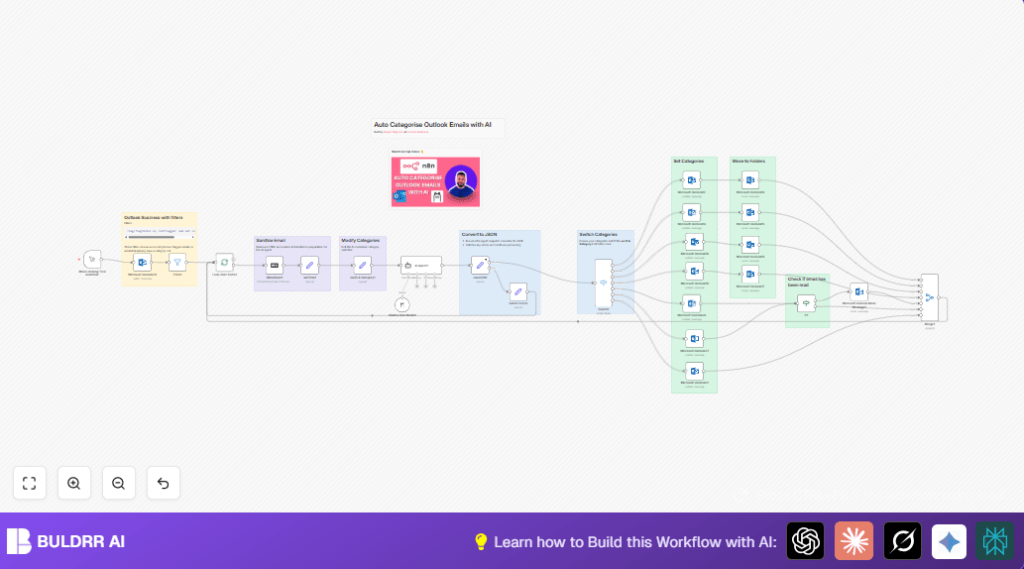

What This Workflow Does
This workflow automatically sorts Outlook emails into categories like Action, Junk, Receipt, SaaS, Community, Business, and Other.
It cleans email content, sends it to an AI model to find the right category, then updates and moves emails in Outlook accordingly.
Who Should Use This Workflow
This is for people who spend hours sorting Outlook emails by manual filters or rules.
Users wanting less clutter and missed emails can save time by letting AI handle sorting.
Tools and Services Used
- Microsoft Outlook: For reading and updating emails.
- n8n Automation Platform: Connects and runs the workflow nodes.
- Langchain AI Agent with Ollama Qwen 2.5 Model: Analyzes email text and decides categories.
Workflow Inputs, Processing, and Outputs
Inputs
- Unflagged Outlook emails that have no category assigned.
Processing Steps
- Fetch emails from Outlook using OData filters.
- Filter out any emails that already have categories or are flagged.
- Process emails one by one to control AI requests.
- Convert email body from HTML to markdown, then clean to remove tags and special characters.
- Prepare a list of allowed categories for the AI to assign.
- Send cleaned email data to the Langchain AI Agent with a prompt asking for category and subcategory.
- Parse the AI response into a usable format.
- Use a switch node to send emails to update nodes based on the AI-assigned category.
- Update Outlook email categories using Microsoft Outlook nodes.
- Move emails to matching folders like Junk, Receipt, SaaS, Community, Actioned if read, etc.
- Check if emails are read before moving some categories to avoid reprocessing.
Outputs
- Outlook emails categorized with correct tags.
- Emails moved to dedicated folders based on category.
Beginner Step-by-Step: How to Use This Workflow in n8n
Step 1: Download and Import Workflow
Download the workflow file using the Download button on this page.
In the n8n editor, use the “Import from File” option to add the workflow.
Step 2: Add Credentials and Configure
Set up Microsoft Outlook credentials or API keys as required.
Set credentials for the Langchain AI Agent and Ollama Qwen 2.5 model.
Update folder IDs and email IDs inside the Microsoft Outlook nodes to match your mailbox folders if needed.
Step 3: Review Prompt and Code
Review AI prompt in the AI Agent1 node to understand the categories and instructions sent to AI.
Check the JavaScript code in the varEmal1 node for email text cleaning to ensure it suits your email formats.
Step 4: Test the Workflow
Manually trigger the workflow using the Manual Trigger node to fetch emails and run categorization once.
Observe outputs in each node for any errors or invalid AI responses.
Step 5: Activate for Regular Use
Change the trigger to a Cron Trigger or schedule to run at desired intervals (e.g., every hour).
Activate the workflow. Monitor logs and Outlook to verify emails get categorized and moved properly.
If using self-host n8n, make sure service runs continuously for automation.
Customization Ideas
- Change category list in the varID & Category1 node to suit personal email tags.
- Adjust AI model temperature in the Ollama Chat Model node to control output style.
- Add or change Outlook folder IDs in Microsoft Outlook move nodes to organize emails differently.
- Tweak the AI prompt in the AI Agent1 node to refine how categories are assigned or to add explanation.
- Modify batch size in Loop Over Items1 node for processing more emails at once or slowing down requests.
Edge Cases and Troubleshooting
- API limits: Too many emails or AI calls cause failures. Lower batch sizes or add delays.
- Invalid AI JSON: AI returns badly formatted data. Use JSON parsing fixes and clean prompt.
- Emails not moving: Wrong folder IDs or missing Outlook permissions. Check folderId setup.
- Already categorized emails processed: Filter conditions may have errors. Confirm OData syntax in Outlook fetch and filter nodes.
Summary of Results
✓ Emails get sorted automatically into correct categories.
✓ Outlook folders receive the right emails moved in place.
✓ Saves hours of manual sorting every week.
→ Inbox clutter is reduced and important emails are easier to find.
