

What This Workflow Does
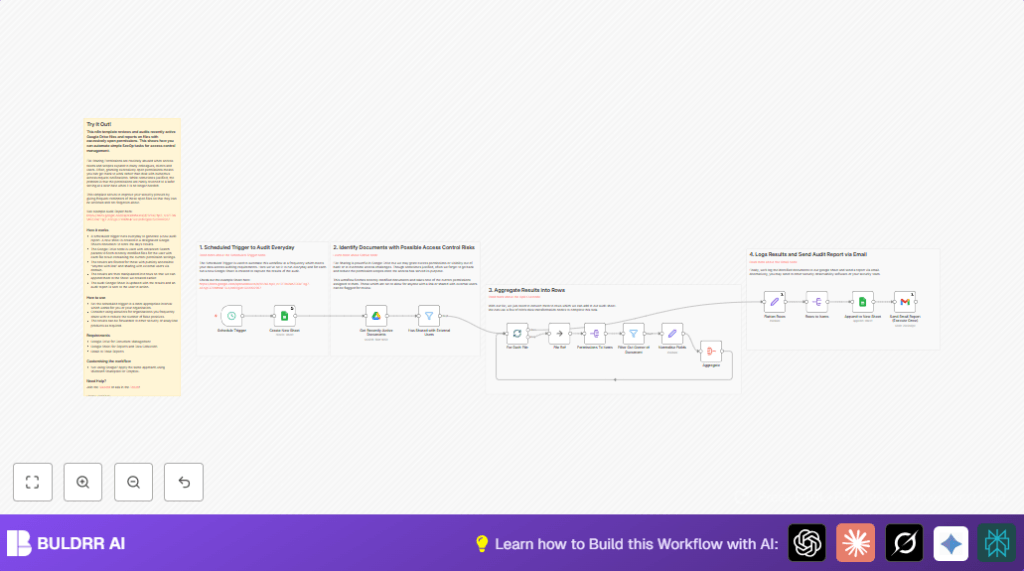
This workflow runs every day at 6 AM and finds Google Drive files that were changed in the last 24 hours.
It spots files shared too openly, like anyone with the link can access or files shared outside the company domain.
A new Google Sheet tab is made every day to save the flagged files.
Finally, it sends an email report with links so you can check the risky files fast.
Who Should Use This Workflow
This is for people who want to keep their company files safe.
If you manage shared Google Drive files and want quick reports on risky sharing, this can help save you hours every week.
Tools and Services Used
- Google Drive API: To get file info and permissions.
- Google Sheets API: To create daily audit sheets and add data.
- Gmail API: To send daily email reports.
- n8n automation platform: Runs the workflow and connects all steps.
How This Workflow Works: Inputs → Processing → Outputs
Inputs
- The Google Drive files modified in the last 24 hours.
- File permissions data to check sharing settings.
- Google Sheets for storing audit data.
- Gmail for sending emails.
Processing Steps
- Create a new audit tab in Google Sheets with today’s date.
- Fetch Google Docs, Sheets, and Slides changed in last 24 hours.
- Filter out files shared only privately (no risk).
- Keep only files shared publicly or with users outside the company domain.
- For each risky file, list ID, name, permission type, user email, and role.
- Aggregate all risky file data.
- Append this data as rows into the new audit sheet.
- Send an email summary with clickable links for quick review.
Outputs
- A new Google Sheets tab each day showing flagged files with risky sharing.
- An email report sent at 6 AM with direct links and summaries.
Beginner step-by-step: How to Use This Workflow in n8n
Step 1: Download and Import
- Download the workflow file using the Download button on this page.
- Open n8n editor where you want to run the workflow.
- Import the workflow by clicking “Import from File” and select the downloaded file.
Step 2: Configure Credentials
- Add your Google Drive and Google Sheets API credentials in n8n under the credential settings.
- Add Gmail API credentials to allow email sending.
- Make sure these credentials have the correct reading and writing permissions.
Step 3: Update Workflow Details
- Update email addresses in the Gmail node for who should get the report.
- Check and update the company domain in the filter node if needed (e.g., change ‘example.com’ to your domain).
- If needed, update Google Sheets IDs or tabs in the nodes using exact IDs or expressions.
Step 4: Test and Activate
- Manually run the workflow once to check if it works and fix errors if any.
- If all runs fine, activate the workflow so it runs automatically every day at 6 AM.
When ready, let the workflow run and get audit reports automatically every morning.
If using self hosting n8n, check self-host n8n for help on setup.
Key Notes, Customizations & Troubleshooting
Customizations
- Change company domain filter in “Has Shared with External Users” node to your domain.
- Change audit time in the Schedule Trigger node if 6 AM is not ideal.
- Add or remove Google Drive file types in the query step if you want to audit different files.
- Add multiple email addresses in the Gmail node separated by commas.
- Replace the email step with HTTP Request nodes to send audit data to other security tools.
Troubleshooting
- If no files are returned from Google Drive, check the query formatting and permissions.
- If emails fail to send, re-authenticate the Gmail node credentials.
- If data doesn’t append correctly, verify spreadsheet ID and tab names used in the append node.
Summary
✓ Saves 2-3 hours every week by automating permission audits.
✓ Finds files shared with anyone or outside company domain fast.
✓ Creates daily audit sheets that show risky file sharing history.
✓ Sends timely email reports with quick links to risky files.
→ Helps keep sensitive company data safer without manual checks.
