
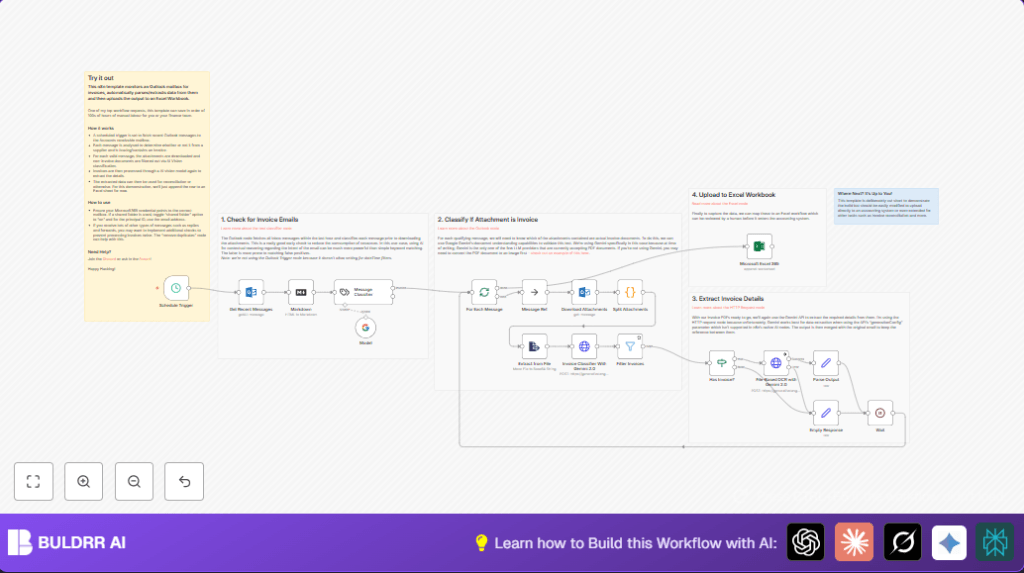

What This Automation Does
This workflow scans an Outlook inbox folder every hour and finds emails with attachments.
It uses AI to check if the email is actually an invoice or not.
Then, it downloads and splits the attachments, checks each file if it really is an invoice using Google Gemini AI vision.
After confirming invoices, it extracts detailed data from PDF invoices with Google Gemini OCR.
Finally, it saves the extracted information into an Excel file for easy tracking.
Tools and Services Used
- Microsoft Outlook: Email inbox where invoice messages arrive.
- n8n Automation Platform: Builds and runs the workflow.
- Google Gemini (PaLM) API: AI text classification, vision, and OCR.
- Microsoft Excel 365: Target store for invoice data.
Inputs → Processing Steps → Output
Inputs
- Emails with attachments arriving in a specific Outlook folder within the last hour.
Processing Steps
- Get emails with attachments from Outlook.
- Convert email body HTML to markdown for better AI understanding.
- Use AI text classifier to pick invoice emails.
- Split email items to process one at a time.
- Download attachments from selected invoices.
- Split multi-attachment messages into single file items.
- Call Google Gemini AI to confirm each attachment is an invoice addressed to the company.
- Filter out non-invoice files.
- Extract detailed invoice data by sending PDF files to Google Gemini OCR.
- Format the extracted data and relate it to the original email metadata.
- Append structured invoice data as rows in an Excel spreadsheet.
- Wait 1 second between batches to avoid hitting API limits.
Output
- Rows of extracted invoice information saved automatically in an Excel workbook.
Who Should Use This Workflow
Anyone handling many vendor emails and manually entering invoice data will find this helpful.
This reduces spending many hours downloading, checking, and typing details manually.
It is designed for people with Outlook and Excel 365, wanting healthier email workflow and fewer errors.
Beginner Step-by-Step: How to Use This Workflow in n8n
Step 1: Import the Workflow
- Download the workflow from this page using the Download button.
- Inside the n8n editor, click “Import from File” and select the downloaded workflow file.
Step 2: Add Needed Credentials and Update Settings
- Add Microsoft Outlook OAuth2 credentials in Microsoft Outlook nodes.
- Add Google Gemini API credentials for all HTTP Request nodes that call Google API.
- Add Microsoft Excel 365 credentials and check worksheet and workbook IDs in the Microsoft Excel 365 node.
- Check folder IDs or email addresses used in the Outlook nodes and update if your mailbox uses different folders.
- If the Code or Prompt blocks are present, copy and paste them exactly where needed.
Step 3: Test the Workflow
- Run the workflow manually once to check connections and see if emails and invoices are processed properly.
- Review console logs and check the output data in Excel sheet.
Step 4: Activate for Production
- Turn on the workflow so the Schedule Trigger runs every hour automatically.
- Monitor executions regularly to confirm error free operation.
- Adjust schedule frequency or API limits as needed.
Note: For self-host n8n, import this workflow similarly to run on your server.
Customizations You Can Try
- Add more email categories in the AI classifier, like purchase orders or credit notes.
- Send results to a database instead of Excel if preferred.
- Use a Remove Duplicates node to avoid saving the same invoice twice.
- Switch from Schedule Trigger to an Outlook Trigger node for near real-time processing.
- Change prompts to extract more data fields like tax numbers or payment terms.
Troubleshooting
No emails fetched? Check folder IDs and make sure Outlook credentials have access.
Attachments not downloading? Turn on the “Download Attachments” option and verify message IDs are correctly referenced.
AI classification returns wrong results? Confirm input text is correct and API key is valid with quota remaining.
Pre-Production Checklist
- Test Microsoft Outlook credentials and mailbox access.
- Test Google Gemini API keys with a sample request.
- Verify Microsoft Excel workbook and worksheet IDs.
- Run the workflow manually on test emails.
- Backup Excel files before live use.
Deployment Guide
Activate the workflow to start hourly email checks.
Watch execution logs in n8n UI for errors.
If there is high volume, add throttling or smaller batch sizes to stay under API limits.
Use n8n logging and alert features to monitor workflow health.
Summary
✓ Saves many hours of manual invoice handling
✓ Cuts down errors by automating invoice data extraction
✓ Gives clear, updated invoice records in Excel
→ Checks Outlook inbox on schedule and finds real invoice emails
→ Uses AI to separate invoices from other emails and attachments
→ Extracts detailed invoice data with Google Gemini OCR API
→ Automatically saves invoice details in Excel for easy tracking
