
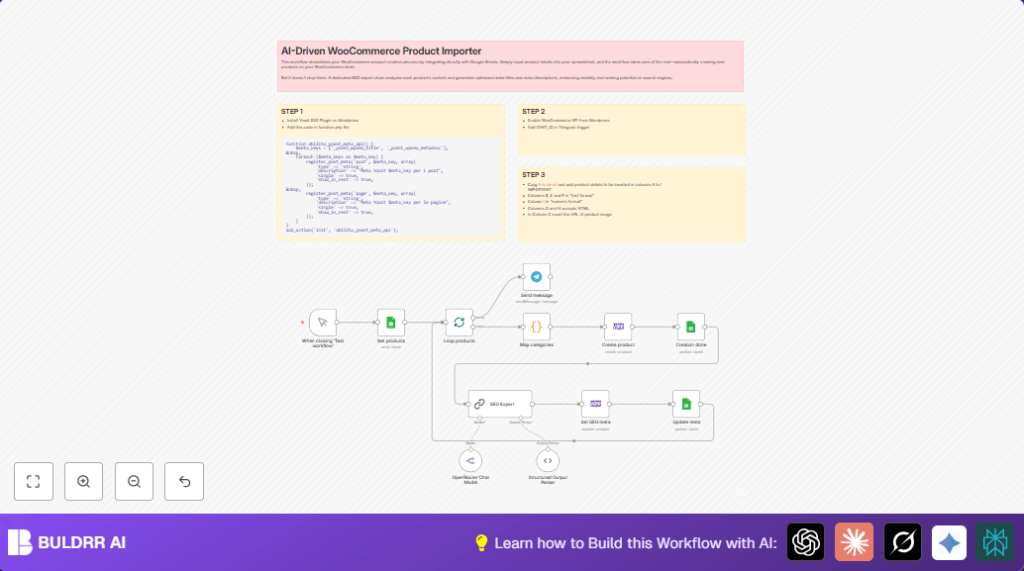

What This Workflow Does
This workflow reads product data from Google Sheets and creates products in WooCommerce automatically.
It also uses AI to write SEO meta titles and descriptions for each product.
This saves time, avoids mistakes, and helps products rank better on Google.
Who Should Use This Workflow
This workflow is for store owners with many products to add.
It suits those who want to spend less time on manual entry and improve SEO easily.
Tools and Services Used
- Google Sheets: Stores product details.
- WooCommerce REST API: Lets the workflow create and update products.
- OpenRouter API: Runs Gemini AI model to write SEO metadata.
- Yoast SEO Plugin: Manages SEO meta info on WooCommerce site.
- Telegram Bot API: Sends notifications when process finishes.
- n8n Automation Platform: Runs the workflow to connect and automate all steps.
Inputs, Processing Steps, and Output
Inputs
- Product info in Google Sheets: title, SKU, categories, images, prices, stock, descriptions.
- WooCommerce API credentials to create products.
- OpenRouter API key to generate SEO metadata.
- Telegram chat ID for notifications (optional).
Processing Steps
- Google Sheets node fetches all products not yet imported.
- Split In Batches node breaks products into smaller groups to avoid overload.
- Code node converts categories from string to array of numbers.
- WooCommerce node creates products with full details including images and stock.
- Google Sheets node marks products as “DONE” with WooCommerce IDs and links.
- OpenRouter Chat Model node calls Gemini AI to generate SEO meta titles and descriptions.
- SEO Expert LangChain node uses prompt to ensure SEO content fits limits and style.
- Structured Output Parser node extracts JSON meta tag data from AI response.
- WooCommerce node updates existing products with SEO metadata fields using Yoast keys.
- Google Sheets node writes SEO metadata back into the spreadsheet.
- Telegram node sends completion notice.
Output
- Products added to WooCommerce with complete info and SEO data.
- Google Sheets updated for tracking imported products and SEO status.
- Notification sent to Telegram for confirmation.
Beginner Step-by-Step: How to Use This Workflow in n8n
Importing the Workflow
- Download the workflow file from this page using the Download button.
- Open the n8n editor where you manage workflows.
- Use the “Import from File” option to load this workflow JSON into n8n.
Configuring Credentials and Settings
- Add your Google Sheets API credentials in the Google Sheets node to connect your product spreadsheet.
- Enter your WooCommerce API consumer key and secret in the WooCommerce node.
- Paste your OpenRouter API key where required in the AI nodes for SEO meta generation.
- Update the spreadsheet ID, sheet GID, or any product categories if needed.
- If you want notifications, enter the Telegram bot token and chat ID in the Telegram node.
- Copy and paste any code snippets or prompts used in the workflow, for example the category mapper code or SEO prompt (see below).
Testing and Activating
- Run the Manual Trigger once to test with your sample product data.
- Check the output to confirm products are created and SEO metadata is assigned.
- Verify the spreadsheet updates and Telegram notification come through.
- Activate the workflow by toggling it from inactive to active to run automatically or on schedule.
For users running or self hosting n8n, self-host n8n helps to keep this automation reliable and fast.
for (const item of $input.all()) {
  if (item.json.CATEGORY && typeof item.json.CATEGORY === 'string') {
    item.json.CATEGORY = item.json.CATEGORY
      .split(',')
      .map(id => parseInt(id))
      .filter(id => !isNaN(id));
  }
}
return $input.all();
This code goes in the Code node named “Map categories” to fix category formats.
Generate SEO meta title (max 60 chars) and meta description (max 160 chars) for the product.
Use product title, description, and SKU in the prompt.
Return output as JSON with fields "MetaTitle" and "MetaDescription".
This prompt feeds the SEO Expert LangChain node for SEO text generation.
Customization Ideas
- Change the AI model or adjust prompt to focus on different keywords.
- Add custom fields or product tags in WooCommerce node.
- Modify batch size in Split In Batches node for performance tuning.
- Add error logging nodes to capture problems or notify via Slack.
- Replace Telegram notifications with Slack or email as needed.
Common Issues and How to Fix Them
- Invalid WooCommerce API credentials: Check keys are correct and have read/write permissions.
- Categories not accepted by WooCommerce API: Verify the category code converts strings to arrays of numbers.
- SEO meta fields not updating: Confirm Yoast SEO plugin is installed and the PHP snippet exposes meta via REST API.
- AI output parsing error: Ensure prompts ask for JSON format and parser schema matches output.
Pre-Production Checklist
- Check Google Sheet headers and data formats are correct.
- Test WooCommerce API with a simple GET request.
- Verify Yoast SEO meta fields can be accessed via the REST API.
- Run workflow manually with sample data to validate.
- Ensure spreadsheet rows update correctly after processing.
- Confirm Telegram notifications if used.
Deployment Guide
After testing, activate the workflow in n8n to run automatically.
Schedule triggers like cron to run when product data changes.
Monitor execution logs for errors and verify data sync in spreadsheet and WooCommerce.
Summary
✓ Saves 10+ hours weekly by auto creating WooCommerce products from Google Sheets.
✓ Uses AI to create SEO meta titles and descriptions boosting Google ranking.
✓ Keeps Google Sheet in sync with imported product status and SEO data.
✓ Sends Telegram alerts confirming workflow completion.
➔ Easy for non-technical users to deploy with import and config steps.
➔ Works well on self-host n8n setups to run reliably.
➔ Eliminates manual errors and increases store efficiency and search visibility.
