
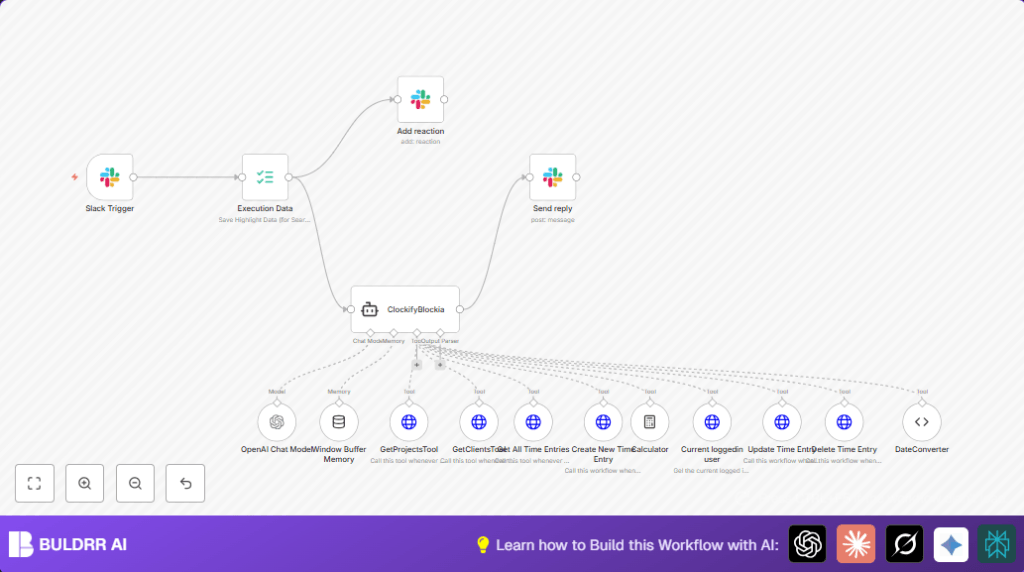

What This Workflow Does
This workflow helps users track and manage their work time entries on Clockify using Slack and AI. It removes manual steps by letting users create, update, or delete time logs inside Slack conversations using an AI assistant. It also checks for overlapping time entries and fixes date and time formats automatically.
The workflow saves time and reduces errors by handling logging through chat. Users get clear, accurate time tracking without leaving Slack.
Who Should Use This Workflow
This workflow is good for teams that use Clockify for time tracking and Slack for communication. It suits engineers, project managers, or anyone who logs work hours often and wants a simpler way to keep these reports accurate.
The workflow fits people who dislike switching apps or remembering exact times. It helps avoid billing mistakes and saves hours weekly.
Tools and Services Used
- Clockify API: Manages time entries and user profiles in the workspace.
- Slack API: Listens for app mentions and sends replies inside Slack channels.
- OpenAI API: Runs the AI assistant that understands user messages and guides time entry tasks.
- n8n Automation Platform: Connects all services with workflow nodes.
Inputs, Processing, and Outputs
Inputs
- Slack app mention events with user messages.
- Clockify workspace and user data via API requests.
- User time entry commands (create, update, delete) sent via Slack.
Processing Steps
- Slack Trigger node starts the workflow on app mention.
- Execution Data node captures Slack event details.
- ClockifyBlockia AI assistant node interprets user commands, checks for overlaps, and decides API calls.
- OpenAI Chat Model node generates replies and validates description quality.
- Clockify API Request nodes read or modify time entries, projects, clients, and user info.
- DateConverter and Calculator nodes handle date-time conversions and duration calculations.
- Window Buffer Memory node keeps conversation history per Slack user for context.
- Slack Reply node sends answers back to users in their Slack channel or thread.
Outputs
- Slack messages replying to user commands with confirmation or error messages.
- Updated or new time entries in Clockify matching user requests.
- Maintained conversation context for ongoing chats.
Beginner Step-by-Step: How to Use This Workflow in n8n
Step 1: Import the Workflow
- Download the workflow file using the Download button on this page.
- Open the n8n editor where you build or manage workflows.
- Use Import from File option to load the downloaded workflow.
Step 2: Configure Credentials and Details
- Set up API credentials for Clockify, Slack, and OpenAI in n8n’s credential manager.
- Update workspace IDs, user emails, Slack channel IDs, or any placeholders in the HTTP Request nodes as needed.
- Check system messages or prompts inside the AI nodes if custom text is desired.
Step 3: Test and Activate
- Trigger a test Slack mention to verify the workflow responds and processes commands correctly.
- Fix any errors shown in n8n’s execution logs.
- Activate the workflow by turning on its toggle in n8n for production use.
- Make sure the Slack app is invited to relevant channels with correct permissions.
- Optionally, use self-host n8n for more control over the running environment.
Common Problems and Handling
- Slack mentions do not trigger workflow
Usually caused by bot missing from channel or lack of permission to listen to app mentions. - Clockify API returns unauthorized 401 errors
Check API keys for validity and update if expired. - Incorrect date or time format errors
Make sure all dates are converted with the DateConverter node before Clockify calls. - Memory buffer not storing conversations
Confirm Window Buffer Memory node is configured with Slack user ID as key.
Customization Suggestions
- Change Clockify workspace ID in HTTP Request nodes to your own workspace.
- Edit the AI assistant’s system message to tweak user guidance or add rules.
- Increase Window Buffer Memory’s context window length to remember longer chats.
- Add new HTTP Request nodes to manage other Clockify features like tags or projects.
Summary of Benefits
✓ Saves several hours weekly on time logging.
✓ Prevents overlapping or missing time entries.
✓ Works fully inside Slack for easy access.
✓ Improves billing accuracy by ensuring clear, correct descriptions.
✓ Maintains user-specific conversation context for better guidance.
