
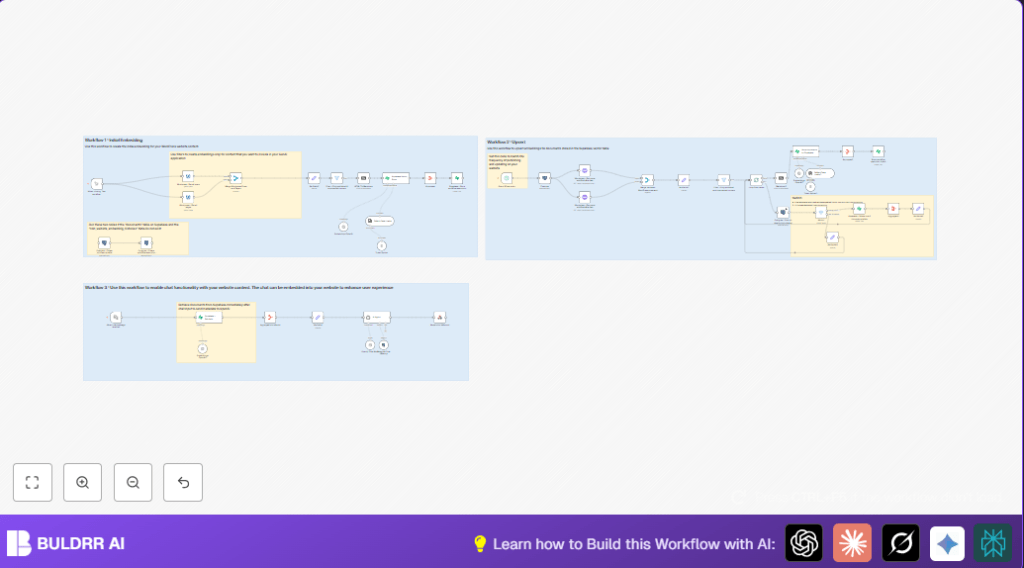

What This Workflow Does
This workflow fetches all your WordPress posts and pages automatically. It cleans the HTML content and breaks it into small pieces. Then, it creates vector embeddings using OpenAI models to store in a database. When visitors ask questions, the workflow finds related content and answers using AI.
This stops you from doing the slow, hard work of manual indexing. It keeps the AI chat up to date and accurate with fresh website information. Visitors get better answers. You save time and improve your site interaction.
Tools and Services Used
- n8n automation platform: Runs and manages the workflow.
- WordPress REST API: Provides website posts and pages data.
- OpenAI API: Generates text embeddings and chat completions.
- Supabase or PostgreSQL (with pgvector): Stores vector embeddings for similarity search.
Inputs, Processing Steps, and Output
Inputs
- Published and accessible WordPress posts and pages via REST API.
- User chat messages sent to the webhook.
- OpenAI API Key for embeddings and chat models.
- Supabase or PostgreSQL database connection details.
Processing Steps
- Retrieve posts and pages using WordPress API node.
- Merge and filter content to keep only published and unprotected data.
- Convert HTML content to clean Markdown.
- Split Markdown content into 300 token chunks with overlaps.
- Generate embeddings for each chunk with OpenAI “text-embedding-3-small” model.
- Save vector embeddings and metadata into Supabase or PostgreSQL vector store.
- Use scheduled triggers to update only new or changed content incrementally.
- On receiving chat input, embed user message and find related chunks in vector store.
- Generate AI chat reply using GPT-4o-mini with context metadata.
- Send back AI answer via webhook response.
Output
- Indexed and searchable vector store of WordPress content.
- Real-time AI chat answers referencing content and metadata.
- Logs of embedding and workflow executions for monitoring.
Who Should Use This Workflow
This is great for website owners or content managers who want fast AI chat on their WordPress sites. No need to do manual data exports or complicated indexing anymore. Anyone using n8n with WordPress, OpenAI, and a vector database can easily keep site content synced and ready for AI answers.
It works well for those with many posts and frequent content updates. Also useful for teams avoiding errors from manual embedding updates. It improves chat accuracy and visitor experience without extra manual work.
Beginner Step-by-Step: How to Use This Workflow in n8n
Step 1: Import Workflow
- Download the workflow file using the Download button on this page.
- Open n8n editor where you want to use the workflow.
- Click on “Import from File” and select the downloaded workflow file.
Step 2: Configure Credentials
- Set up WordPress API credentials with site URL and API Key if needed.
- Add your OpenAI API Key for embedding and chat models.
- Enter Supabase or PostgreSQL connection details, ensuring pgvector is enabled for PostgreSQL.
Step 3: Update Workflow Details
- If needed, update any IDs, email addresses, table names, or folder paths in nodes.
- Check Default Data Loader node and add any extra metadata fields you want included.
- If prompts or system messages for AI chat are shown in the Input fields, copy them exactly.
Step 4: Test Workflow Manually
- Use the Manual Trigger node to run the workflow once.
- Confirm it pulls posts/pages, converts content, creates embeddings, and stores them without errors.
- Use the chat webhook URL to send a test chat message and see if AI replies relevantly.
Step 5: Activate for Production
- Enable the Schedule Trigger node to start automatic updates every set time (default 30 seconds).
- Check execution logs regularly for problems.
- Consider self-host n8n for reliable uptime if not on cloud.
Customization Ideas
- Change chunk size and overlap in the Token Splitter node to balance context and token use.
- Add more custom metadata fields like tags or author info in the Default Data Loader.
- Switch OpenAI models for cheaper or more powerful embeddings and chat responses.
- Adjust schedule frequency for faster or slower incremental updates.
- Secure chat webhook with authentication or IP whitelist in the Webhook node.
Troubleshooting Common Issues
- OpenAI API rate limit errors: Occurs if too many requests sent quickly. Fix by slowing schedule trigger or adding delays.
- WordPress API errors or empty data: Check credentials and API endpoint accessibility. Use tools like Postman to test.
- PostgreSQL pgvector dimension mismatch: Make sure vector column matches OpenAI embedding size (1536 for text-embedding-3-small).
Pre-Production Checklist
- Ensure WordPress, OpenAI, and Supabase/PostgreSQL credentials are correctly set in n8n.
- Run setup SQL queries to enable pgvector and create required tables.
- Test one full manual run from Manual Trigger pulling data and generating embeddings.
- Send a test chat message to webhook and verify AI responses include correct content references.
- Backup vector store database data before enabling scheduled workflow runs.
Deployment Guide
Turn on the Schedule Trigger node for periodic incremental embedding updates. Set the frequency based on how often new content is published on the WordPress site. Watch the n8n execution logs to catch errors fast.
Choose between n8n cloud or self-host n8n for hosting. Self-host helps control uptime and data privacy better. Keep logs of visitor chats to improve AI answers over time.
Summary of Result
✓ Saves hours by automating WordPress content indexing for AI chat.
✓ Keeps AI responses fresh and contextually accurate.
✓ Cuts manual errors and complex workflows.
✓ Enables real-time visitor questions answered with latest website data.
✓ Works with popular tools: WordPress API, OpenAI, Supabase/PostgreSQL, n8n.
✓ Suitable for users with little coding needing fast deployment.