
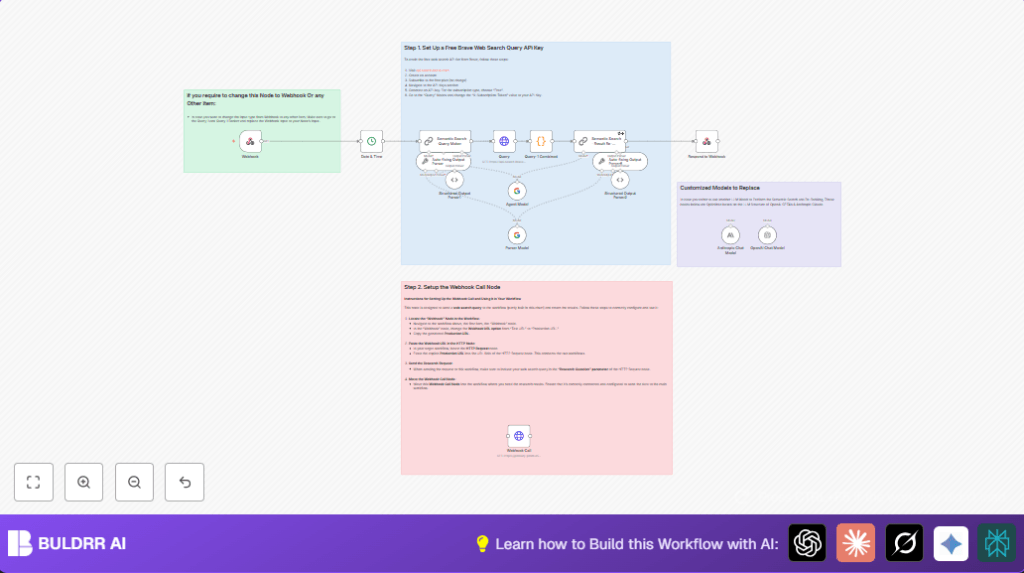

2. What This Intelligent Web Query and Semantic Re-Ranking Automation Does ⚙️
This workflow helps you save time by turning a hard question into a good web search.
It uses AI to make smart search queries, finds relevant web pages, and ranks results by how well they fit the question.
You get a clear list of the best answers fast, no need to dig through many links yourself.
The process starts with changing your question into a clear search phrase.
Then, it sends this phrase to Brave’s web search API to get relevant results.
After getting results, it runs a script to pull out titles, URLs, and descriptions neatly.
Next, AI re-ranks these results, picking the top 10 most useful links based on user intent.
Finally, it pulls key insights from these top results and sends them back as a tidy JSON response.
This tool fixes the big problem of wasting hours on messy, unhelpful search results.
It makes research faster and smarter by helping find useful information with less effort.
4. Step-by-Step Guide to Build This Intelligent Web Query Workflow
How to Use This Workflow in n8n for Beginners
Download the workflow file using the Download button shown in this page.
Open the n8n editor and choose Import from File.
Import the workflow file you downloaded.Look through the imported workflow and add your required credentials:
– Insert your Brave Web Search API Key in the Query HTTP Request node headers.
– Add AI model credentials for OpenAI GPT-4 or Anthropic Claude in the AI nodes.Check if any settings such as IDs, emails, folders, or URLs need updating for your setup.
Copy and paste any prompt or code blocks provided to replace placeholders if needed.Test the workflow by triggering the Webhook node with a sample research question.
Use tools like Postman or a simple HTTP client to send JSON like:{ "query": {"Research Question": "Latest trends in renewable energy" } }After confirming outputs are returned as structured JSON and ranking looks correct, activate the workflow using the toggle in the editor.
Use the production Webhook URL to receive real query requests.
This quick import and configure method lets beginners start using the automation in n8n production easily.
There is no need to build each step manually if the workflow file is available.
What This Workflow Does
This workflow takes a user’s research question as input.
It then creates a refined search query using AI and fetches related web page results using the Brave Web Search API.
The search results are processed by JavaScript code to extract important data like titles, descriptions, and URLs.
These results go through semantic AI re-ranking to ensure the best links are on top.
The final output is a clear, ranked JSON list of useful web results designed to save time and boost research quality.
This helps avoid digging through mixed or irrelevant search outcomes.
Tools and Services Used
- n8n: The automation platform used to build and run the workflow.
- Brave Web Search API: Provides web search results via API call.
- OpenAI GPT-4 or Anthropic Claude: AI language models creating queries and ranking results.
- JavaScript Code Node: Aggregates and formats web search data for AI processing.
- Webhook Node: Listens and responds to incoming research queries.
Inputs, Processing Steps, and Outputs
Inputs
- User research question sent in JSON format to the Webhook node.
- API keys and credentials for Brave Web Search and AI models.
Processing Steps
- Convert user question into a precise search query with AI prompt in the Semantic Search -Query Maker node.
- Send query to Brave Web Search API using the Query HTTP Request node.
- Extract and combine result titles, URLs, and descriptions in the Query-1 Combined Code node.
- Use AI in the Semantic Search – Result Re-Ranker node to rank best URLs by relevance to the question.
Outputs
- Ranked, structured JSON response of the top 10 URLs with their titles and descriptions.
- Ready to use data that eliminates manual filters and guesswork.
Customizations You Can Apply ✏️
- Change AI nodes to use different language models like Google Gemini instead of OpenAI or Claude.
- Adjust the Query-1 Combined Code node to increase or decrease how many results are processed.
- Modify the Respond to Webhook node’s output JSON format – add more detail or fewer results.
- Swap Brave API calls for other search APIs like Bing or Google by updating the HTTP Request node settings.
- Replace the Webhook node input trigger with manual or scheduled triggers to fit different use cases.
Troubleshooting ????
Problem: No results found or empty JSON response from Brave API
Cause: Wrong or expired API key, or search query too specific.
Solution: Make sure the Brave Web Search API Key is correct in the Query node headers.
Try using simpler search queries in the Semantic Search -Query Maker node.
Problem: Webhook call fails or no response returned
Cause: Using the test Webhook URL or wrong response connections.
Solution: Use the production Webhook URL from the Webhook node.
Make sure the Respond to Webhook node is connected properly and active.
Problem: Semantic Re-Ranker outputs wrong format or empty ranking
Cause: Prompt or AI node misconfigured, or missing parsing links.
Solution: Check prompt JSON structure is valid in the Semantic Search – Result Re-Ranker node.
Verify AI output nodes are connected properly.
Pre-Production Checklist ✅
- Check the Brave Web Search API Key is valid and placed in the correct header of the Query node.
- Test the Webhook node with example questions and confirm it triggers properly.
- Validate AI nodes output correct JSON structures with expected fields.
- Use n8n logs to find workflow errors and to track data flow correctly.
- Save a backup copy of the workflow before making big changes or updates.
Deployment Guide
Switch the workflow status in n8n from inactive to active to enable its operation.
Copy the production Webhook URL and share it with apps or tools that send research questions.
Watch workflow executions in the n8n dashboard for issues or slowdowns.
Check logs to troubleshoot AI parsing or API problems.
For many users or requests, hosting on a dedicated server helps performance.
Consider self-host n8n to have full control and handle scale easier.
10. Conclusion
✓ Saves hours by turning questions into smart search queries.
✓ Ranks web results to find the best information fast.
✓ Removes manual sifting through irrelevant links.
✓ Delivers clear, structured results ready for use.
✓ Improves research quality with less effort.
→ The workflow makes web research easier and faster.
→ Results come back ranked, detailed, and easy to read.
→ Next steps can include making summaries or alerts.
→ Integrate findings with teams or other apps simply.
