

What This Workflow Does ⚙️
This workflow connects ERPNext leads to company contacts and sends notification emails automatically.
It stops the need to check every lead manually.
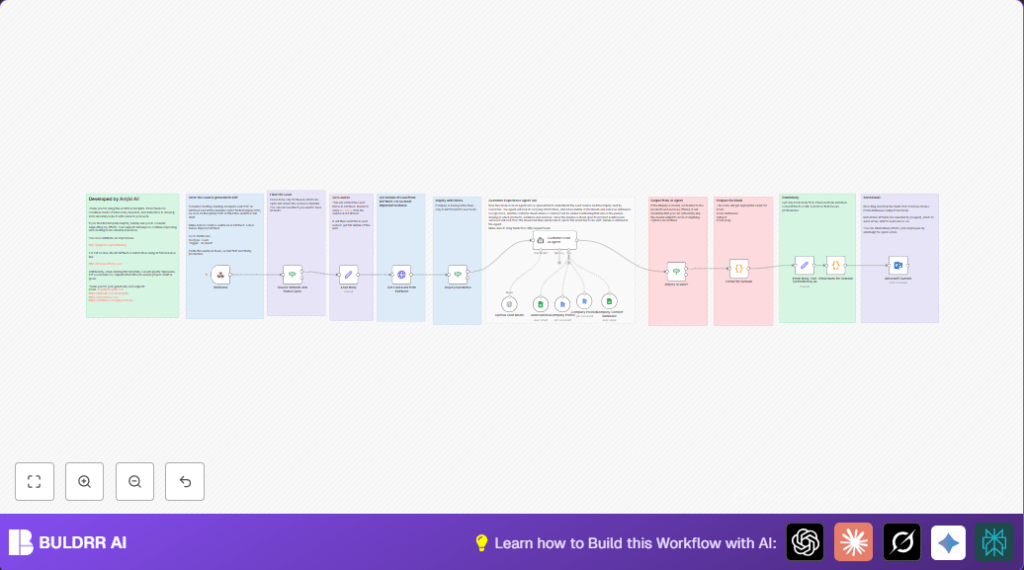
The workflow reads new leads, finds the right person, and writes an email to tell them about the customer inquiry.
You get faster replies and fewer lost chances to sell.
The workflow starts when a lead is made in ERPNext.
It gathers lead details, reads notes to understand what the customer wants, and looks up product and contact info in Google Docs and Sheets.
Then, an AI node creates a clear, polite email summary.
Finally, the workflow sends the email through Microsoft Outlook.
Tools and Services Used
- ERPNext: Provides lead data and triggers for new leads.
- n8n: Automates the entire process with nodes including webhook, HTTP Request, and AI Agent.
- AI Agent node (LangChain with OpenAI): Reads notes, extracts details, classifies inquiry, drafts email.
- Google Docs: Stores company profile and policy text for referencing.
- Google Sheets: Holds contact database to map inquiries to the right team.
- Microsoft Outlook: Sends the finalized email notifications.
- OpenAI API: Enables AI processing inside n8n.
Inputs, Processing Steps, and Outputs
Inputs
- New lead data from ERPNext webhook.
- Company documents from Google Docs.
- Contact database from Google Sheets.
Processing Steps
- Webhook catches new lead creation with HTTP POST.
- Checks lead source is “Website” and status is “Open” with the If node.
- Fetches full lead details via HTTP Request to ERPNext API.
- Verifies lead has notes to process.
- Loads company profile and policies from Google Docs, and contacts from Google Sheets.
- The AI Agent node reads lead notes and documents, then extracts needed data like customer name, inquiry type, and who to contact.
- Checks AI result to confirm the inquiry is valid.
- A Code node extracts email addresses, subject line, and email text from the AI output.
- Another Code node formats the email body text into clean HTML.
- Sends the email to chosen contacts using the Microsoft Outlook node.
Outputs
- Professional, well-structured email notifications sent automatically.
- Faster response to customer inquiries.
- Reduced manual work and human errors in lead handling.
Beginner Step-by-Step: How to Use This Workflow in n8n
Step 1: Import the Workflow
- Download the workflow file from this page using the Download button.
- Open the n8n editor.
- Click “Import from File” and select the downloaded workflow file.
Step 2: Configure Credentials and Settings
- Add API credentials for ERPNext, Google Docs, Google Sheets, Microsoft Outlook, and OpenAI within n8n.
- Update any IDs such as Google Sheet IDs, Google Doc URLs, or email addresses if needed.
- Check the Webhook node URL and set it in ERPNext webhook settings.
- If prompts or code blocks require changes, copy and paste the exact code provided in the workflow description.
Step 3: Test the Workflow
- Trigger a test lead in ERPNext to send data to the webhook.
- Monitor n8n runs to confirm data flows correctly and emails are generated.
Step 4: Activate the Workflow
- Switch the workflow status to Active.
- Now all new leads from ERPNext will be processed automatically.
You can expand or customize later, but this gets the automation running fast and reduces manual work.
For advanced privacy or full control, consider self-host n8n.
Customization Ideas ✏️
- Change the If node filters to include leads from email or phone.
- Add a WhatsApp step after sending emails for quick alerts.
- Edit the AI Agent prompt to email multiple contacts at once.
- Include links or attachments fetched from ERPNext lead files.
- Modify email wording or branding inside the AI prompt in the Customer Lead AI Agent node.
Troubleshooting 🔧
- Invalid lead error: check lead notes and AI prompt completeness.
- Emails not sending: renew Microsoft Outlook OAuth credentials.
- Google Sheets contact list not loading: verify sheet ID and share settings.
Pre-Production Checklist ✅
- Make sure ERPNext triggers webhook with new lead data.
- Test AI Agent node with different lead notes.
- Confirm Google Docs and Sheets nodes access and permissions.
- Send test email through Microsoft Outlook node.
- Confirm that invalid leads are blocked and no emails sent.
Summary of Benefits and Outcomes
✓ Saves over 10 hours weekly by automating lead reviews.
✓ Delivers fast, accurate customer inquiry emails.
✓ Cuts human error and lost sales chances.
✓ Uses AI plus real company data for precise routing.
✓ Easy to import and activate inside the n8n editor.
✓ Scales with company needs and communication channels.
Code Snippet: Extract Fields From AI Output
This JavaScript Code node parses the AI generated text to extract emails, subject, and email body.
const textOutput = $json?.output || '';
function extractFields(text) {
 const fields = {};
 const emailMatch = text.match(/\*\*Email Address\(es\):\*\*\s*([^\n]+)/);
 const subjectMatch = text.match(/_Subject:\s*([^_]+)/);
 const emailBodyMatch = text.match(/Dear[\s\S]+/);
 fields.email_addresses = emailMatch ? emailMatch[1].trim() : null;
 fields.subject = subjectMatch ? subjectMatch[1].trim() : null;
 fields.email_body = emailBodyMatch ? emailBodyMatch[0].trim() : null;
 return fields;
}
const extractedFields = extractFields(textOutput);
return { json: extractedFields };
Code Snippet: Format Email Body to HTML
This Code node converts plain text email content into a nice HTML structure for professional emails.
const emailBody = $json.email_body || '';
function formatEmailBodyAsHtml(body) {
 let htmlBody = body
 .replace(/\*\*Customer Name:\*\* (.+)/, '<p><strong>Customer Name:</strong> $1</p>')
 .replace(/\*\*Organization:\*\* (.+)/, '<p><strong>Organization:</strong> $1</p>')
 .replace(/\*\*Contact Information:\*\* (.+)/, '<p><strong>Contact Information:</strong> $1</p>')
 .replace(/\*\*Inquiry Summary:\*\*\s*([\s\S]+?)(?=\n\n\*\*Action Required:)/, '<p><strong>Inquiry Summary:</strong> $1</p>')
 .replace(/\*\*Action Required:\*\*\s*([\s\S]+)/, '<p><strong>Action Required:</strong> $1</p>');
 htmlBody = htmlBody
 .replace(/Dear (.+?),/, '<p>Dear <strong>$1</strong>,</p>')
 .replace(/Thank you,\s+(.+)/, '<p>Thank you,<br><strong>$1</strong></p>');
 return htmlBody;
}
const formattedHtmlBody = formatEmailBodyAsHtml(emailBody);
return { html: formattedHtmlBody };