

What This Automation Does
This workflow helps you respond to emails faster by using AI to read, summarize, and draft replies automatically.
It solves the problem of spending too many hours writing answers and making mistakes.
The result is quicker, clearer, and professional replies with less effort.
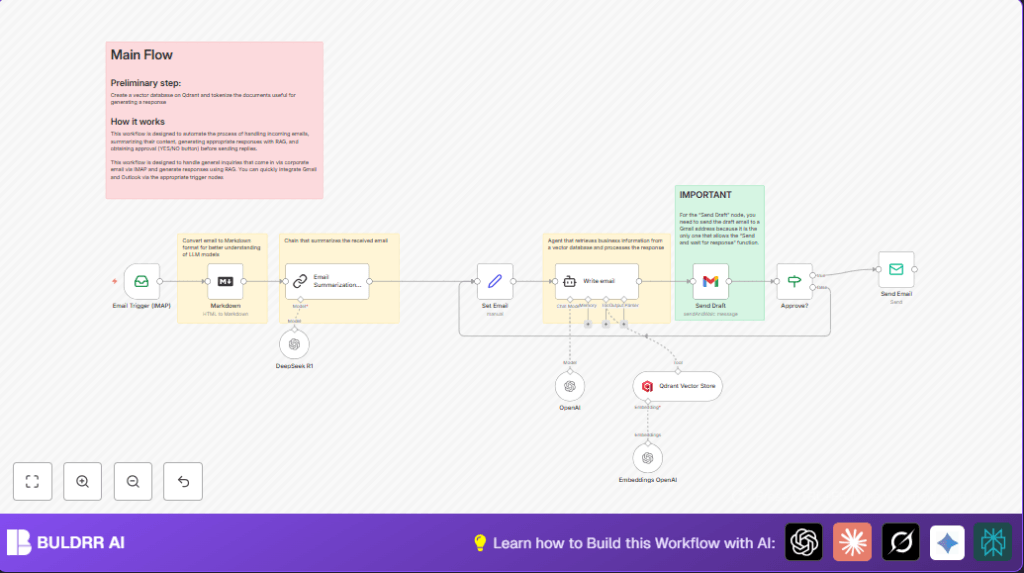
Here is how it works inside n8n:
- New emails arrive and trigger the workflow via Email Trigger (IMAP).
- The email’s HTML content is turned into Markdown text to make it easier for AI to read.
- An AI summarization step reads the Markdown and makes a short summary under 100 words.
- The summary is turned into a vector with OpenAI Embeddings and sent to Qdrant, a special database that finds company info related to the email.
- An AI agent writes a professional email reply in HTML using the matched info.
- The reply draft goes to a Gmail inbox for manual approval using a YES/NO reply.
- When approved, the final reply is sent back to the original sender via SMTP.
This workflow cuts down on your reading and typing time.
It lowers errors and keeps answers professional.
Inputs, Processing Steps, and Output
Inputs
- Incoming emails through IMAP trigger.
- Company knowledge base stored in a Qdrant vector store.
- OpenAI API key for AI summarization and embeddings.
- Gmail account for approval emails.
Processing Steps
- Convert email HTML body to Markdown for easier text processing.
- Use AI to summarize the email into short, key points.
- Embed the summary and search the Qdrant vector database for related info.
- Generate a well-formed HTML reply email based on the info.
- Send draft to Gmail inbox for manual YES/NO approval.
- Check the approval answer and either stop or proceed.
- Send final reply email to the original sender via SMTP.
Output
An approved, professional, AI-generated email reply sent back to the original sender.
Who Should Use This Workflow
This workflow is for people who get many emails asking questions or needing help.
It fits customer support managers, small business teams, or anyone who wastes time writing replies.
Non-technical users can use it because the workflow does all complex steps automatically.
This frees time so users can focus on more important work.
Tools and Services Used
- IMAP Email: Detects incoming emails to read.
- Markdown Converter Node: Changes email HTML into easier-to-read text.
- OpenAI API: Creates summaries and embeddings for understanding content.
- Qdrant Vector Store: Finds company knowledge related to email topics.
- Gmail with OAuth2: Sends drafts for manual approval.
- SMTP Email: Sends the final approved reply back.
Beginner Step-by-Step: How to Use This Workflow in n8n
Importing the Workflow
- Inside n8n editor, click the Download button on this page to get the workflow file.
- Use n8n’s “Import from File” option to upload the workflow.
Configure Credentials and IDs
- Add your IMAP and SMTP email credentials in the Email Trigger (IMAP) and Send Email nodes.
- Set your Gmail OAuth2 credentials in the Send Draft node.
- Enter your OpenAI API Key in the nodes that use AI.
- Update the Qdrant collection ID and API credentials if needed.
- Change emails, folders, or channels if any placeholders exist.
Test the Workflow
- Send a test email to the triggered email address.
- Watch the execution in n8n to be sure all steps run without error.
- Check the draft email arrives in Gmail for approval.
- Approve the draft and verify the reply email is sent.
Activate for Production
- Enable the Email Trigger (IMAP) node.
- Turn on the workflow to run automatically with new emails.
- Optionally, monitor logs and adjust API rate limits if needed.
- If using self-host n8n, make sure server is set up to keep workflow running.
Customization Ideas
- Change email providers by swapping credentials in Email Trigger (IMAP) and Send Email nodes.
- Adjust summary prompt in the AI node to get shorter or longer summaries.
- Switch AI models for different reply styles or tones.
- Add notifications or logs, e.g., Slack or Google Sheets after approvals.
Troubleshooting Common Issues
- No emails trigger the workflow — check IMAP credentials and enable IMAP in email settings.
- Draft emails not received in Gmail — verify Gmail OAuth2 setup and internet connection.
- AI response generation times out or fails — check OpenAI quotas and API keys.
- Empty vector search results — confirm Qdrant collection and load relevant knowledge.
- If approval condition fails — review IF node condition syntax, especially
{{$json.data.approved}}.
Pre-Production Checklist
- Test all API and email credentials for successful connection.
- Send test email to verify workflow trigger.
- Check summarization output length and clarity.
- Confirm vector search returns company info.
- Validate Gmail draft approval works correctly.
- Run full approval path to send the final email.
Summary
✓ Saves time by automating email reading and replying.
✓ Reduces errors often made in rushed replies.
✓ Sends professional and accurate answers every time.
✓ Lets user approve responses before sending.
→ The workflow handles full cycle: from email receive to approved reply send.
