
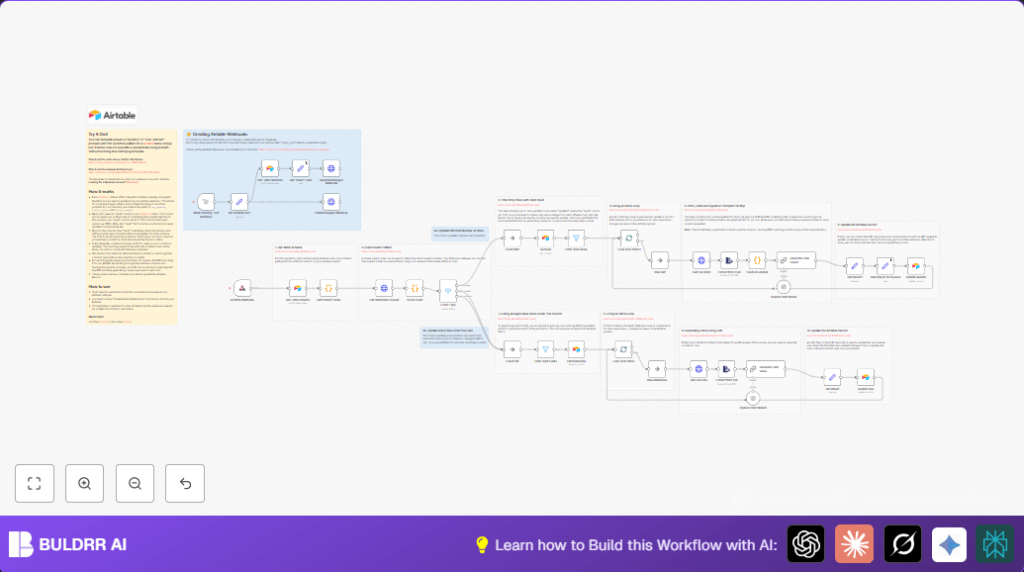

What this workflow does
This workflow listens for changes in Airtable rows or fields. When a PDF file linked in Airtable is updated, it downloads the PDF, extracts the text, and uses an AI language model to find specific information from the text. Then, it updates the Airtable record with this extracted data. The goal is to save time and reduce errors by automating data extraction from PDFs.
It checks if the change affects a row or if new fields are added. If rows change, it updates only those rows. If fields change, it updates all rows in the related column. This splits work into smaller parts for faster and easier updates.
Who should use this workflow
People managing many client PDFs in Airtable and needing to extract data automatically should use this. It helps those spending many hours copying info from PDFs into Airtable records manually.
This workflow is good for users who want fewer mistakes and faster updates. Users must have Airtable and OpenAI accounts and store PDFs attached in Airtable records.
Tools and services used
- Airtable API: To receive events about record and field changes and to update records.
- n8n nodes: Including Webhook node, HTTP Request node, ExtractFromFile node, Code node, Switch node, SplitInBatches node, and Set node used to handle workflow logic.
- OpenAI Chat model via LangChain nodes: To generate extracted data from PDF text based on field-specific prompts.
Inputs, processing, and outputs
Inputs
- Webhook events from Airtable signaling row or field changes.
- PDF files attached to Airtable records.
- User-defined prompts in Airtable field descriptions.
Processing steps
- Listen to Airtable webhook events for changes.
- Receive events in Webhook node in n8n and fetch Airtable schema.
- Parse event to find change type and affected records or fields.
- Use Switch node to route between row updates and field updates.
- Filter rows to only those with valid PDF files.
- Process rows in small batches using SplitInBatches nodes to avoid overload.
- Download PDF files via HTTP Request node and extract text with ExtractFromFile node.
- Gather dynamic prompts from Airtable field descriptions for each field to extract.
- Send extracted PDF text and field prompts to OpenAI Chat model with LangChain nodes.
- Receive specific field values generated by AI.
- Update Airtable records with these values using Set and Airtable update nodes.
Outputs
- Airtable records updated with accurate data extracted from PDFs.
- Reduced manual entry time and lower chance of errors.
Beginner step-by-step: How to use this workflow in n8n
Import the workflow
- Download the workflow file by clicking the Download button on this page.
- In the n8n editor, click on the menu and select “Import from File”.
- Select the downloaded workflow file to load it.
Configure credentials and IDs
- Open the Set Airtable Vars node and enter your Airtable Base ID, Table ID, and your Airtable API Key.
- Enter your OpenAI API Key in the proper credential field.
- Check that the input field name matches your PDF attachment field in Airtable. Change it if needed.
Test the workflow
- Trigger a test update in Airtable, such as editing a record or adding a file.
- Watch the workflow run and check the execution logs in n8n.
Activate for production
- Publish the workflow to make the webhook available publicly.
- Make sure all credentials are saved.
- Use the workflow to process new or updated records automatically.
- If self hosting n8n, consider seeing self-host n8n for deployment tips.
Handling edge cases and failures
- If webhook triggers don’t work, check webhook URLs and Airtable permissions.
- If AI returns “n/a” or wrong data, refine the prompts in field descriptions and test PDF text extraction quality.
- If workflow times out on big tables, reduce batch size in SplitInBatches nodes.
- If data does not update, confirm correct Airtable field mappings and update node inputs.
Customization ideas
- Change the PDF input field name inside the Set Airtable Vars node to match your database.
- Adjust batch size in SplitInBatches nodes to balance speed and load.
- Rewrite prompts in the AI nodes to better fit your document style or data needs.
- Add more cases to the Switch node to handle extra Airtable webhook event types if needed.
Summary of results
✓ Saves many weekly hours by automating PDF data extraction.
✓ Reduces human errors from manual Airtable editing.
✓ Updates Airtable records right after file or field changes.
✓ Flexible for different batch sizes and prompt designs.
