
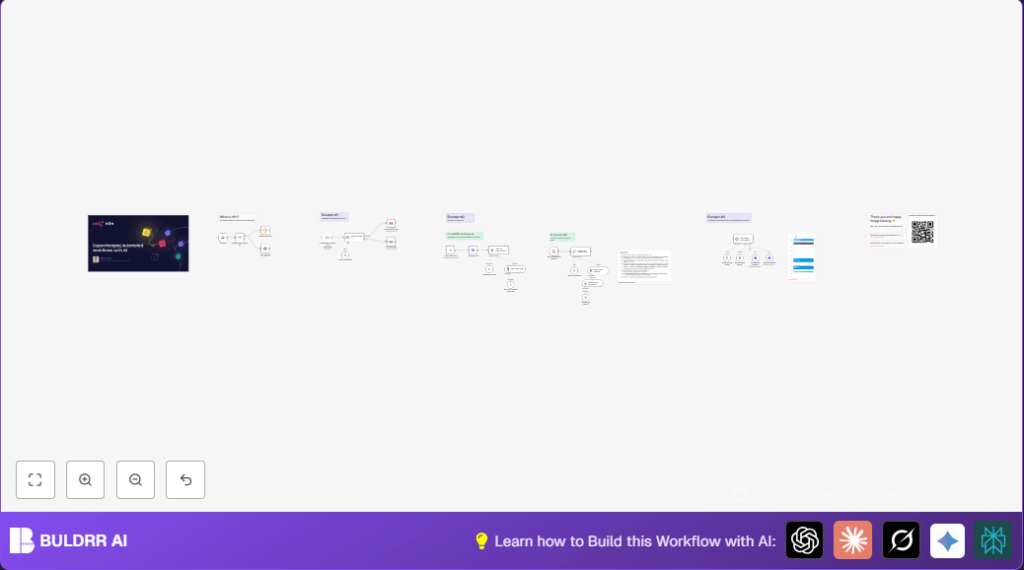

What this workflow does
This workflow helps you organize incoming emails automatically. It also schedules meetings by checking your calendar. The workflow labels emails as “automation” or “music”. It alerts a Slack channel if emails come from certain senders. It loads PDFs to create a searchable knowledge base. You can chat to ask questions or book appointments. This saves lots of time and stops errors.
You get emails sorted, meeting times booked without overlap, and smart answers from documents.
Tools and services used
- Gmail API: To monitor and label incoming emails.
- Slack API: To send notifications when specific emails arrive.
- Google Calendar API: To check free slots and book appointments.
- LangChain with OpenAI GPT-4: For AI text classification and chat responses.
- Pinecone Vector Database: To store PDF document embeddings for search.
- HTTP Request nodes: To download PDFs and book calendar events.
- n8n Workflow Automation Platform: To connect all services and automate processing.
Inputs, processing steps, and outputs
Inputs
- Incoming emails from Gmail inbox monitored every minute.
- User chat messages asking for help or appointment requests.
- PDF files accessed via URLs for creating searchable text.
Processing Steps
- AI reads each new email and labels it as “automation” or “music”.
- Specific email addresses trigger Slack messages with email info.
- PDFs are downloaded and split into text chunks for embedding.
- Text chunks generate vector embeddings stored in Pinecone.
- Chat messages use AI over Pinecone data to answer questions.
- Chat agent checks Google Calendar free/busy times for appointment slots.
- Agent books 30-minute events when users pick a time.
Outputs
- Emails tagged with correct labels in Gmail automatically.
- Slack channel receives notifications for certain important emails.
- Knowledge base from PDFs available for quick AI answers.
- Appointments booked into the Google Calendar with no conflicts.
Who should use this workflow
This is useful for busy people handling many emails and meetings. You want to save time on sorting emails. You want to avoid scheduling errors. You like chatting with an AI assistant for booking. You want document info ready to answer questions quickly.
No programming skills are needed to use it but you need accounts for Gmail, Slack, Google Calendar, and Pinecone.
Beginner step-by-step: How to use this workflow in n8n production
Step 1: Download and import the workflow
- Click the Download button on this page to get the workflow file.
- Open your n8n editor.
- Choose Import from File and pick the downloaded workflow file.
Step 2: Configure credentials and IDs
- Add your Gmail API credentials in Gmail Trigger and Gmail nodes.
- Add your Slack OAuth2 credentials in the Slack node.
- Provide Google Calendar OAuth2 credentials in calendar nodes.
- Fill Pinecone API key in the vector store nodes.
- If needed, update Slack channel ID, Gmail label IDs, emails, or calendar settings.
- Check any code or prompt fields for API keys or updated URLs and replace with your own.
Step 3: Test the workflow
- Send a test email to the Gmail inbox to check if labeling works.
- Send test chat messages to trigger AI answers and appointment booking.
- Verify received Slack notifications if test emails match the filter.
Step 4: Activate the workflow
- Once tests pass, turn on all nodes in n8n to enable real-time automation.
- Monitor logs from the n8n dashboard to check workflow runs.
If using self-host n8n, consider visiting self-host n8n for setup resources.
Customization ideas
- You can add or change email categories in the AI classifier node by editing the categories list.
- Change meeting length by editing text in the appointment agent and updating calendar event duration.
- Modify Slack message node to send alerts to a different channel or user group.
- Switch AI models in LangChain nodes to another supported model like Anthropic.
- Add more PDFs to the knowledge base by adding HTTP Request nodes and updating metadata.
Troubleshooting common issues
- Slack messages do not send: Check OAuth2 credentials in Slack node and reconnect if needed.
- Email labels not applied: Make sure message ID and label IDs match Gmail settings exactly.
- Appointment booking fails: Verify the timezone and JSON format of event start and end times.
Pre-production checklist
- Confirm all API credentials for Gmail, Slack, and Google Calendar are connected.
- Test Gmail trigger by sending a sample email.
- Verify PDF URLs are accessible and correctly download the documents.
- Send a chat message and check for correct AI responses and appointment booking prompts.
- Check Pinecone vector store logs to confirm embeddings insertion.
- Back up the workflow before turning it on.
Conclusion
By using this workflow, you get automatic email organization and appointment booking. It reduces manual work and mistakes. You also have document knowledge ready for AI questions. Use this workflow to work smarter and save time each week.
Code snippet for adding a custom field in the data
This code adds a new field named myNewField with value 1 to every data item passing through the node. Put it inside a Code node.
// Loop over input items and add a new field called 'myNewField'
for (const item of $input.all()) {
  item.json.myNewField = 1;
}
return $input.all();
Example Slack message text
Use this message template in the Slack node to notify about important emails:
Data from webhook: {{ $json.query.email }}