

What this workflow does
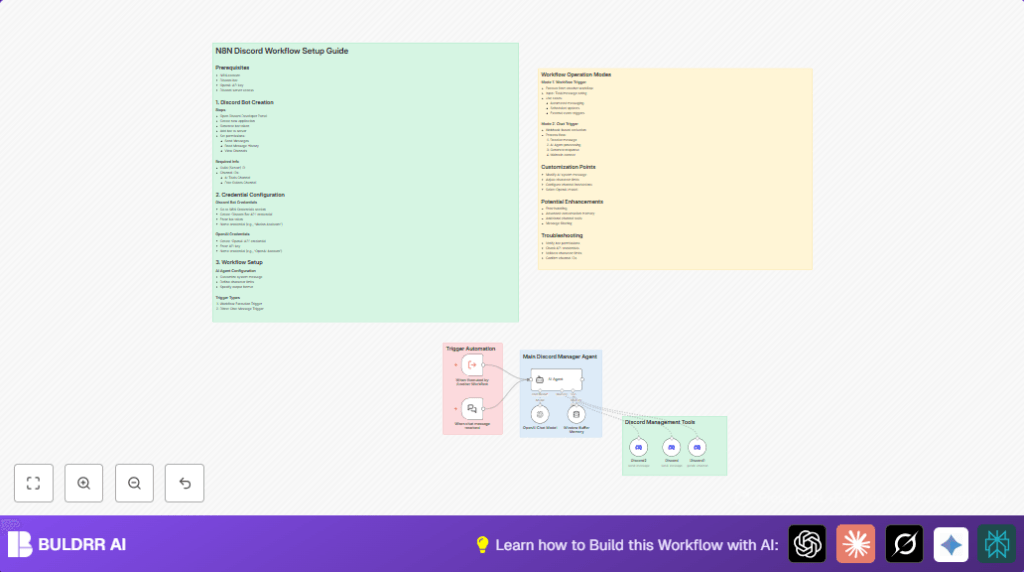
This workflow automates sending messages in Discord channels using AI.
It solves the problem of manual messaging being slow, messy, and often too long for Discord.
The result is fast, clear, and well-formatted messages posted automatically to specific channels.
The workflow listens to triggers from other workflows or live chat messages in Discord.
It uses AI to write short, neat replies under 1800 characters that match the chat’s context.
Then it sends these messages to the correct Discord channels without errors.
Who should use this workflow
This workflow is best for community managers who want to save time on messaging inside their Discord servers.
It also suits anyone running a Discord server with many members and multiple channels needing quick, clear updates.
Users with basic n8n skills and access to a Discord bot and OpenAI API will find it handy.
It helps avoid mistakes like too long messages or wrong channel posts that hurt community engagement.
Tools and services used
- n8n Workflow Editor: Builds and runs the automation.
- Discord Bot API: Sends and reads messages on Discord.
- OpenAI API (GPT-4o Mini): Generates AI-written replies.
- Window Buffer Memory: Keeps recent chat context for relevant AI responses.
- Discord Server IDs and Channel IDs: Specify where messages go.
Beginner step-by-step: How to build this in n8n
Step 1: Import the workflow
- Download the workflow file using the Download button on this page.
- In the n8n editor, click “Import from File” and select the downloaded workflow.
Step 2: Add your credentials
- Open each node requiring API access.
- Enter or update the OpenAI API Key in the LM Chat OpenAI node.
- Enter the Discord Bot token and set your server (guild) and channel IDs in the Discord Tool nodes named “Discord” and “Discord2.
Step 3: Configure dynamic fields
- If needed, update channel IDs for “free-guides” and “ai-tools” channels.
- Adjust any input parameters if your server setup is different.
Step 4: Test the workflow
- Run a manual test by triggering the workflow from another workflow or send a chat message in Discord where the bot listens.
- Watch the AI generate a message and post it to the correct Discord channels.
Step 5: Activate for production
- Once testing works, toggle the workflow execution to ON in n8n.
- Monitor workflow runs for errors and fix any issues by checking credentials or IDs.
- If hosting on your own server, see self-host n8n for stable operation.
Inputs, processing, and outputs
Inputs: Triggers from other workflows (tasks with message text) or live Discord chat messages.
Processing: The AI Agent node combines the inputs and uses OpenAI GPT-4o Mini to generate short, styled messages.
The workflow uses Window Buffer Memory to keep chat history and context per conversation.
Message length and format are controlled by system instructions.
Outputs: Messages automatically posted to designated Discord channels “free-guides” and “ai-tools” by Discord Bot nodes.
Customization ideas
- Change the max message length by editing the character limit in the systemMessage prompt of the AI Agent node.
- Add new Discord Tool nodes to send messages to more channels as needed.
- Switch OpenAI models to test different AI styles or cost levels in the LM Chat OpenAI node.
- Adjust the Window Buffer Memory node to keep longer chat context or change session keys to control separate conversations better.
- Edit the systemMessage prompt to change AI’s tone or style, to suit your community’s culture.
Common errors and troubleshooting
- OpenAI API errors or no response: Usually means invalid API Key or usage limits hit.
Check the API Key in the LM Chat OpenAI node and monitor usage on OpenAI dashboard. - Discord messages not posting: Check bot permissions like sending messages and viewing channels.
Verify guild and channel IDs in the Discord Tool nodes. - Messages longer than Discord limit: Ensure the AI Agent’s system prompt clearly instructs a max 1800 character limit for replies.
Without it, AI may return too long messages.
Pre-production checklist
- Make sure OpenAI API Key and Discord Bot tokens are correct and active.
- Confirm guild and channel IDs exactly match your Discord server and channels.
- Test each trigger type to see messages flow from input, AI, to Discord posting.
- Review AI Agent system prompt for message style and length limits to avoid errors.
Deployment tips
Turn workflow ON in n8n to start live running after testing.
Monitor workflow logs to catch any problems quick.
Keep API keys safe and update them if there are security concerns.
If using your own server, stable operation needs self-host n8n.
Summary
✓ Saves many hours of manual Discord messaging daily.
✓ Avoids message length and formatting errors.
✓ Provides quick AI-generated content for Discord channels.
✓ Keeps conversation context for useful, relevant replies.
✓ Easy to customize for new channels, AI styles, and memory.
→ Improves community engagement with neat, prompt messages.
→ Simplifies Discord server management using AI and automation.
