

What This Automation Does
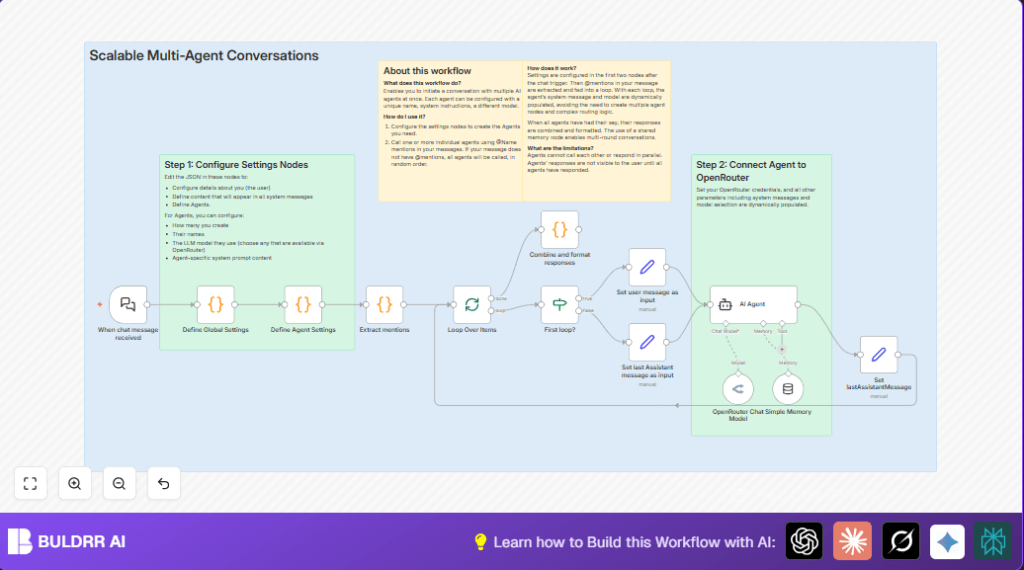
This n8n workflow starts when you send a chat message to a webhook.
It finds any @mentions in the message to know which AI assistant to ask.
If no mention, it picks all assistants randomly.
Each assistant gets the proper chat input and system instructions.
The workflow calls each AI model one by one and keeps their responses.
At the end, it joins all replies into one clear message and sends back.
This saves you time managing many AI chats manually.
Who Should Use This Workflow
You should use this if you want to talk to many AI assistants at once.
It is good for people who get frustrated sending messages to each assistant separately.
Tools and Services Used
- n8n: To automate the process in a visual editor.
- OpenRouter API: Gives access to GPT-4, Claude, Gemini AI models.
- Webhook node: To receive chat messages.
- Code nodes: To extract mentions and combine AI replies.
- Langchain Agent node: For configuring AI chat requests.
Beginner Step-by-Step: How to Use This Workflow in n8n
Import the workflow
- Download the workflow file using the Download button on this page.
- Open your n8n editor where you want to run this.
- Click on the top-left menu and choose “Import from File”.
- Select the downloaded file to load the full workflow.
Configure settings
- Go to the Define Global Settings node and change your user name, location, or notes if needed.
- Open the Define Agent Settings node and update or add AI agent names, models, and system messages.
- In the OpenRouter Chat Model node, enter your OpenRouter API Key.
- If the webhook uses specific IDs, emails, or channels, update those in the Webhook node or other related nodes.
Test the workflow
- Use the webhook URL from the Webhook node and send a test chat message.
- Check the n8n execution log to see each AI assistant’s reply.
- Fix any errors if the workflow fails, such as missing credentials or wrong agent names.
Activate for production
- Switch the workflow from inactive to active.
- Make sure the webhook URL is accessible from your chat service.
- Monitor workflow runs in n8n dashboard.
For hosting or running n8n on a server, see self-host n8n for tips.
Inputs, Processing, and Outputs
Inputs
User chat messages come through a webhook.
Messages can contain @mentions to specify desired AI assistants.
Processing
The workflow extracts mentioned agents or picks all if none mentioned.
It loops through each AI agent and sends them the chat input plus their special system message.
Each agent’s reply is saved and added to a shared conversation memory.
Outputs
All AI replies are combined with clear formatting.
The final output message is sent back to the user or next service.
Edge Cases and Failures
- No agents defined: If agent JSON is empty or badly formatted, the workflow fails.
- Invalid mentions: Mentioned AI names must exactly match defined agents to work.
- API credential errors: If OpenRouter key is missing or incorrect, API calls fail.
- Response formatting errors: Wrong code in combine node may cause bad output.
Customization Ideas
- Edit agent personalities or add new AI assistants in the agent settings node.
- Change user profile text to affect assistant tone.
- Modify conversation memory settings to keep longer or shorter chat history.
- Adjust response formatting like replacing separators in the combine code.
- Change mention extraction logic to include or exclude agents based on keywords.
Summary
✓ Saves you hours messaging multiple AI assistants one by one.
✓ Keeps conversation clear and connected with shared memory.
✓ Automatically picks agents from your chat input.
✓ Makes reviewing AI replies easier with combined formatting.
✓ Lets you customize AI personalities and user info.
✓ Easy to set up by importing and simple config in n8n.
