
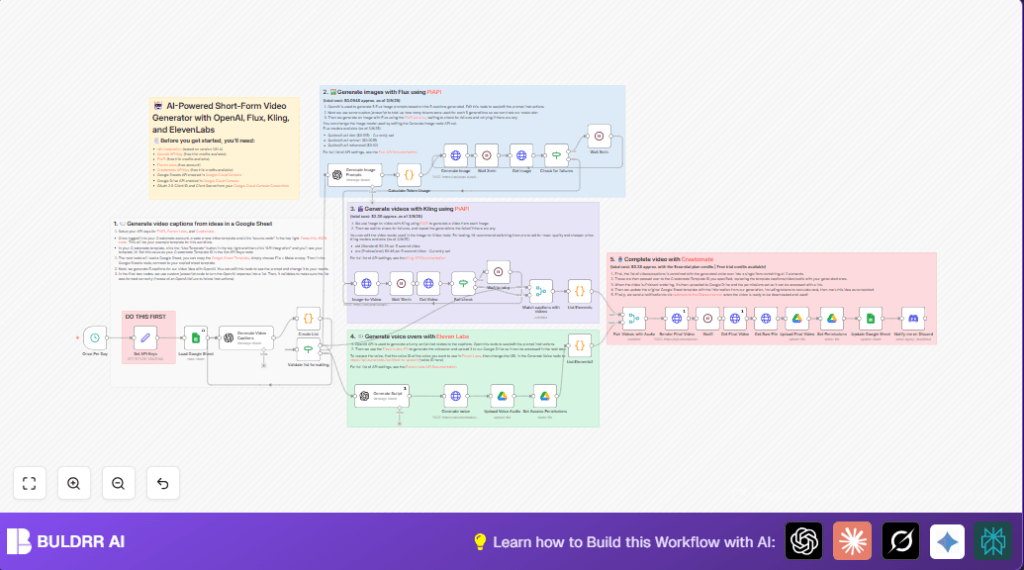

What this workflow does
This workflow builds short videos on job hunting automatically. It starts from ideas in a Google Sheet. Then it makes captions, images, video clips, voice narration, and final videos ready to share. It saves many hours of manual work every week.
It solves the hard, slow task of making social media content. You don’t have to write scripts, record voiceovers, or edit videos yourself.
At the end, you get 5 ready-to-publish TikTok or YouTube Shorts videos with edgy captions and cool visuals.
Who should use this workflow
This workflow is made for small creators, marketers, and agencies who want to make many short videos fast.
If you spend too much time editing or scripting videos, this workflow helps you focus on growing your audience instead.
Tools and services used
- Google Sheets ????: Stores video ideas and tracks progress.
- OpenAI API (GPT-4o-mini) ????: Creates video captions and narration scripts.
- PiAPI API ???? (Flux & Kling): Flux makes realistic images. Kling converts images to short video clips.
- Eleven Labs Text-to-Speech API ????: Produces natural voiceovers from text.
- Creatomate API ????: Combines captions, clips, and voice to render final videos.
- Google Drive ????: Uploads and shares generated videos and voice files.
- Discord Webhook ????: Sends alerts when videos are ready.
- n8n Workflow Automation Platform ????: Runs and links all the APIs in one sequence.
Inputs, processing steps, and outputs
Inputs
- Video ideas stored in Google Sheets. Each has a job hunting or resume theme.
- API keys for OpenAI, PiAPI, Eleven Labs, Creatomate, and Google Drive.
Processing Steps
- Pick one new idea each day as trigger.
- Use OpenAI to write 5 catchy, edgy captions about the idea.
- Turn captions into detailed cinematic image prompts via OpenAI.
- Send prompts to Flux (PiAPI) to create realistic images.
- Wait for images to be ready, then convert them to 5-second video clips using Kling.
- Generate a short narration script with OpenAI using a bold style.
- Convert narration text to voiceover audio using Eleven Labs AI TTS.
- Upload voiceover to Google Drive and share access.
- Match each caption with its video clip.
- Send video clips, captions, and voiceover to Creatomate for final rendering.
- Download final video and upload it to Google Drive, then share with public access.
- Update Google Sheet row to mark idea complete with links and stats.
- Notify via Discord webhook that video is ready.
Outputs
- Five ready-to-use short videos with captions, images, and voiceovers.
- Shareable links stored in Google Drive.
- Production status updated in Google Sheets.
- Discord alert for instant notice.
Beginner step-by-step: How to build this workflow in n8n for production
Download and Import
- Find and click the “Download” button on this page below.
- Open the n8n editor you already have access to.
- Click on the top-left menu, then select Import from File.
- Choose the downloaded workflow JSON file and import.
Configure Credentials and IDs
- Locate the Set API Keys node.
- Enter your specific API Keys for OpenAI, PiAPI, Eleven Labs, Creatomate, and Google Drive. Use exact keys, no spaces.
- Inside the Load Google Sheet node, check the Sheet ID matches your Google Sheet that has your ideas.
- Change folder IDs in the Google Drive upload nodes to your own drive folders where you want videos and audio stored.
- Update the Discord webhook URL in the notification node to your Discord channel link.
- If needed, change the Creatomate Template ID to your own design.
Test the Workflow
- Manually run the workflow once inside n8n to check it works.
- Look for any errors or missing data.
- Tweak inputs or credentials if necessary and re-test.
Activate for Production
- Enable the Schedule Trigger node to run daily at 7 AM for automatic processing.
- Save and Activate the whole workflow.
- Now new video ideas will be processed and content made every day without manual work.
- If using self-host n8n, consider self-host n8n for better control and uptime.
Common Problems and How to Avoid Them
- Check all API Keys carefully. Typos cause connection errors.
- Make sure your Google Sheet has correct column names and filter set for “for production” ideas only.
- Don’t remove or change the caption splitting logic or the workflow breaks.
- Allow enough wait time between image and video generation steps to avoid incomplete outputs.
- Always set the sharing permissions after uploading files to Google Drive for accessibility.
- Test the Creatomate template with sample content first before running full production.
- Use the Discord alert to monitor workflow success and spot failure quickly.
Customization Tips
- Change the prompt in Generate Video Captions to fit your tone—more fun, serious, or business style.
- Try different Flux or Kling model IDs in PiAPI nodes for various image or video looks.
- Adjust video clip length and zoom in Image-to-Video node for custom visual effect.
- Switch Eleven Labs voice profile by changing voice ID in the Generate voice node URL.
- Edit your Creatomate template JSON to change layouts or add new captions/effects.
Summary of benefits
✓ Saves over 10 hours weekly by automating video creation.
✓ Creates consistent, high-quality short videos with captions, images, and voiceovers.
✓ Requires minimal technical skills once set up in n8n.
✓ Keeps track of video ideas and production status in one place.
✓ Sends real-time Discord notifications for finished videos.
→ Turns simple text ideas into TikTok-ready videos
→ Frees up content creators to focus on audience interaction and strategy.
