
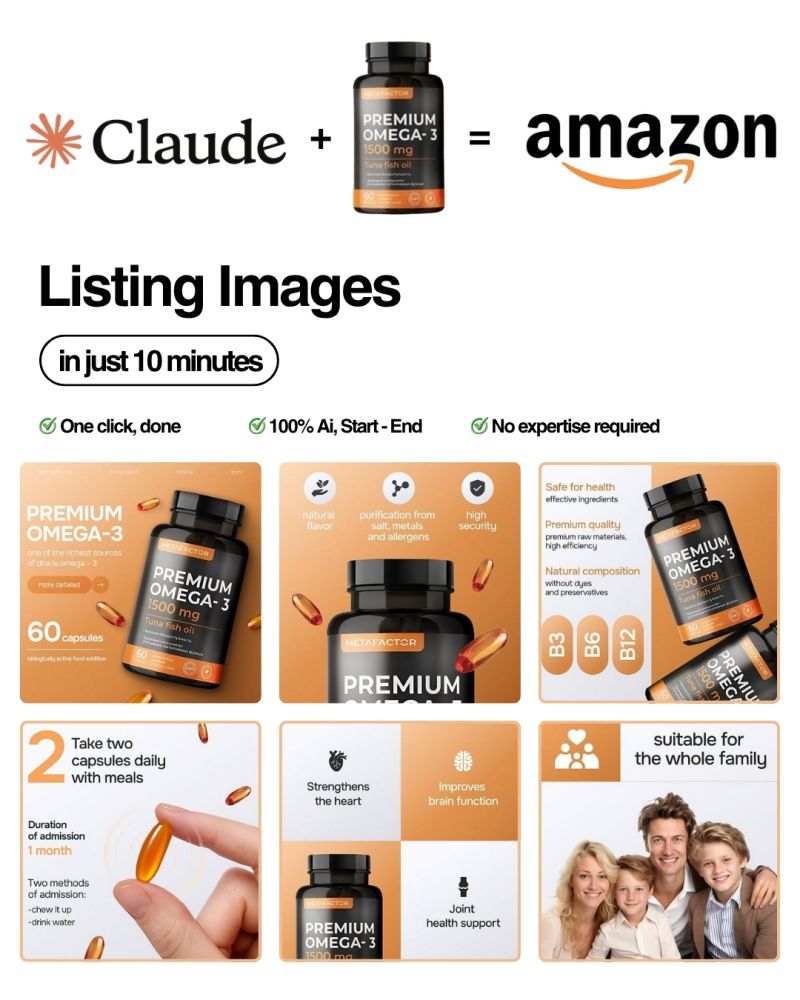
She called a photographer for a quote. “$500 per image. Minimum five images per product. That’s $2,500 per product. You have five products? That’s $12,500.”
She hung up.
Then she found Claude.
Thirty minutes later, she had five professional-looking images for each product. All five of them. Professional. Conversion-focused. Following Amazon’s rules perfectly.
She didn’t hire a designer. She didn’t spend $12,500. She used 30 minutes and told Claude exactly what she wanted.
Three weeks later, her conversion rate went up 34%.
This could be you. And I’m going to show you exactly how.
Why Your Amazon Images Are Literally Losing You Money Right Now
Here’s the truth nobody tells you: Amazon is not a search engine. It’s a visual medium.
Think about it. When you buy something on Amazon, what’s the first thing you look at? The title? Maybe. But what really makes you click?
The image.
Studies show that 77% of shoppers rely on product images more than any other factor when deciding to buy. More than reviews. More than price. More than the title.
Your images are your silent salespeople. They work 24/7, even while you sleep. They convince strangers to buy from you. They build trust. They answer questions your customer hasn’t even asked yet.
But here’s the painful part: most sellers don’t have good images.
Some reasons:
- A designer costs $300-$500 per image
- Professional photographers need a studio and days of prep
- Hiring an agency? $3,000-$5,000 per product
- DIY attempts look cheap and hurt conversions
- Generic stock photos make you look like everyone else
So what do sellers do? They skip it. They upload a phone photo. They hope it’s good enough.
It’s not.
And that’s why you’re here. Because you found out that Claude can create these images. And you want to know if it’s real. If it actually works. If you can do it without being a designer.
The answer is yes. And I’m going to show you exactly how.
Why Claude Is Different (And Why This Actually Works)
Before I give you the steps, let me be honest about what Claude is and isn’t.
Claude doesn’t generate images like DALL-E or Midjourney. Claude is a text AI. It’s built to understand language and give you instructions.
So how does this work?
Here’s the magic: Claude understands exactly what Amazon images need to be. It knows the psychology of what converts. It knows the rules. It knows what a buyer’s journey looks like. And it can tell you, step-by-step, how to create each image.
But more than that: Claude becomes your personal image strategist. It asks you the right questions. It knows why Image 2 matters more than Image 1. It understands your target customer. And it creates a plan that actually converts.
In the next 30 minutes, you’re going to:
- Prepare your product info (5 minutes)
- Write a prompt Claude will understand (10 minutes)
- Upload your photos (2 minutes)
- Generate your images (8 minutes)
- Review and refine (5 minutes)
That’s it. Five images. Professional quality. Amazon-ready.
No design skills required. No expensive tools. No waiting for a designer.
Let’s go.
What You Actually Need Before Starting (Just Three Things)
Okay, first the real talk. You need to have these three things ready. If you don’t, go grab them now. I’ll wait.
Thing 1: Claude Pro Subscription ($20/month)
You need Claude Pro. Not the free version. The free version won’t generate images.
If you don’t have it yet, go to claude.ai, click your profile, and upgrade. Takes two minutes. Worth it? Yes. Absolutely. Because you’re about to save $5,000 in designer fees.
Thing 2: Clear Product Photos (Your Phone Camera Is Fine)
You don’t need a professional photoshoot. Seriously.
Take 3-4 clear photos of your product:
- One straight-on shot
- One from the side
- One that shows it in use (if possible)
- Make sure the lighting is decent (natural light is your friend)
Phone camera? Perfect. Do not overthink this. Amazon buyers just want to see what they’re getting.
Thing 3: Your Product Information (Write This Down)
Get these details about your product ready:
- Product name: What is it called?
- Category: Where does it sit on Amazon? (e.g., “Health & Wellness,” “Home Goods”)
- Three key benefits: What does it DO for the customer? Not features. Benefits. (e.g., not “contains 1000mg omega-3,” but “supports heart health and brain function”)
- Target customer: Who buys this? (e.g., “Busy parents aged 30-50 who care about health”)
- What makes it different: Why should someone buy THIS instead of a competitor?
Write these down. You’ll need them in about 10 minutes.
The 5-Image Blueprint (Why Each Image Exists and What It Needs to Do)
Before we jump into Claude, you need to understand something important: Each image has a job.
You’re not just creating pretty pictures. You’re creating a visual sales story. Each image removes a different doubt from your customer’s mind.
Let me break this down:
Image 1: The Hero Shot (First Impression. Make It Count.)
Its job: This is what shows up in search results. It’s your first impression. Make it count.
What it looks like: Product on pure white background. Product fills most of the frame. Clean. Professional. Zero distractions.
Why it matters: If this image is boring, your customer scrolls past and never sees Images 2-5. Game over.
Psychology: Customers think “This looks legit” or “This looks cheap.” Your hero shot determines which one.
Image 2: The Benefits (Answer the Unspoken Question: “Will This Actually Help Me?”)
Its job: Show your customer what’s in it for them. Not what it is. What it does for their life.
What it looks like: Usually 2-3 icons or visual callouts. Short, punchy benefit statements. The product is visible but not the star.
Why it matters: This is where you answer objections. A parent buying a supplement wants to know: Will it help my child’s brain? Will it be safe? Will I feel the difference?
Psychology: Humans don’t buy products. They buy outcomes. They buy solutions. This image is the solution.
Image 3: The Details (Build Confidence Through Transparency)
Its job: Show what’s inside. Ingredients. Specs. Certifications. Proof that your product is legit.
What it looks like: Ingredient list. Certifications (organic, GMP certified, etc.). Numbers that prove quality.
Why it matters: A customer thinking “Is this safe?” sees Image 3 and feels relief. They see the certifications. They see the ingredients are real.
Psychology: Detailed information reduces buyer hesitation. It shows you have nothing to hide.
Image 4: The Lifestyle (Help Them See Themselves Using It)
Its job: Show the product in real life. Show someone happy using it. Help your customer imagine their life with your product.
What it looks like: Person (or family) using your product in a realistic setting. Smile. Natural. Real-looking.
Why it matters: This is the emotional image. This is where a stranger becomes a buyer. They see themselves in the picture.
Psychology: We don’t buy things. We buy identities. “I’m someone who takes care of their health.” “I’m a parent who puts family first.” This image shows that identity.
Image 5: The Trust Builder (Social Proof. Last Push Before “Add to Cart”)
Its job: Build confidence by showing other people love this product. Testimonials. Ratings. “Bestseller” badges.
What it looks like: Customer quotes. Star ratings. “5,000+ happy customers.” Family approval.
Why it matters: This is the final objection remover. If 5,000 people bought it and loved it, maybe I should too.
Psychology: Social proof is one of the most powerful conversion tools in existence. Humans follow the herd. Show them the herd is happy.
Now you understand why each image matters. You’re not creating random images. You’re creating a conversion funnel.
Let’s build it.
Step 1: Prepare Your Product Information (5 Minutes)
This step seems basic. Don’t skip it. Seriously. This is where the magic starts.
Open a Google Doc or grab some paper. Write down these things:
1. Product Name: Example: “Premium Omega-3 Fish Oil Supplement”
2. Category: Example: “Health & Wellness / Supplements”
3. Three Key Benefits (The Results, Not the Features):
NOT: “Contains 1000mg EPA and 600mg DHA” BUT: “Supports heart health and brain function”
NOT: “Non-GMO, sustainably sourced” BUT: “Peace of mind knowing you’re getting pure, ethical ingredients”
NOT: “Easy-to-swallow capsules” BUT: “Simple to take daily with no fishy aftertaste”
Write three. Make them specific to your customer.
4. Target Customer (Who Is This For?): Example: “Health-conscious parents aged 30-50 who care about their family’s wellness”
5. What Makes It Different: Example: “Most fish oil supplements are from farmed fish. Ours is from sustainable, wild-caught sources. And it tastes way better.”
6. Any Certifications or Proof Points: Example: “GMP Certified,” “Organic,” “4.8 stars with 2,000+ reviews”
Done? Good. You just created your product strategy document. Claude is about to turn this into images.
Step 2: Write Your “Magic Prompt” for Claude (This Is Where the Real Work Happens)
Okay, here’s the truth: The prompt is everything.
A bad prompt = bad images. A good prompt = professional images that convert.
A great prompt = images that your competitors will ask you about.
So let me give you a template that works. Copy this. Fill in your product info. Paste it into Claude. Magic happens.
The Magic Prompt Template (Copy and Paste This)
You are an expert Amazon listing designer with 15 years of experience converting browsers into buyers.

Your job is to create 5 professional Amazon listing images that will maximize clicks and sales for a product.

PRODUCT INFORMATION:
- Product Name: [YOUR PRODUCT NAME]
- Category: [YOUR CATEGORY]
- Target Customer: [WHO BUYS THIS]
- Key Benefit 1: [BENEFIT 1]
- Key Benefit 2: [BENEFIT 2]
- Key Benefit 3: [BENEFIT 3]
- What Makes It Unique: [YOUR UNIQUE SELLING POINT]
- Any Certifications: [CERTIFICATIONS OR PROOF POINTS]

DESIGN RULES:
- All text must be readable on mobile (phone-sized screens)
- Maximum 3 colors from this palette: [YOUR BRAND COLORS, OR USE: Navy Blue, White, Orange]
- Font style: Clean, modern, sans-serif (no decorative fonts)
- No false or exaggerated claims
- No contact info, website URLs, or phone numbers
- Follow Amazon's guidelines

WHAT I NEED:

IMAGE 1 - HERO SHOT:
Create a clean, professional product shot. Pure white background. The product fills most of the frame (85%). No text. No distractions. This is the first thing buyers see in search results. Make it look trustworthy and high-quality.

IMAGE 2 - BENEFITS:
Create a layout showing the top 3 benefits. Use simple icons or visual callouts. Keep text to 2-3 words per benefit. Use the product as a central anchor at the bottom. This image should make the customer think "Yes, this will help me."

IMAGE 3 - DETAILS:
Show the ingredients, specs, or certifications. Make this information visual and easy to scan. Include any proof points (organic, GMP certified, etc.). This image builds confidence and removes hesitation.

IMAGE 4 - LIFESTYLE:
Show the product in real use. Include a real-looking person or family using it naturally. A kitchen. A dinner table. A morning routine. Help the customer see themselves using this product. Make it feel authentic and relatable.

IMAGE 5 - SOCIAL PROOF:
Create an image with customer testimonials, star ratings, and trust signals. Include phrases like "5,000+ happy customers" or "Trusted by families nationwide." Show 3-4 short customer quotes. This is the final push before "Add to Cart."

IMPORTANT:
- Make the product the star of each image. Don't overwhelm it.
- Use real, photo-realistic images. Not cartoons.
- Ensure text is readable on small mobile screens.
- Every image should increase buyer confidence.
- Create exactly 5 images, one for each purpose above.

Ready? Create all 5 images.
See the difference? The second one is specific. It tells Claude exactly what you want. Not “make a nice image.” But “here’s the psychology, here’s the goal, here’s what goes in it.”
Step 3: Upload Your Product Photos to Claude (2 Minutes)
Alright. You have your prompt. Now you need to upload your product photos.
Here’s how:
- Open Claude.ai
- Click the “+” button or paperclip icon in the chat box
- Upload your 2-3 product photos
- Wait for Claude to confirm the images loaded
- Now you’re ready
Why do this? Because Claude will use your real product as a reference. Your images will look like your actual product. Not generic. Not stock-photo-y. Real.
Claude sees your product and says “Okay, I understand what I’m designing around.”
Step 4: Paste Your Prompt and Watch Claude Work (5-8 Minutes)
Okay. This is it.
- Copy the prompt you filled in
- Paste it into Claude
- Hit enter
- Sit back and watch
Claude will generate your five images. One by one. Each one purpose-built to move your customer one step closer to “Add to Cart.”
Here’s what to expect:
First image: Clean hero shot. Product on white. Professional. Boring? Maybe. But that’s the point. It’s trustworthy.
Second image: Benefits come to life. Icons. Words. Color. Your brand starting to show.
Third image: Details. Specs. Proof. “Okay, this product is legitimate.”
Fourth image: Lifestyle. A real person using your product. Emotion happens here.
Fifth image: Social proof. Stars. Testimonials. “Everyone else is buying this. I should too.”
Step 5: Check Each Image (The Reality Check—And the Most Important Step)
Okay, Claude just made your images. They’re good. But they might not be perfect. And that’s okay.
This step is crucial: You’re going to check each image like you’re buying from Amazon yourself.
Here’s your mobile test (because 78% of Amazon shoppers use their phones):
For Each Image:
- Mobile View Test: Imagine this image on your phone screen. Is the text readable? Does the product stand out? Can you see the important details? If you squint, can you still read the text? Yes? Good. No? Tell Claude.
- First Impression Test: Look at the image for 2 seconds. What do you see first? Does it match what you wanted to communicate? Or does your eye get confused?
- Readability Checklist:
- Text is at least 20px (readable on small screens)
- High contrast (dark text on light background or vice versa)
- No clutter
- The product is clearly visible
- Professional Look Test: If you saw this on Amazon right now, would you think “professional” or “DIY”? Honest answer. No judgment.
If everything looks good: Move to the next image.
If something feels off: Don’t start over. Just tell Claude exactly what to fix.
Step 6: Refine Images Until They’re Perfect (The Iteration)
Here’s where most people mess up. They get their first draft and think “It’s good enough.”
It’s not.
But here’s the good news: Claude makes refinements FAST. And they’re usually really good.
How to Give Claude Good Feedback (The Wrong Way vs. The Right Way)
WRONG: “Image 2 looks bad. Make it better.”
Claude: confused noises
RIGHT: “Image 2 — the text is too small on mobile. Make all text at least 24px. Also, I can’t see the product. Move the product to the bottom, bigger, more visible.”
Claude: fixes it in seconds
Common Feedback I Give:
- “The text is hard to read on mobile. Increase the font size by 30%.”
- “The product is getting lost. Make it 20% bigger and move it to the center.”
- “The background is too busy. Use a solid color or simpler pattern.”
- “This feels generic. Add more of my brand color (the orange). Make it feel more premium.”
- “The lifestyle shot needs a real person. Right now it looks like a stock photo. Make it more natural.”
Give Claude 2-3 specific pieces of feedback. Claude fixes them. You look again. Repeat until it’s perfect.
How many rounds? Usually 2-3. Sometimes 1. Rarely more than 5.
How fast? Each round takes maybe 3-5 minutes. Faster than waiting for a designer. Way faster.
Step 7: Download, Name, and Upload to Amazon (The Final Step)
Okay, your images are perfect. Now let’s get them on Amazon.
Download Each Image
- Right-click on each image in Claude
- Click “Save image as”
- Save to a folder on your computer
- Name them clearly: 01_hero.jpg, 02_benefits.jpg, etc.
File Naming Rule (Amazon Cares About This)
Use simple names. Amazon doesn’t care what they’re called, but here’s what works:
ASIN_MAIN.jpg(your hero shot)ASIN_PT01.jpg(benefits image)ASIN_PT02.jpg(details)ASIN_PT03.jpg(lifestyle)ASIN_PT04.jpg(social proof)
Don’t know your ASIN? Go to your Seller Central listing. It’s listed right there.
Upload to Amazon Seller Central
- Go to Seller Central
- Click “Inventory” → “Manage All Inventory”
- Find your product
- Click “Edit” on the right
- Scroll down to “Images”
- Click “Add Images”
- Upload your 5 images in order (Hero first, Social Proof last)
- Add alt text for accessibility (e.g., “Premium fish oil supplement bottle, front view”)
- Save and publish
Done. Your images are live.
The Mistakes Everyone Makes (And How to Not Be Everyone)
I’ve done this about 20 times now. And I’ve seen the same mistakes over and over. Here’s how to avoid them.
Mistake 1: Text Is Too Small on Mobile
What happens: You look at the image on your desktop. Looks fine. Customer views it on their phone. Squints. Can’t read it. Leaves.
Fix: Always test on mobile. Look at your images on your actual phone. If you can’t read it easily, neither can your customer. Tell Claude to make text bigger.
Mistake 2: Product Gets Lost in the Background
What happens: The image looks pretty. But where’s the product? Is that the product or the background? Confusion = no sale.
Fix: Tell Claude: “The product is not the focal point. Make it 20% bigger. Move it to the center. Everything else is secondary.”
Mistake 3: Too Many Colors (Competing for Attention)
What happens: Your image has 5 different colors. Red. Blue. Green. Orange. Purple. Your eyes don’t know where to look.
Fix: Use maximum 3 colors. One dominant color. One secondary. One accent. Clean. Simple. Professional.
Mistake 4: Sounds Like Everyone Else (Generic Vibes)
What happens: Claude creates an image that’s fine. But it could be anyone’s product. No personality. No brand.
Fix: Tell Claude what makes you different. “Our brand is about family. Make this feel warm and family-oriented. Not corporate. Real people. Real moments.”
Mistake 5: Forgetting Amazon’s Rules (Listing Gets Suppressed)
What happens: Your image looks great. You upload it. Amazon suppresses your listing. Why? You violated a rule.
Common violations:
- Main image background is not pure white
- Text on the main image (Amazon doesn’t allow this)
- Price displayed on image
- Misleading product representation
Fix: Before uploading, remember: Main image = product only, pure white background, no text. Secondary images = anything goes (mostly).
How to Scale This (Because One Product Becomes Ten, Then 100)
You did one product. It worked. Conversion rate went up. Now you want to do 10 more.
Here’s how to make it faster:
Speed Increases on Product 2
Product 1 took you 30 minutes because you were learning. Product 2 will take you 15 minutes. Here’s why:
- You already know how to write a prompt
- You have a template
- You understand what Claude needs
- You know what good feedback looks like
The Template Method (Reuse Your Prompt)
Save your first prompt. For product 2, just change:
- Product name
- Key benefits
- Target customer
- Certifications
Everything else stays the same. You just filled in your template. 5 minutes. Done.
Batch vs. One-at-a-Time
One-at-a-time: Do one product completely. Hero to social proof. Upload to Amazon. Move to product 2.
Batch: Create all 5 images for 3 products first. Then review and refine all of them together. Then upload all of them.
I recommend one-at-a-time if you have fewer than 5 products. Batch if you have more.
Real Time Estimates
- Product 1: 30 minutes (learning curve)
- Product 2-5: 15 minutes each
- Product 6+: 10 minutes each (you’re fast now)
10 products = 2.5 hours total
A designer: 10 products × $500 = $5,000. Time: 2-3 weeks.
You with Claude: 2.5 hours. Cost: $0 (it’s in your Claude Pro subscription).
Do the math.
If all of these are checked: You’re ready.
Questions People Actually Ask About This
Does Claude Really Generate Images? I Thought It Doesn’t Do That.
You’re partially right. Claude doesn’t generate images from scratch. But Claude Pro can generate images as part of image understanding and generation. What Claude does is create the strategy, the prompt, and the direction. The images come from the prompt. Does that matter? No. You get professional images either way.
Will Amazon Reject AI-Generated Images?
No. As of 2026, Amazon allows AI-generated images as long as the product shown is accurate to the real item. You cannot use AI to create a fake product. But you CAN use AI to generate lifestyle backgrounds, infographics, and benefit images around your real product. This is allowed.
How Is This Different From Hiring a Designer?
A designer costs $300-$500 per image. Minimum 5 images. That’s $1,500-$2,500 per product. Plus a 2-week wait. Claude: $20/month. 30 minutes. Same quality, faster, cheaper.
Can I Do This on Mobile?
Technically yes. Practically? No. You need to be able to upload photos and see images clearly. Do it on desktop or laptop.
What If I Totally Mess Up the First Try?
Then you start again. Ask Claude to regenerate. Give it better feedback. Try again. It costs you time, not money. And after 2-3 tries, you’ll have good images. No harm done.
What If My Product Doesn’t Fit the 5-Image Blueprint?
95% of products fit. But if you sell something unusual, just tell Claude. “My product is a B2B software tool. Adapt the 5 images to show: 1) Main interface, 2) Key features, 3) Integrations, 4) Real workplace use, 5) Customer testimonials.”
Quick Recap: What You Just Learned
- Your Amazon images are costing you money if they’re not professional
- Claude can help you create professional images in 30 minutes
- There are 5 types of images, each with a specific job
- The prompt is everything (good prompt = good images)
- Feedback and refinement is where magic happens
- Scaling from 1 product to 10 gets way faster
- Amazon allows AI-generated images (as long as the product is real)
What Should You Do Next Immediately? (The One Thing)
Okay. You’ve read this whole guide. You know what to do. Now comes the hard part: actually doing it.
Here’s what I want you to do in the next 60 minutes:
Pick ONE product you sell on Amazon. Not ten. Not five. One.
Write down your product info:
- Name
- Category
- 3 benefits
- Target customer
- What makes it unique
Take 2-3 photos of that product.
Open Claude. Copy the template prompt. Fill it in with your product info.
Paste it into Claude. Hit enter.
See what happens.
You don’t have to upload to Amazon yet. Just see if this actually works. See if Claude understands what you want. See if the images are good.
I bet they will be.
Then tomorrow, you can refine them. Then upload them. Then watch your conversion rate go up.
But first: Just try it. Right now. 60 minutes.
The difference between “I’m thinking about this” and “I already have professional images” is just 60 minutes.
Which one are you going to be?
Go. Try it. Come back and tell me how it went.
You’ve got this.
Need this running automatically for your full product catalog? BULDRR AI builds AI image and content workflows for e-commerce teams. See how BULDRR AI works.
