
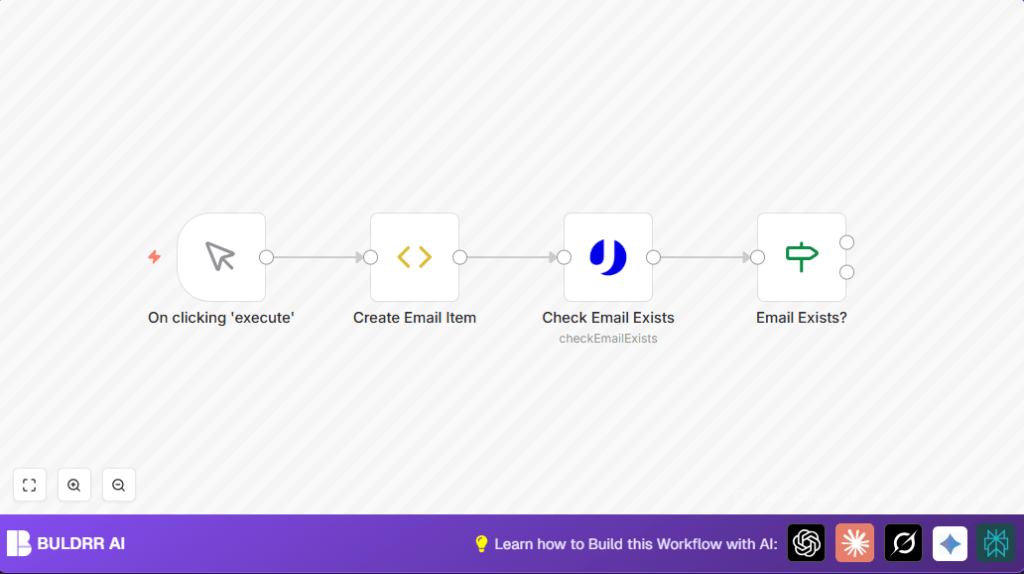

What this workflow does
This workflow checks if an email address really exists before adding it to a mailing list. It stops invalid emails from getting bounced back, which protects the sender reputation and saves marketing costs. The process uses Uproc’s email verification service inside n8n to automatically decide if the email is deliverable or not.
It helps users avoid sending messages to fake or non-existent emails by automating the check. The final result is cleaner contact lists and fewer bounce backs from email campaigns.
Who should use this workflow
This workflow is useful for people who manage large email lists, like marketing teams or customer support leads. It fits well for anyone who wants to save time on manual email validation and reduce errors caused by sending emails to invalid addresses.
It works well for companies growing their email contacts but struggling with bad email data and bounce problems.
Tools and services used
- n8n automation platform: Runs the workflow and connects different steps.
- Uproc API: Provides email verification by checking if an email is deliverable.
- Manual Trigger node in n8n: Starts the workflow when user clicks “execute”.
- Function Item node: Sets the email address to check inside the workflow.
- If node: Checks the API response to decide if email is valid or not.
For users self hosting n8n, a helpful resource is available at self-host n8n.
Inputs, processing, and output
Inputs
The workflow starts with a single email address to validate. It is set as a fixed example in the workflow but can be changed to dynamic inputs.
Processing
First, the email is sent to the Uproc API using the Check Email Exists node. This returns a message about the email’s deliverability status.
The If node then reads this response. It checks if the status says “deliverable” or not. This decides the workflow’s next steps.
Output
The output is a clear decision: true if the email is deliverable, false if not. This lets users automatically separate valid emails from invalid ones before adding them to lists.
Beginner step-by-step: How to use this workflow in n8n
Import the Workflow
- Download the workflow file using the Download button on this page.
- Open your n8n editor and choose “Import from File” to load the workflow.
Set Up Credentials and Parameters
- Open the Uproc node and add your Uproc API Key in credentials.
- Check the Function Item node to update the email address if needed.
- If using dynamic email inputs, replace the Manual Trigger with a Webhook node or another input method.
Test and Activate
- Manually start the workflow by clicking the Manual Trigger node’s execute button.
- Watch the workflow run and check results in the execution panel.
- If all works as expected, toggle the workflow live to automate email verification.
Common errors and edge cases
- Error: No response from the Uproc node.
Cause: API key missing or network problems.
Fix: Re-enter API key in credentials. Check internet connection. - Error: If node always returns false.
Cause: The API response format changed or expression is wrong.
Fix: Examine the Uproc node output. Adjust the condition expression to match.
Customization ideas
- Change the email source to accept inputs from web forms or other apps using Webhook node.
- Add more conditions in the If node to handle answers like “risky” or “unknown” beyond just “deliverable”.
- After the check, add steps to subscribe valid emails to mailing lists or send notifications.
- Schedule periodic runs or batch processing for large email lists.
Summary of results
✓ Automates checking if emails are real before adding to contact lists.
✓ Prevents costly bounce backs and protects sender IP reputation.
✓ Saves manual time by handling email validation in one automated workflow.
✓ Makes it easy to keep email lists clean and improve campaign success.
