

What this workflow does
This workflow lets you chat in normal language to get data from a Postgres database and see charts right away.
It solves the problem of writing SQL by hand and making charts separately, saving time and errors.
You ask a question, and then get back data and a chart URL that shows the answer visually.
The system uses AI for understanding questions, writing SQL queries, running them, and making charts automatically.
It stores chat history so future talks have memory and context.
Who should use this workflow
This is good for people who work with Postgres database and need quick answers with charts.
Examples are analysts, managers, or anyone who wants easy data access without coding SQL or chart tools.
The workflow helps non-technical users by turning natural language questions into data and pictures they can use fast.
Tools and services used
- Postgres Database: To store data and chat history.
- OpenAI API (GPT-4o-mini): To understand questions and create SQL and chart code.
- QuickChart API: To generate chart images from AI-made chart configuration.
- n8n Automation Platform: To connect all steps and run the workflow.
- LangChain: Used for AI prompt and agent management within n8n nodes.
Beginner step-by-step: How to build this in n8n
1. Download and Import Workflow
- Click the Download button on this page to get the workflow file.
- Open your n8n editor (on cloud or self-host n8n) and choose “Import from File”.
- Upload the workflow JSON file.
2. Configure Credentials
- Set up Postgres credentials in Settings → Credentials → Postgres. Make sure credentials allow SELECT queries.
- Enter your OpenAI API Key in Settings → Credentials → OpenAI.
- If needed, update table names or folder IDs inside the workflow nodes to match your setup.
3. Test the Workflow
- Trigger the webhook URL from Webhook node (named “When chat message received”).
- Send a test chat message like “Show me a bar chart of prices.”
- Check the output for data and a chart URL.
4. Activate for Production
- Make sure your webhook URL is secured and accessible to chat clients.
- Set the workflow active using the toggle in n8n editor.
- Monitor execution logs to track errors or usage.
Workflow inputs, processing, and outputs
Inputs
- User’s chat message in plain text.
- Postgres database with data and chat memory tables.
Processing
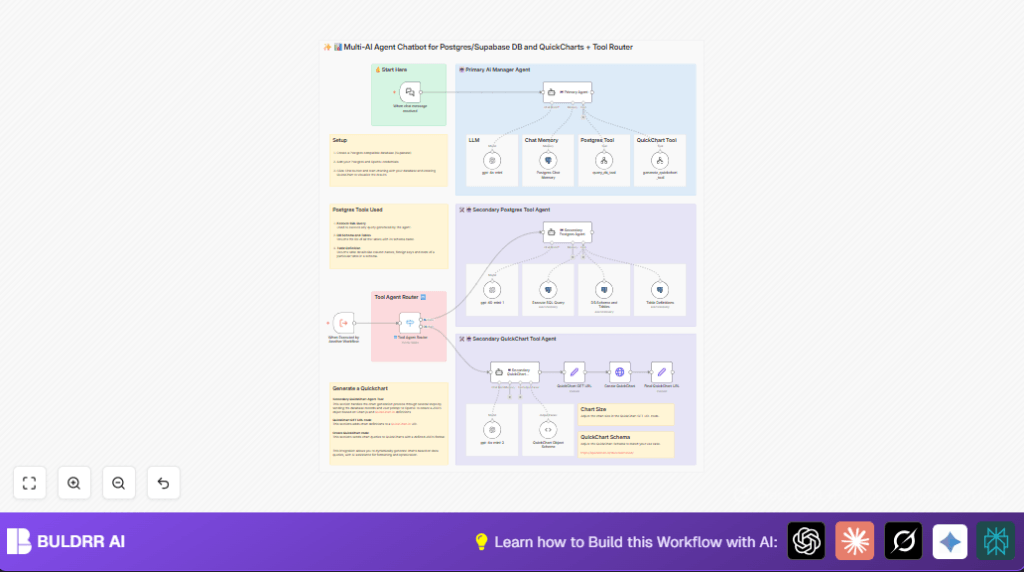
- Primary AI Agent: Reads user question and picks either database query or chart tools.
- Secondary Postgres Agent: Creates SQL query for data fetch based on AI output.
- Execute SQL Node: Runs SQL and returns data.
- Secondary QuickChart Agent: Uses data and user input to make Chart.js config JSON.
- QuickChart GET URL Node: Builds URL using chart config.
- Create QuickChart Node: Calls QuickChart API for chart image.
- Postgres Chat Memory Node: Saves conversation history for future context.
Outputs
- Structured data from SQL queries.
- Dynamic QuickChart URL users can open to see visual chart.
- Chat memory updated for next questions.
Customization ideas
- Change AI model in OpenAI nodes to stronger versions like “gpt-4” for better understanding.
- Adjust Chart.js JSON in QuickChart Object Schema node to change chart type or colors.
- Add more tools for database operations beyond SELECT, like INSERT or UPDATE, via LangChain workflows.
- Connect output to Slack or email nodes for notifications or reports.
What to do if something breaks (Troubleshooting)
SQL query errors or empty result
Check if database user has correct permissions to read tables.
Make sure table and column names in the query are spelled right.
Use a SQL client external to n8n to test the SQL first.
Charts don’t display right
JSON schema for the chart config might be wrong or missing fields.
Use the example JSON in the QuickChart Object Schema node as a guide.
Test chart JSON at QuickChart playground site to verify it works before running in workflow.
Beginner usage tips for n8n production
Import the full workflow to your n8n editor first.
Add your Postgres and OpenAI API keys under n8n Credentials.
Test the webhook by sending live chat messages.
After success, enable the workflow.
Check logs often to catch errors early.
Keep the chat memory table backed up to not lose past conversations.
If running self hosting n8n, visit self-host n8n for more ideas about stable setup.
Summary of benefits and results
✓ Users ask data questions in natural words.
✓ SQL queries and charts are made automatically by AI.
✓ Data and chart URLs return fast in chat replies.
✓ Chat memory stored in Postgres helps better responses later.
✓ No more manual SQL scripting or chart building needed.
✓ Saves time and avoids errors, making reports easier.
