

2. What This Automation Does
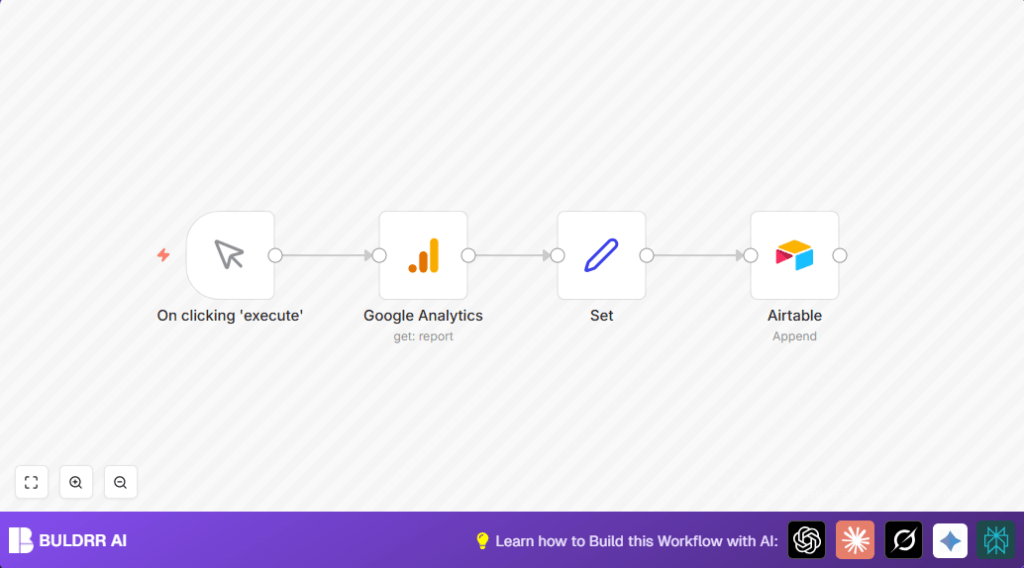
This workflow gets session counts by country from Google Analytics and adds that data into Airtable automatically.
It stops manual work and errors by fetching, cleaning, and saving data for a chosen time.
The result is monthly session data in Airtable without you copying anything.
The workflow starts when you trigger it manually.
It asks Google Analytics for session numbers split by country.
Then it changes the data format so Airtable can accept it.
Finally, it adds each country’s sessions as new Airtable records.
This saves time, avoids mistakes, and makes reports ready quickly.
3. Prerequisites ⚙️
- Google Analytics account: Must have API access and a valid View ID.
- Airtable account: Should have a base and table ready for session data.
- n8n account: Could be cloud or self-hosted with OAuth and API keys stored.
- Google Analytics OAuth2 credentials: Created and linked inside n8n.
- Airtable API credentials: Made and connected in n8n.
4. Step-by-Step Guide
Step 1: Set up the Manual Trigger in n8n
Inside n8n, make a new workflow.
Add the Manual Trigger node from the node list.
No special settings needed here; just place it.
This lets you start the flow anytime you want.
Result: Workflow begins with a manual click.
Step 2: Configure the Google Analytics Node
Add the Google Analytics node next to the trigger.
Link the Manual Trigger output to this node input.
Enter your Google Analytics View ID exactly.
In Additional Fields, set metrics and dimensions:
- Metrics: “ga:sessions” to get session numbers.
- Dimensions: “ga:country” to separate by country.
- Date Range: Set startDate and endDate like “2019-12-31” to “2020-08-30”.
Pick your Google Analytics OAuth2 credential.
Wrong View ID or bad date formats cause errors.
This node pulls session counts by country.
Step 3: Process Data with the Set Node
Add a Set node after Google Analytics.
Use it to rename and clean data for Airtable.
Create two fields:
- Metric (Number) with value
{{$json["total"]}}. - Country (String) with value
{{$json["ga:country"]}}.
Enable the Keep Only Set option to keep only these.
This prepares data for Airtable.
Step 4: Append Data to Airtable
Add the Airtable node after the Set.
Connect the Set node output to Airtable input.
Set the node to append records in your table (e.g., “Table 1”).
Select Airtable API credentials.
Make sure Airtable base has fields named Metric and Country exactly.
Wrong field names or types stop data from saving.
Each run adds new country session records.
4a. Beginner Step-by-Step: Using This Workflow in Production
Download and Import
- Click the Download button on this page to get the workflow file.
- Open n8n editor.
- Go to the main menu, choose Import from File, then select the downloaded file.
Configure Credentials
- Add Google Analytics OAuth2 credentials in n8n if not already set.
- Add Airtable API credentials with your API key.
- Update the Google Analytics View ID in the Google Analytics node.
- Check Airtable node to confirm correct base and table, and that fields “Metric” and “Country” exist.
Test and Activate
- Run the workflow using the Manual Trigger to test end-to-end.
- If data inserts correctly in Airtable, activate the workflow.
- For automation, replace the Manual Trigger with a Cron node set to monthly or desired schedule.
- Monitor runs in n8n’s execution log.
For those using self-host n8n, importing and running workflows works the same.
5. Inputs, Processing Steps, and Output
Inputs
- Manual trigger to start workflow.
- Google Analytics View ID for which data is requested.
- Date range for session data.
Processing Steps
- Query Google Analytics API to get sessions grouped by country.
- Use a Set node to rename and filter data fields to match Airtable.
- Append each country’s session metric into Airtable.
Output
New records in Airtable table with columns “Country” and “Metric” showing session counts.
Data is ready for team analysis.
6. Customizations ✏️
- Change metrics in Google Analytics node to get users or bounce rates.
- Automate date ranges with n8n expressions to always use last month.
- Use a Function node to filter countries if only some are needed.
- Switch Airtable node from append to update mode to avoid duplicate records.
- Add a Gmail node to send report summaries by email after inserting data.
7. Troubleshooting 🔧
Problem: “Invalid View ID or Unauthorized” error
Check that View ID is correct and OAuth credentials have read access.
Refresh credentials if needed.
Problem: “Failed to Append Records in Airtable”
Check Airtable field names exactly match “Metric” and “Country”.
Verify data types and API usage limits.
8. Pre-Production Checklist ✅
- Google Analytics OAuth2 credentials are valid with read scope.
- View ID matches the correct property and view.
- Airtable base and table have number field “Metric” and text field “Country”.
- Test manual trigger and confirm no errors.
- Backup Airtable data before big inserts.
9. Deployment Guide
Turn workflow toggle ON in n8n.
Run a manual start to check everything works.
Replace manual trigger with Cron node for scheduled runs.
Use execution logs to monitor.
10. FAQs
11. Conclusion
✓ Automated monthly data retrieval from Google Analytics by country.
✓ Cleaned session counts formatted for Airtable.
✓ Saved hours by removing manual export and copy-paste.
✓ Added reliable, error-free reports for easy sharing.
✓ Ready for extending with emails or more metrics.
→ The user gains simple steps to build and use workflow in n8n.
→ Results improve productivity and data quality.
→ Experiment with dates and metrics to adjust insights.
