

What This Automation Does
This workflow gets text from images stored in an AWS S3 bucket using AWS Textract.
It solves the problem of spending too much time typing text from invoice pictures by hand.
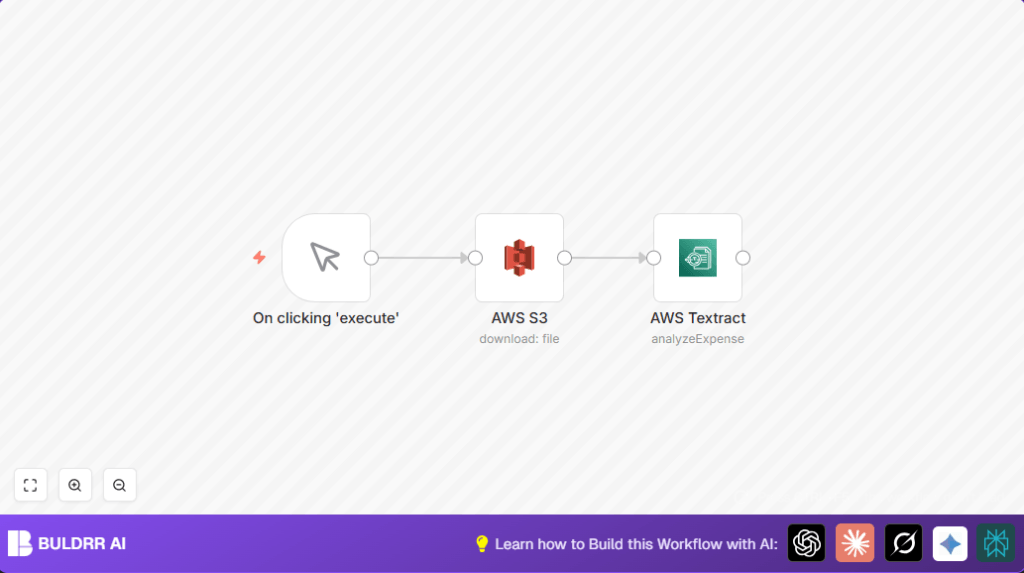
When you run it, the workflow gets an image from S3, sends it to Textract for text extraction, and returns the text data.
You can then use that text to save records, send alerts, or do other work automatically.
Tools and Services Used
- AWS S3: Stores image files like invoices and receipts.
- AWS Textract: Performs OCR to extract text from images.
- n8n: Orchestrates the workflow automation.
Workflow Input, Process, and Output
Input
The input is an image file stored in an AWS S3 bucket.
The workflow needs the exact bucket name and image file key to fetch the correct image.
Processing Steps
- The process starts with a Manual Trigger you run by hand.
- The workflow fetches the image file from AWS S3 using the bucket name and file key.
- The image data is then sent to AWS Textract.
- Textract analyzes the image and extracts text content.
Output
The output is the extracted text data from Textract.
You get text blocks representing the words and lines found in the image.
This can be used directly or further processed for record keeping or notifications.
Beginner Step-by-Step: How to Use This Workflow in n8n Production
Step 1: Import Workflow
- Download the workflow file using the Download button on this page.
- Open your n8n editor where workflows are created and managed.
- Click “Import from File” and select the downloaded workflow.
Step 2: Configure Credentials and Settings
- Add your AWS account credentials that have permission for both AWS S3 and AWS Textract services.
- Update the AWS S3 node to use your actual bucket name where the images are stored.
- Change the AWS S3 node’s File Key parameter to your image file name you want to process.
- If there are any email addresses, channels, or database targets, update those values as needed.
Step 3: Test the Workflow
- Run the workflow using the Manual Trigger node.
- Watch the workflow steps execute and check the AWS Textract node output for extracted text.
Step 4: Activate for Production
- When ready, toggle the workflow to active in n8n.
- Optionally, replace the Manual Trigger with a Schedule Trigger to automate running at set times.
Use self-host n8n if you want more control over running the automation on your own server.
Common Problems and Fixes
- Access Denied Errors when fetching from AWS S3
Make sure AWS IAM roles or users have permission to read from the exact bucket and files. - AWS Textract Returns Empty or No Text
Check image quality is clear and formats like JPEG or PNG are used.
Verify Textract API access and permissions are correct. - Workflow Does Not Run or Trigger
Check all node connections are correct.
Re-enter AWS credentials to ensure they are valid.
Customization Options
- Change the image file processed by updating the File Key in the AWS S3 node.
- Automate extraction by replacing Manual Trigger with a Schedule Trigger for timed runs.
- Process text by adding a Function or Code node after AWS Textract to filter or save data.
- Handle many images by using AWS S3’s List action and looping through files.
Pre-Production Checklist
- Check AWS credentials have read rights for S3 and Textract.
- Confirm the exact image file exists by testing access outside n8n.
- Test the workflow with a working image to ensure text extraction.
- Verify all node connections follow: Manual Trigger → AWS S3 → AWS Textract.
- Backup current workflows before changes.
Deployment Guide
After confirming proper test results, activate your workflow by toggling the Active switch in n8n.
You can run it manually or schedule automatic executions.
Watch workflow logs and AWS CloudWatch for any Textract issues.
Summary
✓ Saves hours of manual typing by automatically extracting text from images.
✓ Reduces errors from manual data entry.
✓ Uses AWS Textract’s AI-powered OCR with images fetched from AWS S3.
✓ Runs in n8n workflows triggered manually or on a schedule.
✓ Lets users build further automations using extracted text.
