

What This Automation Does
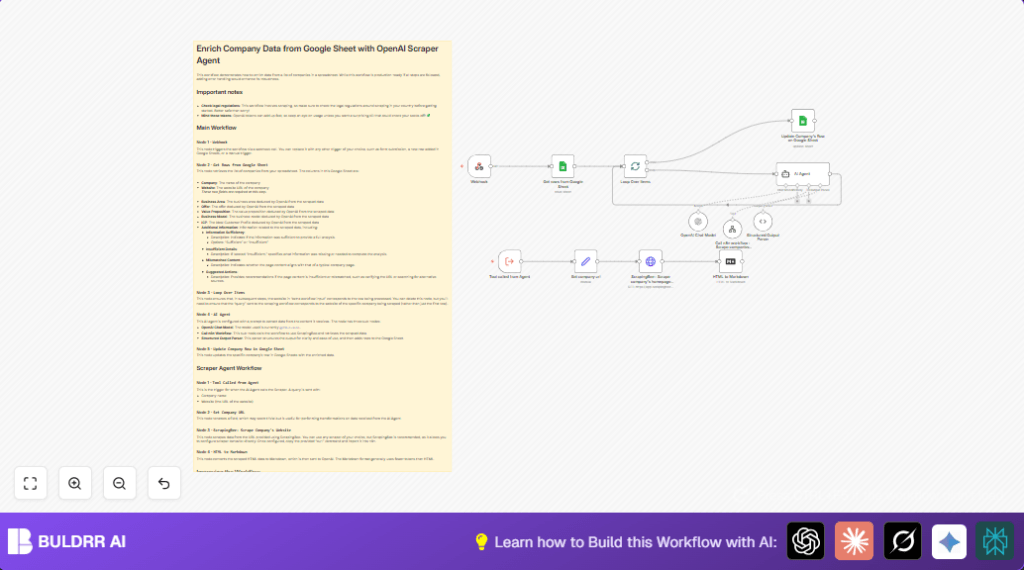
This workflow takes company names and website URLs from a Google Sheet. It scrapes the homepage HTML using ScrapingBee. Then, it converts HTML to Markdown to keep data simple. It feeds this to OpenAI’s GPT-4o-mini model. The AI analyzes and returns clear business info like Business Area, Products, Value Proposition, Business Model, and Ideal Customer Profile.
The workflow also checks for missing or mismatched info. Final results get automatically written back into Google Sheets. This replaces long manual research with fast, structured enrichment.
Who Should Use This Workflow
This fits people who work with lots of company data in Google Sheets. Especially useful for business analysts, marketers, and sales teams. Anyone tired of copying info from websites one by one. It helps non-technical users get clean business details without guessing or reading sites themselves.
Tools and Services Used
- Google Sheets: Your source list and final storage.
- ScrapingBee API: Fetches company homepage HTML.
- OpenAI GPT-4o-mini: AI model that interprets content.
- n8n: Workflow automation platform running all steps.
Inputs, Processing Steps, and Output
Inputs
- Google Sheet with at least columns: Company and Website.
- Valid ScrapingBee API Key.
- Valid OpenAI API Key with GPT-4o-mini access.
Processing Steps
- Read all company rows from Google Sheet.
- Loop each company separately using SplitInBatches to avoid overload.
- Extract company website URL and set as a scraping target.
- Use ScrapingBee to get homepage raw HTML.
- Convert the raw HTML to markdown to simplify the text for AI.
- Feed markdown content into OpenAI GPT-4o-mini with a prompt to find: Business Area, Offers, Value Proposition, Business Model, Ideal Customer Profile.
- Parse AI output into structured JSON format using the LangChain Structured Output Parser.
- Write back the parsed info into the correct row in Google Sheet under the columns Business Area, Offer, Value Proposition, Business Model, ICP, and Additional Information.
- Detect and report on cases where data is missing or scraping fails for diagnostics.
Output
- Google Sheet updated with clean, structured business details for each company.
- Logs and error information in the workflow for troubleshooting.
Beginner Step-by-Step: How to Use This Workflow in n8n
1. Download and Import Workflow
- Click the Download button on this page to save the workflow JSON file.
- Open the n8n editor where automation workflows are created.
- Use the Import from File option in n8n to import the downloaded workflow JSON.
2. Configure Credentials and IDs
- Add your Google Sheets API credentials in n8n for accessing spreadsheet data.
- Input your ScrapingBee API Key in the HTTP Request node querying the scraper.
- Enter your OpenAI API key in the OpenAI Chat Model node.
- If needed, update the Google Sheet document ID and sheet name to match your file.
- Check any email, folder, channel, or table-specific settings and update as per your environment.
3. Test the Workflow
- Run the workflow manually to ensure it reads, scrapes, analyzes, and updates data properly.
- Watch execution logs for any errors to fix credential or configuration issues.
4. Activate for Production
- When tests are successful, turn on the workflow trigger or run it on a schedule.
- If using self hosting n8n, consider real server deployment with links like self-host n8n to keep it reliable.
- Monitor runs regularly and update credentials when necessary.
Edge Cases and Potential Failures
- Missing or invalid URLs: Scraping will fail if URLs do not exist or are malformed.
- ScrapingBee no data returned: Check API key and URL parameters.
- OpenAI max tokens error: Can happen if HTML content is too big without conversion to markdown.
- Row update mismatch: Ensure the Google Sheet has a reliable row_number column to map AI results back.
- Insufficient data in site content: AI prompt handles by adding diagnostic notes in Additional Info field.
Customization Ideas
- Expand scraping to “About Us” or “Pricing” pages to get deeper info.
- Add extra validation and skip rows if data looks incomplete or error-prone.
- Replace Google Sheets output with CRM integration for real-time company enrichment.
- Modify the AI prompt to support multiple languages and do auto translation before parsing.
- Add a Webhook node trigger to run enrichment on live lead submissions.
Summary of Benefits
✓ Saves hours or days each week by automating company data enrichment.
✓ Reduces errors caused by manual copy-pasting and guessing.
✓ Produces structured, easy-to-use business details in Google Sheets.
✓ Helps teams make smarter sales and marketing choices faster.
✓ Simple to set up and run inside n8n with API keys and sheet updates.
