
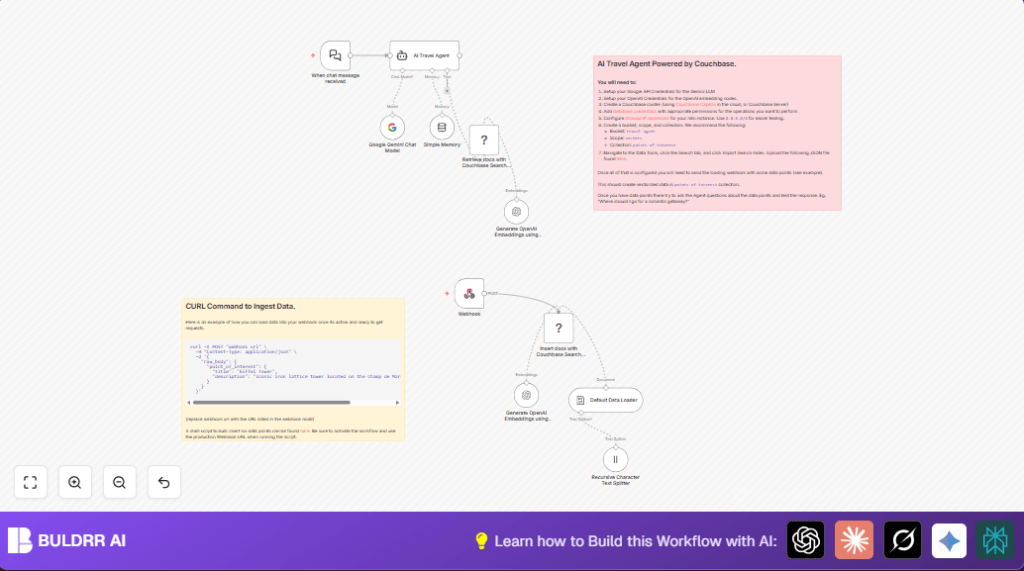

What this workflow does
This workflow answers travel questions fast. It uses AI and a vector search to find travel spots quickly. When a user asks about places or hotels, the system finds related info from a big travel database. Then, it replies with good travel ideas. This stops wasting time on searching manual papers or many websites. The user gets smart replies that help plan trips easier.
The main problem solved is slow, mistake-prone manual search for travel info. The outcome is faster, correct answers that save hours of work each day.
Who should use this workflow
This workflow fits travel agents, like people helping clients pick trips. It works for anyone with lots of destination, hotel, or place info. Users who want less manual searching and better chat help can use this. It helps people who want quick, accurate travel advice from a big collection of data.
Tools and services used
- n8n: Automates the whole chat and data process.
- LangChain Chat Trigger node: Listens to user messages to start the workflow.
- Couchbase Vector Search: Finds points of interest by matching vectors fast.
- Google Gemini 2.0 Flash model: Produces natural chat replies with travel ideas.
- OpenAI Embeddings: Converts text into vectors to search and store.
- Couchbase database: Stores vectorized travel points for fast retrieval.
How the workflow works
Inputs
The conversation starts when user sends a chat message via the LangChain Chat Trigger node webhook.
Processing steps
- The Simple Memory node saves recent chats to keep context.
- The system uses Couchbase Vector Search to find travel spots related to the question.
- New travel data is split and vectorized using OpenAI embeddings.
- Vector data is saved into Couchbase for future fast search.
- Google Gemini 2.0 Flash model creates chat replies using retrieved info.
- AI Travel Agent node controls the flow and logic with max 10 idea steps.
- All chat and data flow are connected through configured n8n nodes to respond quickly.
Output
The system gives a chat reply with clear, accurate travel advice based on indexed data. The user gets meaningful, personal travel ideas fast.
Beginner step-by-step: How to use this workflow in n8n
Step 1: Import the workflow
- Download the full workflow file using the Download button on this page.
- Inside the n8n editor, choose “Import from File” and pick the downloaded workflow file.
- Open the workflow; all nodes and connections will show.
Step 2: Configure credentials
- Add your Google API Key for Gemini 2.0 Flash in the Google Gemini Chat Model node credentials.
- Add your OpenAI API Key in the Generate OpenAI Embeddings nodes credentials.
- Update Couchbase connection details in nodes that use Couchbase vector search or insert. Include bucket, scope, collection, and IP whitelist if needed.
- Check if the Couchbase Full-Text Search index is correctly set up matching the collection.
Step 3: Set any needed IDs or expressions
- Check the Default Data Loader node has the correct JSON expression for your data input (
{{$json.body.raw_body.point_of_interest.title}} - {{$json.body.raw_body.point_of_interest.description}}).
- Change topK or other parameters in the vector search node if needed.
Step 4: Test the workflow
- Send a test chat message to the LangChain Chat Trigger webhook URL to see if it triggers.
- If testing data insert, POST JSON to the Webhook node using a command like:
curl -X POST "<Webhook URL>" \ -H "Content-Type: application/json" \ -d '{ "raw_body": { "point_of_interest": { "title": "Eiffel Tower", "description": "Iconic iron lattice tower located on the Champ de Mars in Paris, France." } } }' - Check if data inserts and embedding runs successfully in Couchbase.
- Make sure the chatbot returns relevant travel answers.
Step 5: Activate for production
- Turn on the workflow using the “Active” toggle in n8n.
- Monitor runs under the execution logs for errors or warnings.
- Make sure your network settings allow n8n to connect to Couchbase and APIs.
- If self hosting n8n, consider using reliable hosting such as self-host n8n options.
Inputs and outputs
Input: Chat messages from users via webhook trigger, and JSON data for new travel points.
Process: Splitting, embedding, inserting vector data into Couchbase, searching vectors, then generating chat answers.
Output: AI-generated conversational replies with travel recommendations, delivered back to users instantly.
Common problems and fixes
- Error retrieving vectors from Couchbase: Check if Couchbase search index exists and matches the bucket and collection.
- OpenAI API key invalid or missing: Update or add correct API Key in n8n credentials.
- Webhook not working: Make sure workflow is active and webhook URL is correct in your POST requests.
Customization ideas
- Change topK in Couchbase vector search to control how many travel spots are found.
- Replace Google Gemini 2.0 Flash model with another version for different chat style.
- Upgrade Simple Memory node to hold more chat history for better context.
- Edit the system message prompt in AI Travel Agent node to change assistant personality.
Summary of benefits and results
✓ Saves hours by automating travel data search and chat replies.
✓ Gives fast, clear travel advice from a large indexed dataset.
✓ Keeps chat context for natural conversations.
✓ Helps travel agents focus on clients not data search.
✓ Lets users add new travel points easily via webhook.
→ Workflow runs inside n8n, connecting Couchbase vector search and Google Gemini AI.
→ Easy import and configuration lets beginners deploy quickly.
