
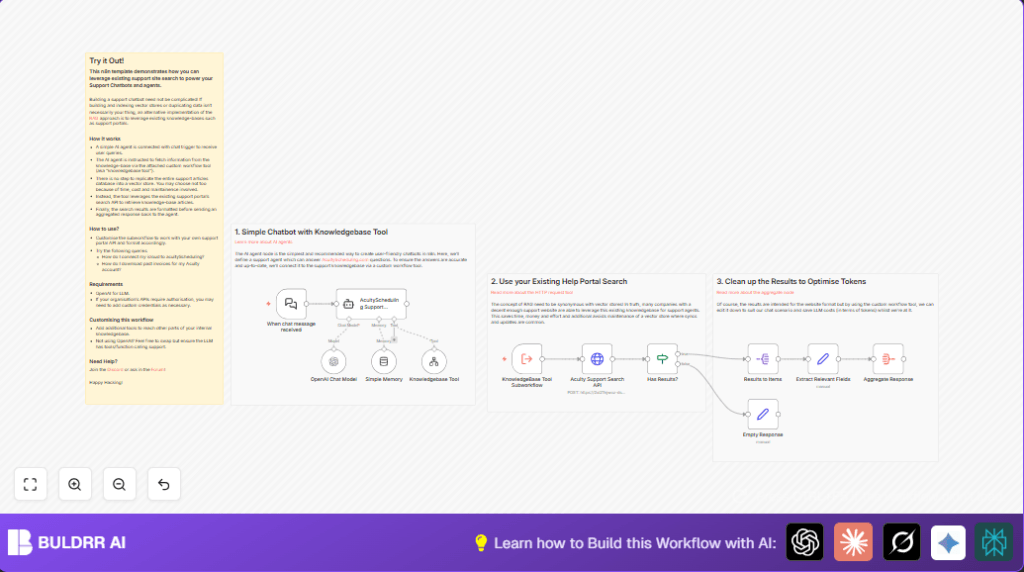

What this workflow does
This workflow answers common support questions users send in chat.
It uses OpenAI’s GPT-4o Mini model to understand and respond naturally.
The workflow looks up real answers by querying AcuityScheduling’s support search API.
This avoids building or keeping costly data stores.
Users get quick, useful replies with links to full articles.
Support teams save time and reduce repeated responses.
The workflow keeps conversation history briefly to make chats feel clearer and better.
It combines several matching articles into one easy answer.
It updates responses every time without stale data.
Who should use this workflow
This setup works well for support managers handling frequent, repeated questions.
Users with an existing AcuityScheduling support site can plug this in easily.
Anyone wanting to reduce manual answering and improve response speed benefits here.
It fits teams with basic chatbot needs without extra backend complexity.
If spending lots on vector databases or long FAQ browsing is a problem, this helps a lot.
Tools and services used
- n8n Platform: Automates the workflow and connects nodes.
- OpenAI GPT-4o Mini model: Understands and makes chat responses.
- AcuityScheduling Support Portal Search API: Returns relevant help articles.
- Langchain Simple Memory: Holds short conversation context.
- Webhook node & HTTP Request node: Receive chat messages and call APIs.
Beginner step-by-step: How to build this in n8n
Download and Import Workflow
- Download the workflow file using the Download button on this page.
- Open your n8n editor and go to Workflows → Import.
- Choose “Import from File” and upload the downloaded JSON file.
- Check that all nodes appear connected and visible, including chat trigger and OpenAI nodes.
Configure Credentials and IDs
- Open the OpenAI Chat Model node. Under credentials, add your valid OpenAI API Key.
- If needed, update IDs such as the KnowledgeBase Tool Subworkflow workflowId.
- Ensure the webhook URLs in When chat message received node match your chat front-end connection.
Test the Workflow
- Send a test question through your connected chat interface, like “How do I connect iCloud to AcuityScheduling?”.
- Check if responses return relevant, clear answers with support article links.
Activate for Production Use
- Turn on the workflow using the Activate toggle at the top right of the editor.
- Make sure your chat front-end sends messages to the webhook URL provided by the When chat message received node.
- Monitor initial runs to confirm correct handling and output.
For full control, consider self-host n8n.
Workflow inputs, processing steps, and outputs
Inputs
- Chat messages sent by users from a web chat or front-end.
- The current conversation history stored temporarily in memory.
Processing Steps
- The When chat message received node captures user questions.
- The OpenAI Chat Model node reads the question and conversation history.
- The workflow calls the AcuityScheduling Support Portal Search API through a subworkflow HTTP request.
- The API returns support articles relevant to the question.
- The Has Results? node checks if articles were found.
- The articles array is split and each item’s title, content, and URL are extracted.
- The Aggregate Response node bundles the extracted data into a clean reply.
- The workflow updates the memory to keep this chat context for future questions.
Outputs
- A clear answer summarizing one or more support articles.
- Direct links to support pages for further reading.
- Memory updates to keep chat context relevant.
- Reduced manual workload and faster replies.
Common edge cases and troubleshooting tips
- OpenAI API authentication failed: Confirm API Key in OpenAI credentials is correct and active.
- HTTP 403 Forbidden from Support Search API: Check request headers match latest required values; update if API endpoint changes.
- No search results returned: Ensure the query parameter is correctly passed from chat input to the API request body.
- Memory loss or dropouts: Verify Simple Memory node settings and compatibility with n8n version.
- Workflow does not trigger: Confirm front-end sends messages to the correct webhook URL from When chat message received.
Customization ideas
- Switch OpenAI Chat Model to other models like GPT-3.5 or GPT-4 for different answer quality or cost.
- Add other company support sources by editing the HTTP Request node in the Knowledgebase Tool Subworkflow.
- Change language filters in the API call to support different locales or multi-language users.
- Expand memory settings by increasing window size or replacing Simple Memory with advanced Langchain memory options.
- Modify response formatting by adjusting the Extract Relevant Fields and Aggregate Response nodes to customize the answer style or add branding.
Summary of benefits and results
✓ Saves up to 80% of manual support work by automating common questions.
✓ Cuts user wait time by half or more.
✓ Avoids costly, complex vector database maintenance.
✓ Provides fresh, accurate answers using live support API data.
✓ Keeps chat conversations easy to follow with memory context.
✓ Lets non-technical users deploy quickly with simple import and configuration.
