
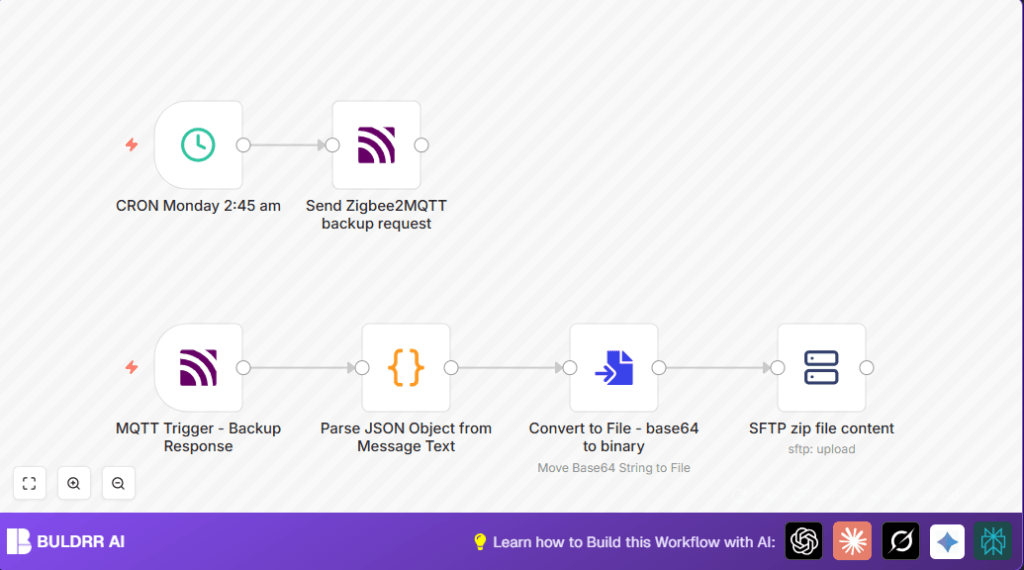

What this workflow does
This workflow automatically backs up Zigbee2MQTT devices every week. It solves the problem of manually requesting and downloading backups. The result is a backup file saved safely on a remote SFTP server without any manual work.
The backup keeps your device data safe and saves time.
Who should use this workflow
Any Zigbee2MQTT user who wants regular backups without doing it by hand. It is perfect for home automation users who worry about losing device data.
Users need basic n8n setup and access to MQTT broker and SFTP server.
Tools and services used
- n8n: Automation tool to create and run the workflow.
- MQTT Broker: Sends and receives backup messages from Zigbee2MQTT.
- SFTP Server: Secure place to upload and store backup zip files.
Inputs, processing steps, and output
Inputs
- A scheduled trigger (Monday 2:45 AM) to start the process.
- An MQTT topic to send a backup request.
- An MQTT topic to receive the backup response.
Processing steps
- The workflow sends a backup request message via MQTT.
- Listens to MQTT for a response with base64-encoded backup data.
- Parses the JSON message to extract the base64 backup zip.
- Converts the base64 string into a binary zip file.
- Uploads the zip file to the SFTP server with a timestamped filename.
Output
A zipped backup file saved securely on the remote SFTP server in a folder with the backup date and time.
This file contains the Zigbee2MQTT device data for recovery or restore.
Beginner step-by-step: How to use this workflow in n8n
Step 1 – Import the workflow
- Download the workflow file using the Download button on this page.
- Open the n8n editor and click Import from File.
- Select the downloaded workflow to add it to n8n.
Step 2 – Configure credentials
- Add your MQTT broker credentials in the MQTT and MQTT Trigger nodes.
- Add your SFTP server credentials in the FTP (SFTP) node.
Step 3 – Update any custom fields
- If needed, change the MQTT topics to match your Zigbee2MQTT setup.
- Adjust the SFTP upload path or filename in the FTP (SFTP) node if you want a different folder or name.
Step 4 – Test and activate
- Run the workflow once manually to check if it publishes the backup request, receives the backup, converts and uploads correctly.
- Look for errors and fix configuration problems if any.
- Turn on (activate) the workflow to let it run every week automatically.
If the user wants, the workflow can run in a self-host n8n environment for more control and privacy.
How the workflow works, step by step
The workflow starts with a scheduled trigger at Monday 2:45 AM.
It sends an MQTT message to request a backup from Zigbee2MQTT.
The MQTT Trigger node listens for the backup published by Zigbee2MQTT.
A Code node parses the received JSON to get the base64 backup data.
Then a Convert to File node turns the base64 string into a real zip backup file.
Finally, the FTP (SFTP) node uploads the zip file to a remote server using a timestamped filename.
This way, backups get stored safely without manual effort or error.
Customization ideas
- Change backup time by editing the schedule cron expression.
- Change backup location by updating the SFTP path.
- Add notification nodes like Email or Slack after upload to get alerts.
Edge cases and common errors
- MQTT Trigger does not receive backup: Check MQTT topics and broker connection.
- SFTP upload fails: Verify SFTP credentials and folder permissions.
- Base64 file not created: Confirm the Convert to File node source is set correctly.
Summary
✓ Automatically requests Zigbee2MQTT device backups every week.
✓ Converts backup data into a zip file.
✓ Uploads backups securely to a remote SFTP server with timestamped filenames.
→ Saves time and reduces risk of losing Zigbee2MQTT device data.
→ Runs without user intervention once activated.
