
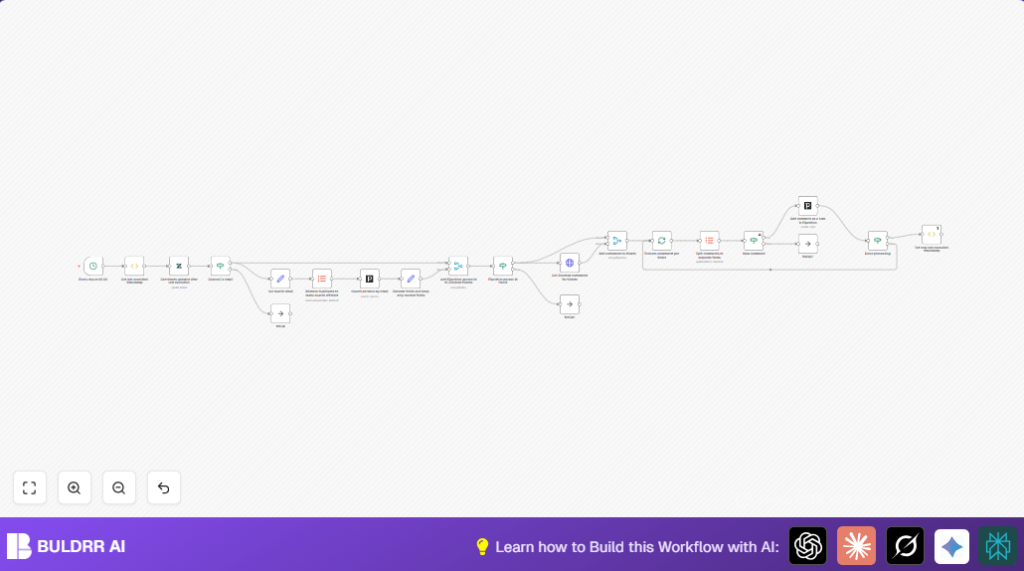

What This Automation Does
This workflow connects Zendesk to Pipedrive to save you time copying comments.
It finds Zendesk tickets updated since the last run and adds new email comments as notes in Pipedrive contacts.
It searches Pipedrive contacts by sender email, avoiding duplicate searches, and posts only fresh comments.
The result is less manual copying and fewer mistakes.
Who Should Use This Workflow
This workflow is for anyone who spends too much time moving customer support info from Zendesk into Pipedrive manually.
People managing sales and support data want to avoid mistakes and lost details.
It helps if daily syncing of ticket comments to sales notes is needed.
Tools and Services Used
- n8n Automation Platform: Runs the workflow and nodes.
- Zendesk API: Used to get tickets and comments data.
- Pipedrive API: Searches contacts and adds notes linked to persons.
- JavaScript Function Nodes: Manages timestamps and data transformations.
Inputs, Processing Steps, and Output
Inputs
- Last execution time (stored globally in workflow).
- Zendesk tickets updated since last run.
- Sender email addresses from Zendesk ticket updates.
Processing Steps
- Filter tickets to include only emails.
- Remove duplicate sender emails.
- Search Pipedrive persons by email.
- Merge Zendesk tickets with Pipedrive person Ids.
- Get all comments for each ticket.
- Split comments into single items and filter new comments by created date.
- Add new comments as Pipedrive notes connected to proper contacts.
- Update last execution timestamp to current run time.
Output
New Zendesk ticket comments added as notes into matching Pipedrive contacts since last execution.
An updated timestamp stored for next workflow run.
Beginner step-by-step: How to use this workflow in n8n
Import Workflow
- Download the workflow from this page using the Download button.
- Open your n8n editor.
- Click the menu and select Import from File.
- Choose downloaded workflow file and load it.
Configure Credentials
- Add your Zendesk API credentials with API key to n8n credentials manager.
- Add your Pipedrive API key to n8n credentials as well.
Update Settings
- Check the Cron node to set your desired daily run time if needed.
- Verify or update any email addresses, channels, folder IDs, or table keys inside nodes if the defaults don’t match your accounts.
- Make sure the query expressions are correct, like in the Zendesk node filter using the lastExecution timestamp.
Test Workflow
- Run the workflow manually once inside n8n editor to test.
- Watch the output for errors like no matched Pipedrive person or no comments fetched.
Activate Production
- When tests pass, set the workflow to “Active” to let it run automatically each day.
- Monitor runs occasionally in the n8n dashboard.
- Consider setting up error alerting in n8n if needed.
For full self hosting options, you can check self-host n8n resources.
Step-by-step Guide
1. Schedule with Cron node
Set Cron to run daily at 9 AM.
2. Remember last run time
Use FunctionItem node to get and store lastExecution timestamp globally.
const staticData = getWorkflowStaticData('global');
if(!staticData.lastExecution){
  staticData.lastExecution = new Date().toISOString();
}
item.executionTimeStamp = new Date().toISOString();
item.lastExecution = staticData.lastExecution;
return item;
This lets next runs fetch only new tickets and comments.
3. Get Zendesk tickets updated after lastExecution
Use Zendesk node set to Get All Tickets.
Filter so only tickets with updated >= lastExecution timestamp are retrieved.
4. Filter for tickets with email channel
Add If node checking {{$json[“via”].channel}} equals ’email’.
5. Extract sender email and remove duplicates
Use Set node to create SearchEmail field: {{$json[“via”].source.from.address}}.
Use ItemLists node to keep unique emails only.
6. Search Pipedrive persons by email
Pipedrive node: Search persons resource with SearchEmail term.
7. Rename and keep needed Pipedrive fields
Set node to rename id to PipeDrivePersonId; keep email field as primary_email.
8. Merge Zendesk tickets with Pipedrive persons
Merge node with mergeByKey mode; keys: via.source.from.address and primary_email.
This appends PipeDrivePersonId to each ticket.
9. Check for existing Pipedrive person Id
If node checks PipeDrivePersonId is not empty.
Only tickets with matched persons continue.
10. Get Zendesk comments per ticket
HTTP Request node makes GET request to tickets/
11. Merge comments to tickets
Merge node with inner join by index to combine comments with tickets.
12. Process each ticket comments separately
SplitInBatches node with batch size 1.
13. Split comment arrays into individual items
ItemLists node splits comments array to separate items.
14. Filter new comments only
If node filters comments with created_at after lastExecution.
15. Add comments as Pipedrive notes
Pipedrive node adds note resource with content including sender name and comment body.
Assign to contact using PipeDrivePersonId.
16. Update last execution timestamp globally
FunctionItem node updates staticData.lastExecution to current executionTimeStamp.
Customizations ✏️
- Change Cron node time to run multiple times per day.
- Add other Zendesk ticket channels like chat by updating channel filter in If node.
- Include ticket IDs or priority in Pipedrive note content for clearer context.
- Merge additional Pipedrive contact fields such as deals or custom tags if needed.
- Adjust SplitInBatches size based on expected ticket volume.
Troubleshooting ????
Problem: “No Pipedrive person found, notes not created”
Cause: Zendesk sender emails do not match Pipedrive contacts.
Solution: Check email field accuracy in “Search persons by email” node and validate input email formats.
Problem: “Zendesk comments not fetched or empty response”
Cause: Wrong Zendesk API URL or authentication error.
Solution: Confirm HTTP Request node uses correct ticket id URL and Zendesk API credentials.
Problem: “Workflow does not update last execution timestamp”
Cause: Incorrect staticData scope usage or wrong node order.
Solution: Make sure update timestamp node runs last and properly sets staticData.lastExecution.
Pre-Production Checklist ✅
- Verify Zendesk API credentials and scopes.
- Check Pipedrive API key and permissions.
- Test Cron node trigger manually.
- Run test with few tickets to check emails and persons matching.
- Confirm comment fetching returns correct data from Zendesk API.
- Test note creation in Pipedrive with sample.
- Backup important data before production deploy.
Deployment Guide
Switch the workflow from draft mode to active in n8n to start daily automation.
Use the n8n dashboard to monitor logs for errors or failures.
Add alerting or error nodes optionally for production scale.
Summary of Workflow Benefits and Outcome
✓ Save over 10 hours weekly by automating Zendesk to Pipedrive notes sync.
✓ Reduce manual errors in copying ticket comments.
✓ Keep sales contacts updated with fresh support info.
✓ Improve team response times and client tracking.
✓ Store last execution time to avoid duplicates.
→ Result is streamlined sales-support data flow with less manual work and better accuracy.
