

What This Automation Does
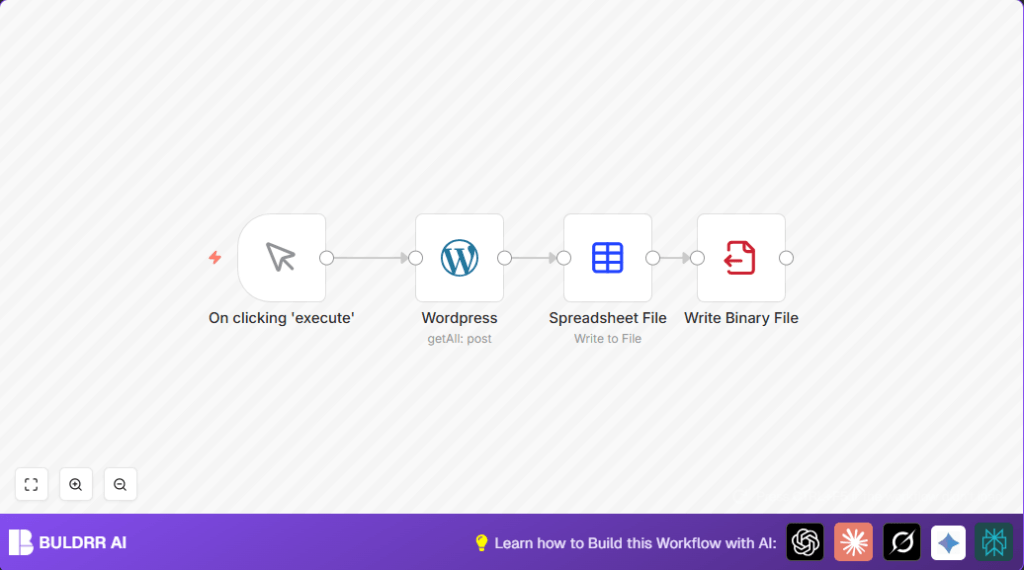
This n8n workflow gets all content from WordPress and saves it as a clean CSV file automatically. It stops you from copying data manually and spending hours fixing errors. You run it whenever you want, and it fetches posts, pages, or other content types, makes a CSV, and saves the file on your machine.
First, it asks WordPress for all your posts and pages using the WordPress API. Next, it changes that data from JSON to CSV format. Then, it writes the CSV file to a folder you pick on your server or computer.
This setup is made for website managers who need quick data exports with no hassle. It works right inside n8n and needs only a few settings to run perfectly.
Tools and Services Used
- n8n Automation Platform: Runs this workflow on your server or cloud.
- WordPress REST API: Provides data access to posts, pages, or custom post types.
- WordPress API Credentials: Username and application password or API key for authentication.
- Local server file system: Saves the generated CSV file.
Inputs → Processing Steps → Output
Input
API call to WordPress site requesting all posts or chosen content types using API credential.
Processing Steps
- Fetch all WordPress content with the WordPress node in n8n.
- Convert JSON response to CSV with the Spreadsheet File node.
- Write the CSV binary file to server disk with Write Binary File node.
Output
A clean CSV file with all WordPress posts and pages data saved locally.
Beginner Step-by-Step: How to Use this Workflow in n8n
Step 1: Download and Import Workflow
- Click the Download button on this page to get the workflow file.
- Open your n8n editor.
- Go to the top left menu and select “Import from File”.
- Choose the downloaded workflow file and import.
Step 2: Configure Credentials and Settings
- Find the WordPress node and open its settings.
- Add your WordPress API URL, username, and application password as credentials.
- If needed, adjust post types or filters to export only what you want.
- Check the Write Binary File node to set your target folder and file name.
Step 3: Test the Workflow
- Click the Manual Trigger node’s “Execute Workflow” button.
- Watch if WordPress data loads and the CSV file saves without errors.
Step 4: Activate for Production Use
- Turn on the workflow to make it ready for use.
- Run it manually anytime from n8n or replace manual trigger with Cron for scheduled exports.
Now, you have a working export tool to save WordPress content as CSV quickly.
Customizations
- Choose specific post types like posts, pages, or custom types in the WordPress node options.
- Add a timestamp in the file name using expressions like
wordpress-export-{{ $now.toISODate() }}.csvto not overwrite files. - Filter data fields before CSV by adding a Code node to select only needed fields.
- Replace the Write Binary File node with cloud storage nodes to save the CSV in Dropbox or Google Drive.
Troubleshooting
Authentication Failed in WordPress Node
This happens if API keys or passwords are wrong or the user lacks rights. Check your credentials carefully and test again.
CSV File Not Saving or Empty
Make sure the file path in Write Binary File node is writable. Confirm the Spreadsheet File node produces output. Check node connections.
Pre-Production Checklist
- Verify WordPress API credentials work.
- Run the workflow once to confirm WordPress data loads.
- Check CSV file generation without errors.
- Confirm CSV saves to the right folder.
- Open CSV in a spreadsheet app to verify contents.
Deployment Guide
Turn on the workflow in n8n after testing.
Run it manually via the Manual Trigger or use the Cron node for automatic scheduling.
If using self-host n8n or running n8n on server, ensure file save paths and permissions are correct. Learn more about self-host n8n for hosting options.
Summary and Benefits
✓ Automatically exports all WordPress content to well-formatted CSV.
✓ Runs on demand, saving time and avoiding data copy mistakes.
✓ Simple setup inside n8n with only API credentials and file path needed.
✓ Exports full data or filtered content types.
✓ Saves CSV locally or to cloud storage if customized.
