
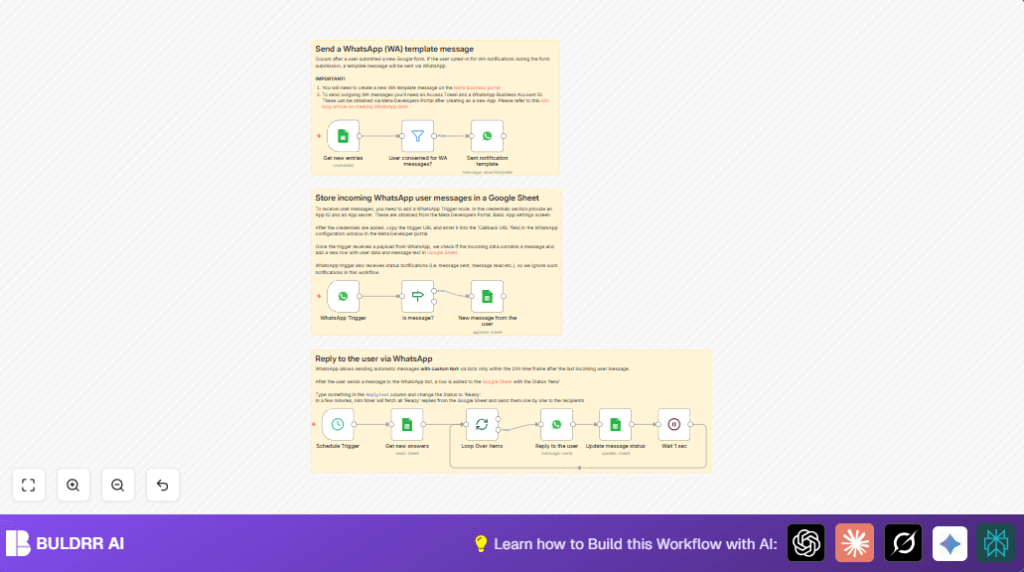

What This Workflow Does
This workflow automates WhatsApp messages for appointment bookings from Google Forms. It stops you from sending messages by hand. The workflow sends appointment reminders automatically, saves incoming user messages to Google Sheets, lets staff write replies in the sheet, and sends those replies back on WhatsApp on a schedule. It also updates message status in the sheet so you can track all communication easily.
The useful result is less time spent texting clients and fewer mistakes with appointment details.
How the Workflow Works: Inputs, Processing, and Outputs
Inputs
- Google Form responses: New bookings from clients with phone numbers and consent.
- WhatsApp incoming messages: Messages from users sent to the business WhatsApp number.
- Google Sheets rows: Staff updates replies and tracks message status.
Processing Steps
- Detect new form rows every 5 minutes with Google Sheets Trigger node.
- Filter users who agreed to WhatsApp messages.
- Send approved template messages via WhatsApp API automatically.
- Listen to incoming WhatsApp messages with WhatsApp Trigger node.
- Filter out message events that are not user texts (like read receipts).
- Save new messages to Google Sheets with a “New” status.
- Check the sheet every minute for rows marked “Ready” to send replies.
- Send replies one-by-one and update status to “Replied”.
Outputs
- WhatsApp appointment notifications sent without manual work.
- Organized conversation history in Google Sheets.
- Automatic reply sending with confirmed updates.
Tools and Services Needed
- WhatsApp Business API: Sends and receives messages for the business.
- Google Sheets: Stores form responses, message data, and reply status.
- Google Sheets OAuth2 Credentials: Connect n8n to Google Sheets securely.
- n8n automation platform: Runs the workflow and connects all services.
- Optional: self-host n8n for control over hosting.
Beginner Step-by-Step: How to Use This Workflow in Production
Step 1: Import the Workflow into n8n
- Click the Download button on this page to get the workflow file.
- Open the n8n editor where you want to run the automation.
- Use the Import from File option to load the downloaded workflow.
Step 2: Configure Credentials and IDs
- Add WhatsApp Business API credentials in n8n so the workflow can send and receive messages.
- Add Google Sheets OAuth2 credentials that allow reading and writing to the target spreadsheet.
- Update any IDs, like Google Sheet IDs or WhatsApp Phone Number IDs, found inside the workflow nodes to match your setup.
Step 3: Test the Workflow
- Trigger a test by submitting a Google Form entry or sending a message to the WhatsApp number.
- Check that the messages are sent and logged correctly in Google Sheets.
- Update a message status to “Ready” in Google Sheets and confirm the scheduled reply is sent.
Step 4: Activate the Workflow
- After confirmation, activate the workflow in n8n.
- Make sure the workflow stays running on a reliable server or n8n cloud.
This lets you save time while the automation handles WhatsApp messages for appointments.
Step-by-Step Overview of Key Workflow Parts
Send Template Notifications
- Use the WhatsApp node named “Sent notification template”.
- Set the template name, language, and placeholders for name and appointment date.
- Send message to the form user’s phone number.
Capture Incoming WhatsApp Messages
- Use WhatsApp Trigger node, configured with WhatsApp API.
- Filter only user text messages with an If node.
- Append messages to Google Sheets using Google Sheets Append node with status “New”.
Send Replies on Schedule
- Use a Schedule Trigger node running every minute.
- Fetch replies marked “Ready” from Google Sheets using Google Sheets node.
- Send messages with WhatsApp node named “Reply to the user”.
- Update row status to “Replied”.
- Add 1 second wait between messages to avoid API limits.
Customize the Workflow
- Change the WhatsApp template in the “Sent notification template” node to match your appointment style.
- Modify consent filters to include SMS or email if needed.
- Adjust the schedule trigger interval to control reply sending frequency.
- Add language support by storing user language in Google Sheets and sending messages accordingly.
Troubleshooting Common Issues
WhatsApp messages fail or show errors
Check if the WhatsApp Phone Number ID is correct.
Confirm the WhatsApp message template is approved and active.
Verify your API credentials are valid in the WhatsApp nodes.
Incoming WhatsApp messages do not appear in Google Sheets
Confirm webhook URL from the WhatsApp Trigger node is set in Meta Developer portal.
Make sure the webhook event subscription is enabled for messages.
Pre-Production Testing Checklist
- Send a test WhatsApp message and check if it logs in Google Sheets.
- Verify Google Sheets Trigger sends notifications only for consenting users.
- Set message status “Ready” and test reply sending.
- Ensure all Google Sheets node columns match your spreadsheet.
Deployment Guide
Turn on the workflow in n8n and run it on a trusted system or cloud service.
Watch the n8n execution logs regularly for errors or rate limits.
Keep Google Sheets and WhatsApp API credentials up to date to stop interruptions.
Summary of What You Get
✓ You get an automated system that sends appointment reminders on WhatsApp.
✓ Incoming WhatsApp messages get saved in Google Sheets for easy tracking.
✓ You can prepare replies in the sheet, and replies are sent automatically on schedule.
✓ Saves hours of manual work and reduces errors in communication.
