
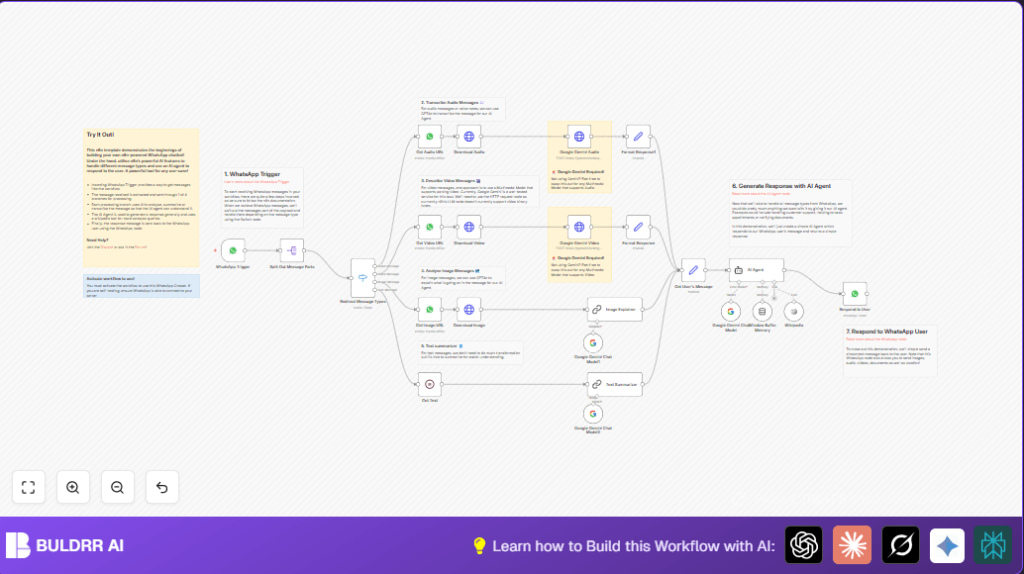

What This Workflow Does
This workflow automates WhatsApp message handling using n8n. It processes messages with audio, video, images, or text. The workflow downloads media securely from WhatsApp servers, then uses Google Gemini and LangChain AI to transcribe, describe, or summarize the content. Finally, it sends a smart reply back to the user automatically.
The main problem solved is saving time and avoiding mistakes by replacing manual message reading. The outcome is faster, accurate responses to customers, improving support quality.
Who Should Use This Workflow
Businesses receiving many WhatsApp messages with mixed media can use this workflow. Customer support managers who want to reply faster with AI help will find it useful.
Anyone using WhatsApp Business Cloud API and wanting to add AI transcription, image analysis, or smart replies can benefit.
Tools and Services Used
- WhatsApp Business Cloud API: Receives and sends WhatsApp messages.
- Google Gemini (PaLM API): Transcribes audio and describes video content.
- LangChain GPT4o nodes: Analyze image content and summarize text.
- n8n Platform: Automates the flow with nodes like WhatsApp Trigger, HTTP Request, Switch, and AI agent nodes.
- HTTP Request Nodes: Download media files securely and call AI APIs.
Inputs, Processing Steps, and Output
Inputs
- Incoming WhatsApp messages with audio, video, images, or text.
Processing Steps
- Start with WhatsApp Trigger to listen for new messages.
- Use Split Out node to separate multiple messages.
- Route messages by type with Switch node.
- For media messages, get secure download URLs using WhatsApp nodes.
- Download audio, video, and image files via HTTP Request nodes with WhatsApp credentials.
- Send audio files to Google Gemini API for transcription.
- Send video files to Google Gemini API for descriptive text.
- Analyze images with LangChain GPT4o nodes to describe content.
- Summarize plain text messages using LangChain.
- Create a structured message object combining text, captions, and sender info.
- Keep conversation history in memory with LangChain memoryBufferWindow node linked to user phone number.
- Generate AI replies using LangChain AI Agent node using context and external knowledge from Wikipedia.
- Send AI-generated responses back via WhatsApp node to the user.
Output
A context-aware WhatsApp reply that answers the customer’s question or concern, including summarized or described content from media.
Beginner Step-by-Step: How to Use This Workflow in n8n
1. Import the Workflow
- Download the workflow file using the Download button on this page.
- In the n8n editor, click the main menu, choose “Import from File,” and select the downloaded file.
2. Configure Credentials and Settings
- Add WhatsApp Business Cloud API OAuth credentials in the WhatsApp nodes.
- Enter Google Gemini API keys in the HTTP Request nodes used for audio and video processing.
- Check if any IDs, emails, or phone numbers need updating to match your WhatsApp setup.
3. Test the Workflow
- Send sample messages (audio, video, image, text) to your WhatsApp account linked to the workflow.
- Watch the workflow execution logs to confirm media downloads and AI processing occur without errors.
4. Activate for Production
- Once tests pass, toggle the workflow activation switch in n8n to run continuously.
- Make sure your webhook URL is reachable by WhatsApp servers.
- If using self-host n8n, verify your server is up and the endpoint URL is public.
Customization Ideas
- Replace Google Gemini API calls with other AI services for multimodal input by updating HTTP Request endpoints and credentials.
- Add more tools to the LangChain AI Agent to retrieve information from custom databases or additional APIs.
- Support new WhatsApp message types like documents or location by extending the Switch node branches.
- Change the AI Agent’s reply style by editing the system message prompt—for example, to sound more friendly or formal.
- Save conversation logs or media to external storage like Google Sheets or databases for future audits.
Edge Cases and Troubleshooting
Issue: Receiving “401 Unauthorized” from WhatsApp API
This usually means WhatsApp OAuth credentials are wrong or expired. Update and re-authenticate credentials in WhatsApp Trigger and WhatsApp nodes.
Issue: AI Agent Replies Are Irrelevant or Empty
This can happen if message text or context is missing. Check the Set node that compiles message data. Verify the session key in the memory buffer matches user phone number and the AI Agent input is complete.
Summary of Benefits and Outcome
✓ Saves hours of manual WhatsApp message handling time.
✓ Converts audio, video, and images into text explanations.
✓ Provides quick, accurate AI-generated replies to users.
✓ Builds and uses conversation history for better context.
→ Result is better customer service and faster support communication.
