

What This Automation Does ⚙️
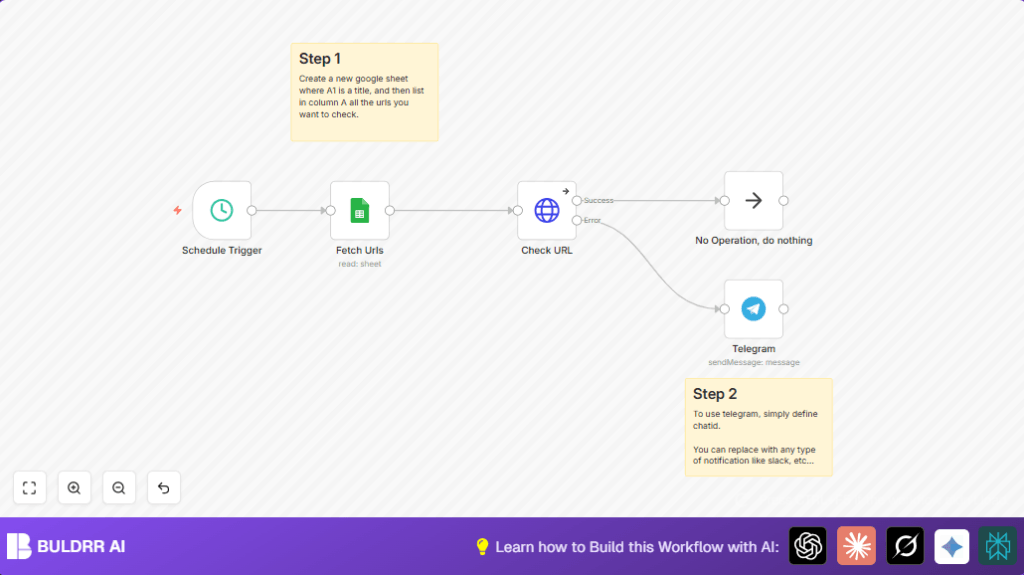
This workflow runs every minute and reads website URLs from a Google Sheet.
It checks each URL by sending an HTTP request to see if the website is live.
Only websites that are down or having errors trigger a message sent to Telegram.
Working websites do not send alerts, so you only see problems.
All results are logged inside the workflow for other uses.
Who Should Use This Workflow
This workflow is for anyone managing many websites who wants quick, automated checks.
If emails or manual checking wastes time, this saves hours weekly.
It alerts only when a problem happens, helping prevent client downtime.
No coding or heavy technical skills needed, just basic n8n and Google Sheets setup.
Tools & Services Used
- n8n: Workflow automation platform.
- Google Sheets API: Reading the website list from a spreadsheet.
- HTTP Request Node: Sends GET requests to each website URL.
- Telegram Bot API: Sends failure alerts to a Telegram chat.
Inputs, Processing Steps, and Output
Inputs
The main input is a Google Sheet with website URLs in Column A.
Each run fetches this list automatically.
Processing Steps
- Trigger workflow with a timer node every 1 minute.
- Get list of URLs from the Google Sheets node.
- Send HTTP Request node for each URL.
- If request is successful, go to No Operation node to end quietly.
- If request fails, send message via Telegram node to notify.
- Store or log the results internally for future use.
Output
The output is a notification message sent to Telegram only on errors.
The messages include the URL and error code.
This helps quickly find which websites need fixing.
Beginner Step-by-Step: How To Use This Workflow in n8n
Step 1. Download and Import Workflow
- Click the Download button on this page to get the workflow file.
- In your open n8n editor, go to menu and select “Import from File.”
- Choose the downloaded workflow file to load it.
Step 2. Configure Credentials and IDs
- Open the Google Sheets node and add your OAuth2 credentials.
- Enter the Google Sheets Document ID and correct Sheet Name where URLs are listed.
- Open the Telegram node and enter your Telegram Bot token and the target chat ID.
Step 3. Test the Workflow
- Run the workflow manually inside n8n to check for errors.
- Make sure URLs return valid responses and Telegram messages send on failures.
Step 4. Activate Workflow for Production
- Turn on the workflow in n8n by toggling it to active.
- The workflow will now run automatically every minute.
For self hosting, learn more about self-host n8n to keep the workflow running on your own server.
Troubleshooting & Edge Cases
- Why does Telegram send no notifications?
Check Telegram Bot token and chat ID. Make sure bot is active and chat ID is correct. - Why is Google Sheets node empty?
Double-check Document ID and Sheet name spelling and permissions. - Why does HTTP Request fail?
Make sure URLs have http or https prefix and the sites are reachable. - Spam of alerts
Ensure HTTP Request “On Error” is set to continue. Adjust schedule interval to reduce frequent checks.
Customization Ideas ✏️
- Change Telegram node to Slack or email nodes to send alerts via those services.
- Modify Google Sheets to include extra info like owner, expected status for fuller reports.
- Change schedule trigger to run every 5 or 10 minutes to cut API calls.
- Add database or file storage nodes after HTTP Request to keep health logs for audit.
Summary
✓ Checks website URLs automatically from Google Sheets.
✓ Sends Telegram alert only when websites are down.
✓ Logs results for future review or audit.
✓ Saves time by replacing manual checks.
✓ Runs every minute for fast problem detection.
