
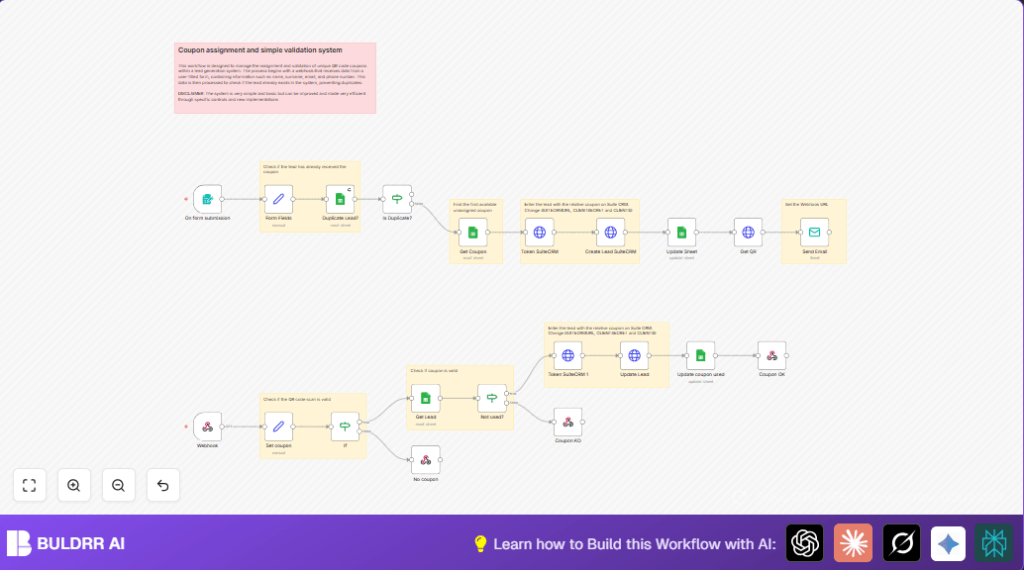

What This Workflow Does
This workflow assigns unique discount coupons to new leads via QR codes and checks coupon usage when scanned. It stops duplicate leads, tracks coupons in Google Sheets and SuiteCRM, sends coupon emails, and confirms coupon validity quickly. The goal is to save time and stop errors in the coupon process.
The workflow works by getting form data, checking if the email exists in Google Sheets, finding an available coupon, creating or updating lead information in SuiteCRM, generating a QR code for the coupon, emailing it to the lead, and validating coupon scans in real-time.
Tools and Services Used
- n8n: Automation platform to run workflow.
- SuiteCRM API: Manages lead records and coupon status.
- Google Sheets API: Stores and checks lead and coupon data.
- SMTP Email: Sends emails with QR code coupons.
- QuickChart API: Creates QR code images dynamically.
Beginner Step-by-Step: How to Use This Workflow in n8n
Step 1: Import Workflow
- Download the workflow file using the Download button on this page.
- Open n8n editor and choose “Import from File”.
- Select the downloaded file to add the workflow.
Step 2: Add Credentials and API Keys
- Set up Google Sheets OAuth2 credentials in n8n settings.
- Enter SuiteCRM Client ID and Client Secret in the appropriate HTTP Request nodes.
- Configure SMTP email with correct username, password, and server.
- Ensure QuickChart API requires no key or provide one if necessary.
Step 3: Update IDs and Addresses
- Verify Google Sheets document IDs and worksheet names in the nodes.
- Confirm email addresses and sender details in the Send Email node.
- Adjust any URLs, such as the QR code URL, with your domain or webhook address.
Step 4: Test the Workflow
- Submit a test lead through the form trigger or send sample JSON to the webhook.
- Check the assigned coupon appears in Google Sheets and the lead is created in SuiteCRM.
- Confirm that the coupon email sends successfully with the QR code image.
- Test scanning the QR code to see the validation response.
Step 5: Activate for Production
- Switch the workflow status to Active in n8n.
- Monitor executions and logs especially the Webhook node and email sending.
- Adjust configurations as needed for real traffic.
If hosting n8n yourself, consider reliable options from self-host n8n.
Workflow Inputs, Processing, and Outputs
Inputs
- Lead contact info from form: name, surname, email, phone.
- Coupon records from Google Sheets, including assigned status and usage.
- QR code scan requests via the webhook with coupon code parameter.
Processing Steps
- Check if lead email exists to avoid duplicates.
- If new lead, assign first unused coupon from Google Sheets.
- Authenticate with SuiteCRM API using OAuth2 client credentials.
- Create or update lead record in SuiteCRM linking assigned coupon.
- Update Google Sheets with assigned coupon and lead details.
- Generate QR code image URL with QuickChart API for assigned coupon.
- Send personalized email with embedded QR code to the lead.
- Receive coupon scan request via webhook; extract coupon code.
- Validate coupon exists and check usage status in Google Sheets.
- If coupon unused, update usage status in SuiteCRM and respond with success message.
- If coupon used or invalid, respond with appropriate error message.
Outputs
- Unique coupon QR codes emailed to leads.
- Updated lead and coupon data in SuiteCRM and Google Sheets.
- Real-time coupon scan validation messages sent back via webhook.
Customization Ideas
- Add coupon expiry date field in Google Sheets and adjust validation logic to block expired coupons.
- Switch SuiteCRM API calls to different CRM APIs following similar authentication and data posting patterns.
- Change the email HTML template in the Send Email node to include branding or terms.
- Add SMS notifications by integrating Twilio or MessageBird nodes for coupon delivery alerts.
- Support multiple coupons per lead by changing Google Sheets schema and adjusting node filters.
Common Issues and Fixes
Issue: Duplicate leads not found.
Cause: Wrong column name or filter in Google Sheets lookup.
Fix: Check “lookupColumn” is exactly “EMAIL” and filter value uses expression
{{$json.Email}}Issue: QR code scan says “Coupon already used” at first scan.
Cause: “USED COUPON?” field not updated properly.
Fix: Verify update node correctly writes coupon usage status keyed by lead ID.
Issue: SuiteCRM token request gets unauthorized error.
Cause: Incorrect client ID, secret, or API URL.
Fix: Double-check SuiteCRM credentials and URLs in token request nodes.
Pre-Production Checklist
- Confirm Google Sheets is accessible and authorized in n8n.
- Test SuiteCRM API calls with given credentials.
- Submit test lead entries to verify duplicate detection and coupon assignment.
- Scan QR codes to test webhook validation responses.
- Check email delivery and QR code display.
- Back up Google Sheets and SuiteCRM data before full launch.
Deployment Guide
Activate the workflow by switching it to active in n8n.
Watch Webhook node for scanning events and Send Email node for outbound messages in execution logs.
Regularly check Google Sheets for accurate coupon tracking.
Summary
→ Workflow assigns unique QR code coupons automatically to new leads using form data.
→ Stops duplicate leads and tracks coupons in both Google Sheets and SuiteCRM.
✓ Sends the coupon with QR code via email fast and reliably.
✓ Validates coupon scans in real-time and updates coupon usage status.
✓ Saves time and reduces errors compared to manual tracking.
